

Table of Contents
Google sits at the center of that discussion because its services touch search, maps, video, apps, and advertising at the same time. Google privacy settings control how much of your personal activity stays on company servers and how much influence that data has on ads and recommendations.
Many users accept default options without reviewing them. That choice allows Google to record searches, app use, location history, and ad behavior for long periods. Google presents this collection as a way to improve speed and relevance. In practice, the same data also fuels targeted advertising and partner marketing systems.
This article explains three Google privacy settings that matter most. Each section shows what Google collects, why it matters, and how to change it. The goal is clarity. You do not need technical knowledge. You only need access to your Google account and a few minutes of attention.
Google Privacy Settings for Web and App Activity Control
Google privacy settings start with Web and App Activity. This setting covers Google Search, Google Maps, Google News, Google Play, and many other services. Every search query, app interaction, and service visit can appear inside your activity history.
Google stores this data to build a detailed usage profile. That profile helps Google suggest content and display ads based on past behavior. For some users, that feels useful. For others, it feels excessive. Squaredtech sees Web and App Activity as the foundation of Google data collection.
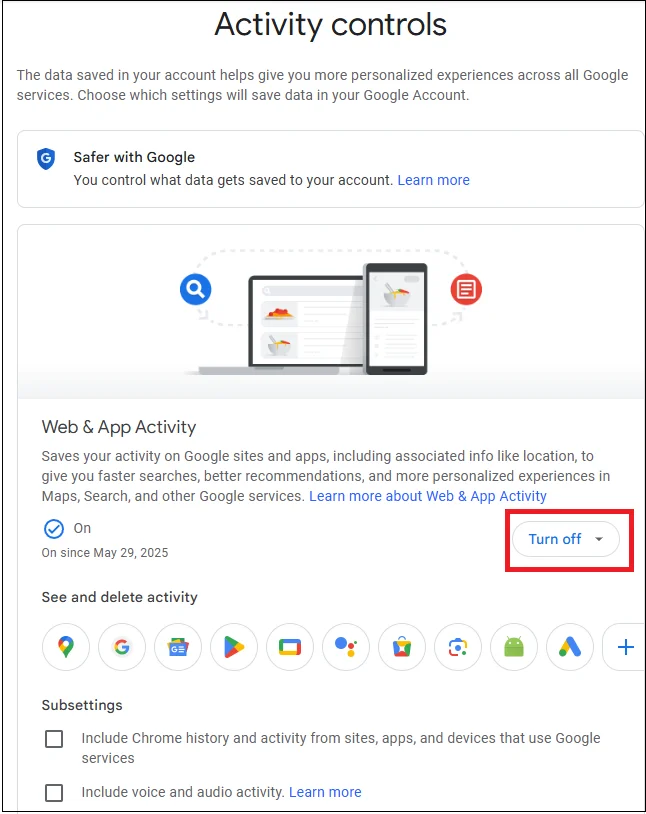
To review this setting, open your Google account dashboard and enter the Data and privacy section. From there, select Web and App Activity. You will see a clear option menu. Selecting Turn off stops future tracking across Google services. Selecting Turn off and delete activity stops tracking and removes saved data from Google servers.
If you prefer selective control, Google allows service level cleanup. You can choose a specific product such as Maps, Search, News, or Play. Each service shows a timeline of actions linked to your account. You can remove individual entries by selecting the delete icon next to each item.This view also includes Chrome browsing data, voice recordings, audio commands, and visual search records. Some of these options appear disabled by default for many users.
Google privacy settings also include automatic deletion tools. At the bottom of the Web and App Activity panel, you can select an auto delete option. Google offers three month, eighteen month, or thirty six month intervals. Any activity older than the chosen limit disappears automatically. This option reduces long term data buildup without constant manual cleanup.
From an editorial perspective, Web and App Activity matters because it feeds nearly every other Google system. Ads, recommendations, and personalization draw from this pool. Limiting it creates a visible shift in how Google treats your account.
Google Privacy Settings for Location History and Timeline Data
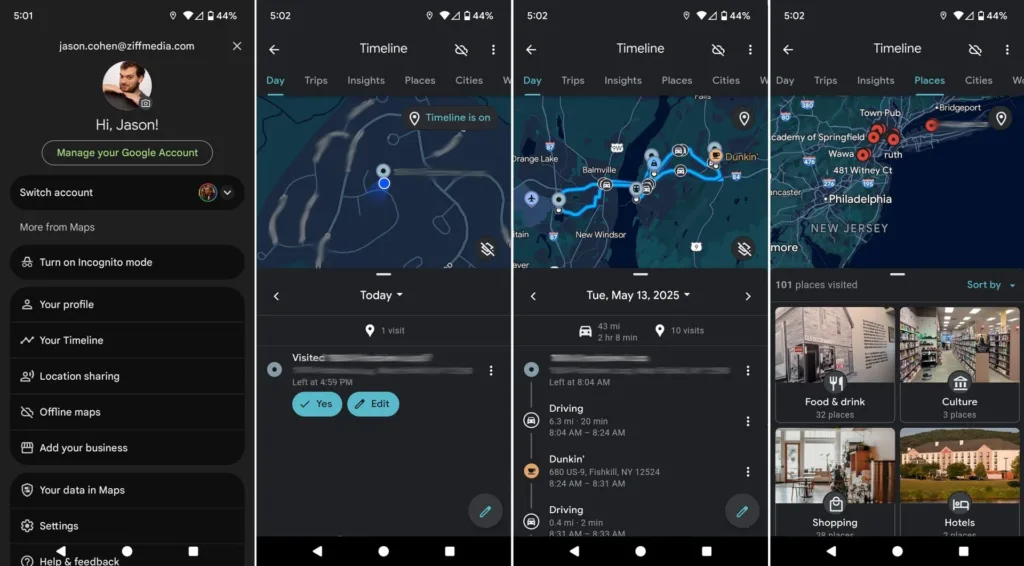
Location data sits among the most sensitive categories inside Google privacy settings. Google records where you go, how you travel, and how often you visit specific places. This information lives inside a feature Google calls Timeline.
Timeline displays a map view of your past movements. It can show daily routes, visited stores, and travel history across months. Many users do not realize how detailed this record becomes. At Squaredtech, we tested Timeline accounts that showed exact driving paths from years earlier.
Google recently changed how it stores Timeline data. Location history now stays on individual devices instead of full cloud sync by default. Google also applies automatic deletion after three months unless users adjust the setting. This change reduces risk, but it does not remove the need for review.
To manage Timeline, open the Google Maps app on your phone. Tap your profile icon and select Your Timeline. This screen shows your location history by date. In the upper corner, look for the cloud icon. If cloud backup is active, Timeline data syncs across devices. Squaredtech suggests disabling this unless you need cross device access.
Inside Timeline, you can edit or delete data easily. Select a specific day to remove the entire record. Select a single location to remove only that stop. These controls help clean sensitive visits without wiping everything. For deeper control, open the settings menu inside Timeline and select Location and privacy settings. You will see options that connect Timeline with other Google services. One example is Google Photos. Turning this off prevents photos from appearing inside your location history.
Device level location permissions also matter. On Android or iOS, Google Maps can access precise location all the time or only while using the app. Some users need constant access for features like location sharing. Others can restrict it without losing basic navigation. Timeline controls also include a Turn off option. This stops future location tracking and allows deletion of stored records. You can delete all Timeline data or choose a specific date range. Auto delete settings mirror Web and App Activity options with three month, eighteen month, or thirty six month choices.
Google privacy settings around location deserve careful attention because location data connects physical behavior with digital identity. Squaredtech views Timeline management as one of the strongest steps users can take to reduce data exposure.
Google Privacy Settings for Personalized Ads and Partner Access
Advertising sits at the center of Google business. Google privacy settings decide how much personal data influences the ads you see. Google combines search history, app use, video views, and location data to build ad profiles. These profiles decide which ads appear on Google Search, YouTube, and partner sites. Many users accept this by default without realizing they can turn it off.
To review ad controls, open your Google account and enter the Data and privacy section. Scroll to Personalized ads. This area controls how Google and its partners use your activity.
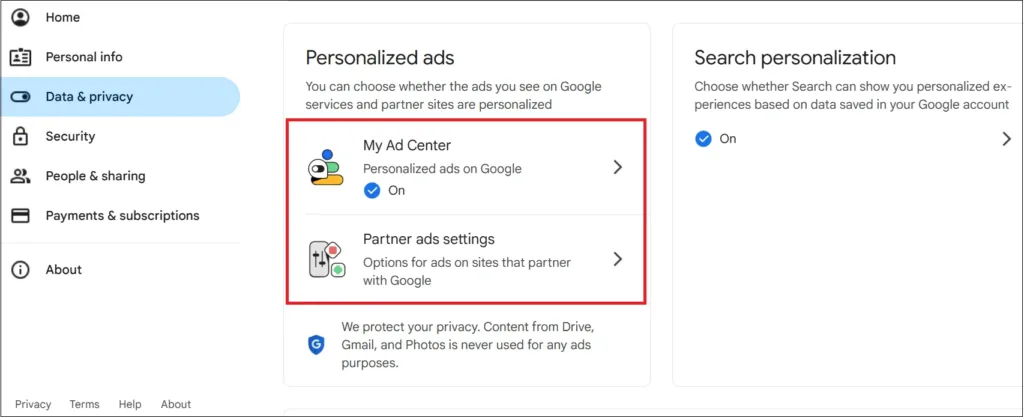
The first step is My Ad Center. Inside this panel, open the Personalized ads menu and select Turn off. This action removes saved ad preferences and stops Google from using account activity for ad targeting. However, this change only affects Google owned platforms. Under Personalized ads, select Partner ad settings. This option allows Google advertising partners to use your data for ad selection.
Disable partner access to prevent external companies from using Google collected data for targeted ads. This step reduces exposure beyond Google services and limits data sharing across the advertising network. After these changes, ads still appear. Google does not remove advertising entirely. Instead, ads rely on general context instead of personal behavior. For example, you may see ads related to page content rather than past searches.
From an analysis standpoint, ad controls matter because they define how data flows outside your account. Turning off personalization limits profiling depth and reduces how much behavioral history influences commercial messaging.
Why Google Privacy Settings Deserve Regular Review
Google privacy settings are not static. Google updates interfaces, policies, and defaults over time. A setting that was disabled last year may reappear with a new label or expanded scope. Regular review helps users stay aware of these changes. Squaredtech recommends checking Google privacy settings every few months. This habit takes little time and prevents silent data buildup.
Google provides clear dashboards, but clarity does not equal simplicity. Options spread across multiple screens and apps. Understanding how they connect makes a real difference. For users who value convenience, Google defaults may feel acceptable. For users who value control, adjusting these settings creates a more balanced relationship with the platform.
Taking control of Google privacy settings does not require abandoning Google services. It requires informed choices. With Web and App Activity limits, Timeline control, and ad personalization disabled, users keep functionality while reducing data exposure.
Stay Updated: Tech News