

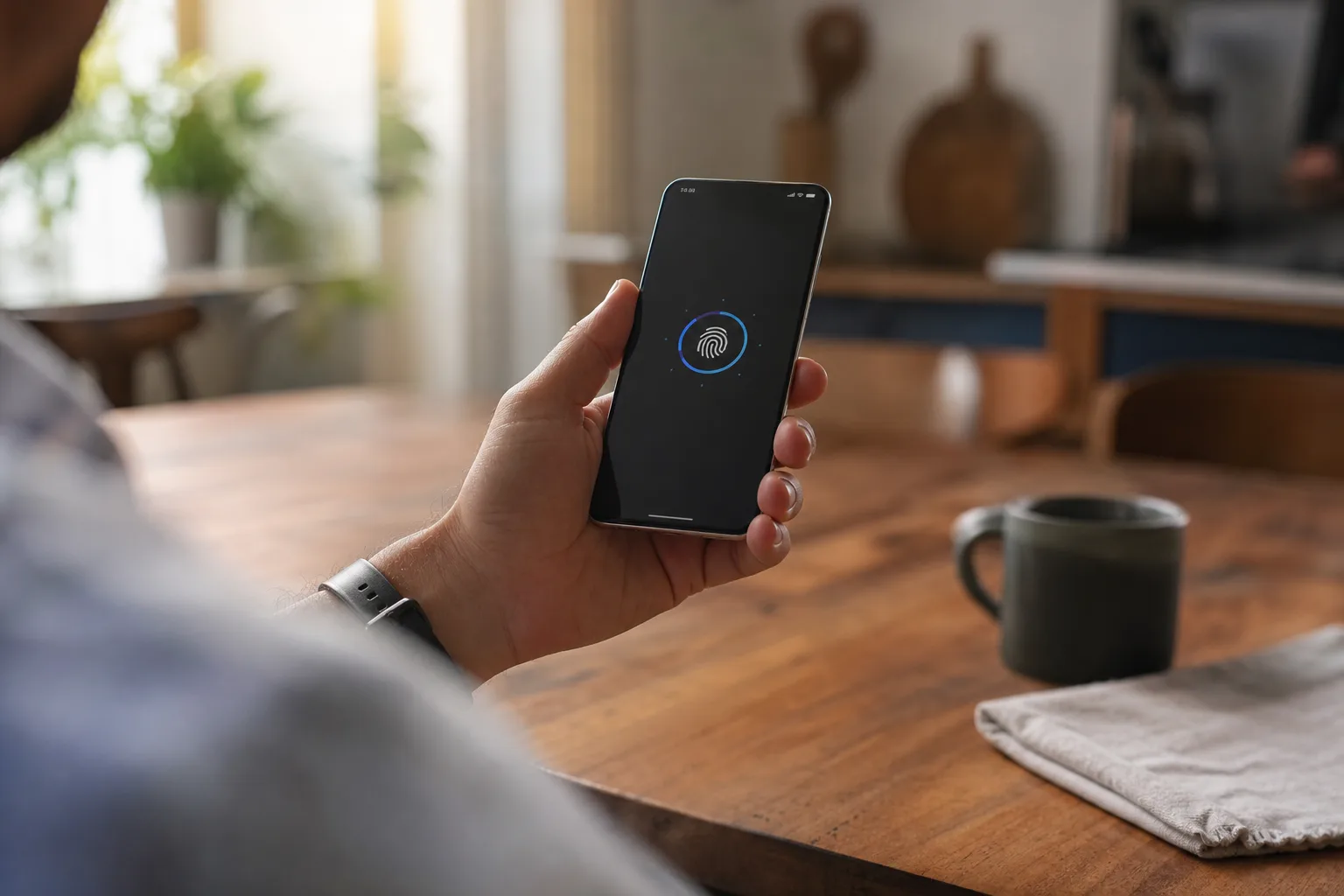
- Samsung App Lock is aimed at privacy for Galaxy owners.
- Samsung App Lock is ideal for protecting an existing app session, while Secure Folder creates a separate, more private app and data space.
- Settings menus and feature availability may vary by Galaxy model, software build, region, and Samsung’s staged rollout schedule.
- For banking, messages, and shared phones, app-level protection is a welcome convenience rather than a substitute for sound device security.
Table of Contents
Samsung App Lock finally handles the obvious privacy problem
Handing someone your phone for 30 seconds is one of modern life’s tiny acts of faith. They want to see a photo, make a call, or check directions, and suddenly your messages, banking app, work email, and photo library are one badly aimed thumb away. Samsung App Lock is Samsung’s long-overdue answer to that very ordinary problem.
The idea is blessedly simple: choose specific apps, then require biometric authentication or a device credential before they can open. That means a friend can use Google Maps without getting a free tour of your Signal conversations. It sounds basic because it is basic. Android phones have had versions of this capability through third-party utilities, manufacturer skins, work profiles, and private spaces for years. Samsung has instead pushed people toward Secure Folder, a capable but heavier tool.
My read is that Samsung App Lock fills the gap between locking the entire phone and setting up a second digital apartment inside it. Most people do not need a secret second copy of WhatsApp. They just want WhatsApp to stay shut when a child borrows the handset to watch a video.
How to set up Samsung App Lock
On Galaxy devices where the feature is available, begin in the Settings app and search for App Lock. Samsung’s settings layout has a habit of shifting across software versions and regions, so search is usually less frustrating than playing menu archaeology. The feature may also appear within the phone’s Security and privacy controls.
- Open Settings and search for App Lock.
- Turn the feature on and select the authentication method offered by your device, typically fingerprint, face verification, a PIN, pattern, or password.
- Pick the installed apps that should be protected.
- Open one of those apps to confirm that the lock screen appears and that your preferred biometric method works reliably.
That last step matters more than it sounds. A privacy setting that turns into a lockout at the grocery checkout is not privacy; it is an annoyance with good intentions. Make sure you remember the fallback credential, and consider whether face unlock is appropriate for apps that expose sensitive information. A fingerprint or PIN is generally the cleaner choice when you are trying to stop someone nearby from casually peering over your shoulder.
Samsung App Lock works best with apps whose normal contents you want to retain: your gallery, a social network, a payment app, a journal, or a messaging service. It protects access at the front door. It does not magically erase previews that already appear on the lock screen, nor does it prevent a logged-in service from sending notifications with sensitive text. Pair it with notification privacy settings if message previews are part of the concern.
Why Secure Folder remains the serious option
Samsung has not replaced Secure Folder, and frankly it should not. Secure Folder is built around Samsung Knox, the company’s security platform, and it creates a separated protected environment rather than merely adding another authentication prompt to an existing app. Samsung explains the feature in Secure Folder.
That difference changes how the two tools feel in daily use. With Samsung App Lock, you lock the copy of an app already sitting on your phone. Its existing account, files, and usual behavior remain in the standard device environment. With Secure Folder, you can install a separate instance of an app, sign into a different account, and keep its files within that protected area.
Think of App Lock as putting a keyed latch on a bedroom door. Secure Folder is closer to renting a small storage unit across town. The first is quick and convenient. The second takes more setup, but it is much better when the contents need separation.
Use Secure Folder if you maintain separate personal and professional accounts, want private photos and documents away from the main gallery, or need to reduce accidental exposure when you hand your phone to another person. It is also the sensible route for anyone who does not want a protected app’s files, downloads, and activity intermingled with the normal device profile.
The trade-off is friction. You may need to install an app again, sign in again, and consciously move files into the folder. Notifications can require their own thought. For some users that is exactly the point. For everyone else, it is overkill in the same way a deadbolt is overkill for a desk drawer.
Availability will matter more than the toggle
Finding the feature may be harder than using it. Galaxy rollouts are tied to model, carrier, geography, and software build. If App Lock does not appear in Settings search after an update, check that the phone has received the relevant build and avoid installing random lock-screen apps from the Play Store as a substitute.
Third-party app lockers often ask for accessibility permissions, notification access, or overlay privileges. Those are powerful permissions for software whose entire business is watching which apps you open. I would rather see Samsung solve this at the operating-system level, where it can use the device’s biometric hardware and security architecture without handing a tiny utility the keys to the house.
Samsung App Lock will not turn a Galaxy phone into a fortress. Someone with your device PIN may still have broad access, and a compromised phone has problems no app toggle can clean up. But for the normal, awkward realities of shared devices and borrowed phones, this is the right kind of feature: boring, obvious, and useful. Samsung took its time. Now the question is whether it will make App Lock a dependable standard across the Galaxy lineup instead of another setting only power users discover by accident.
Frequently Asked Questions
How do I turn on Samsung App Lock?
The source does not provide instructions for turning on Samsung App Lock.
Does Samsung App Lock hide an app from the home screen?
The source does not state whether Samsung App Lock hides apps from the home screen.
Is Secure Folder safer than App Lock?
The source does not compare Secure Folder and App Lock.