

Table of Contents
Scheduling a DM is useful when timing matters
Instagram is no longer just a photo-sharing app. For many people, the inbox has become part customer-service desk, part collaboration channel, part place for conversations that need a quick answer at the right moment. Its direct-message scheduling feature addresses a simple but real problem: you may know what needs to be said now, but not want it delivered now.
That distinction matters. A reminder sent too early can be forgotten. An announcement sent after an event begins loses its purpose. Promotional content arriving at an inconvenient time can feel careless rather than useful. Scheduling lets businesses, influencers, and everyday users prepare a message while they have the information and then choose when it should reach the recipient.
The feature is also a modest improvement to how people manage attention. Instead of setting an alarm, leaving a draft unfinished, or trying to remember to return to a chat later, you can place the message in Instagram’s scheduled queue. The message remains visible to you before it is sent, giving you a chance to reconsider the wording or cancel it if the situation changes.
Check Out Our Article of How to Delete Facebook, Instagram, and Threads: A Complete Guide Published on January 13, 2025 SquaredTech
How to schedule Instagram messages on Android
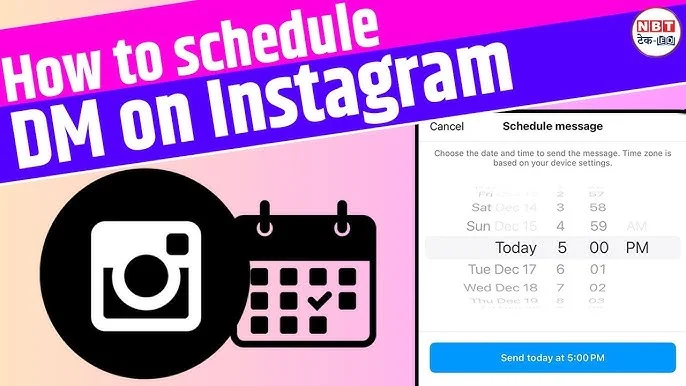
The Android process begins in the same place as an ordinary direct message: the Instagram app. The important action comes after you have written the message. Rather than tapping Send immediately, press and hold the paper airplane icon to bring up the scheduling option.
If you prefer to see the flow demonstrated, this YouTube video about scheduling a message on Instagram for Android accompanies the steps below.
- Open the Instagram app on your device.
- Tap the Messages icon in the top-right corner of your feed.
- Choose an existing chat or start a new one.
- Type your message in the input box.
- Tap and hold the Send button (paper airplane icon).
- A scheduling menu will appear.
- Select the date and time you want the message to be sent.
- Confirm your selection at the bottom.
- The scheduled message will appear in the chat under “Scheduled Messages” and will only be visible to you until sent.
That final detail is especially useful. A scheduled DM is not simply a message that has disappeared from view until later. Instagram keeps it associated with the relevant chat under “Scheduled Messages,” so the sender can check what is waiting. For anything time-sensitive, that extra visibility is preferable to treating scheduling as a set-and-forget tool.
How to schedule Instagram messages on iPhone
The iPhone workflow follows the same basic idea: open a conversation, write the message, then press and hold Send rather than sending it at once. The difference is less about strategy than the wording of the on-screen prompts. In either case, selecting the intended date and time is the point at which a draft becomes a planned delivery.
This YouTube video about scheduling a message on Instagram for iPhone provides a visual walkthrough.
- Open the Instagram app and log in to your account.
- Tap the Messages icon in the top-right corner of the home feed.
- Choose an existing chat or create a new one by tapping “New Message.”
- Type the message you want to send.
- Press and hold the Send button (paper airplane icon).
- A scheduling menu will appear.
- Choose the date and time for sending the message.
- Tap Confirm to finalize the scheduled message.
- You’ll receive a chat notification confirming the scheduled message.
Scheduling is best used for messages that can stand on their own. A reminder, announcement, or promotional note usually fits that description. A conversation that depends on an immediate reply often does not. The recipient may respond when you are unavailable, and circumstances can change between the moment you compose a message and the moment it leaves your inbox.
Review, delete, or edit a scheduled message before it sends
Planning ahead should not mean giving up control. A date changes, a campaign is revised, or a message that sounded fine earlier may need a different tone by the time you review it. Instagram gives you a route back to scheduled messages through the conversation itself.
- Open your direct messages.
- Go to the chat with the scheduled message.
- Tap the notification showing the number of scheduled messages (e.g., “1 scheduled message”).
- Find the message you want to delete or edit.
- Press and hold the message, then select Delete or Cancel Send.
That review step is not merely housekeeping. Scheduled messages can create a false sense of certainty: the task feels completed because the text has been written. But the message has not yet reached anyone. Checking the queue before a key announcement or reminder is due can prevent an outdated note from being sent at precisely the wrong time.
Why message scheduling has practical value
Scheduling Instagram messages helps organize communication without requiring you to stay online constantly. For businesses, it can support more deliberate outreach instead of hurried replies between other tasks. For influencers, it can help align a DM with a planned post, reminder, or announcement. For individual users, it can be as straightforward as making sure a message is not forgotten.
The benefit is not that every DM needs a schedule. Most direct messages are conversational and should remain spontaneous. The feature becomes valuable when the timing is part of the message itself. If a recipient needs information at a particular point, sending it then is more useful than composing it then.
There is also a difference between efficiency and impersonality. Scheduling can reduce repetitive work and make communications more consistent, but it does not replace judgment. Before confirming a message, consider whether it reads like something the recipient should receive at the chosen time. A concise reminder may work well. A message that needs context, an answer, or a human follow-up may be better handled directly.
Used with that restraint, Instagram’s scheduling option is a handy inbox tool rather than a marketing gimmick. It gives users a way to prepare communications in advance, choose their moment, and retain the ability to change course before the message is sent.
Stay Updated: Tech News