

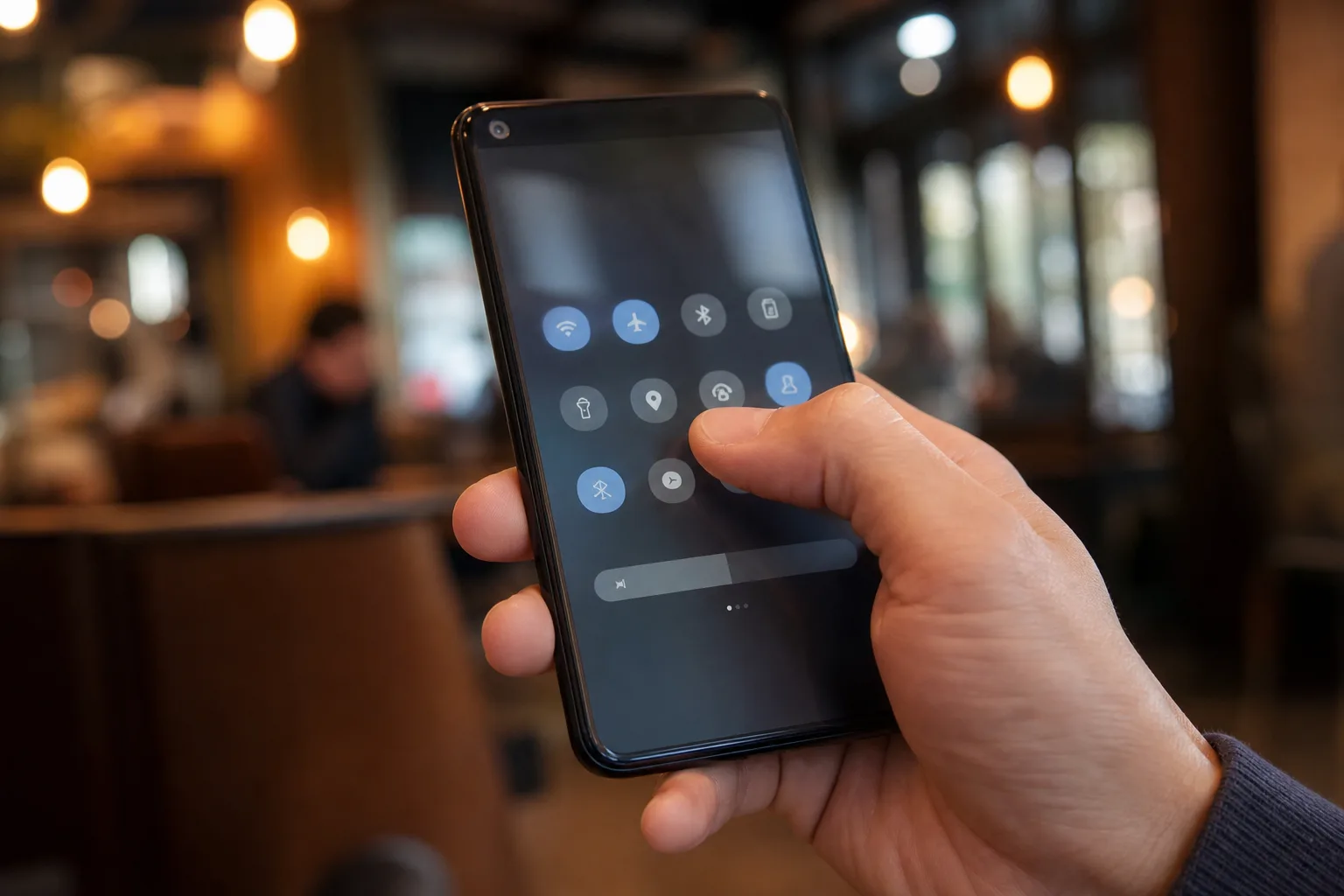
Most people treat Android Quick Settings as the place where Wi-Fi goes to die and Bluetooth goes to get resurrected when their earbuds refuse to connect. That undersells it badly. With a few deliberate changes, the panel you reach with one downward swipe becomes Android’s most practical control surface: the digital equivalent of keeping your keys, wallet, and transit card by the front door.
The stock arrangement on a new phone is rarely built for how anyone actually uses a phone. It tends to prioritize radios, casting, and vague ecosystem ambitions. Useful? Sometimes. But a tile earns prime real estate only if it removes steps from something you do often, especially when you’re in a hurry. Android Quick Settings works best when it reflects those habits rather than a manufacturer’s priorities.
If I were setting up a new phone, these are the six tiles I’d put near the top of the list. Availability varies between Google’s Pixel software, Samsung’s One UI, and other Android skins, so think of this less as a rigid prescription and more as a test of what your phone ought to make easy.
- Android Quick Settings becomes substantially more useful when its tile grid is built around tasks you perform without opening apps.
- The best Android Quick Settings tiles reduce friction for payments, smart-home controls, QR scanning, screen capture, and nighttime viewing.
- Tile availability varies by Android version, phone maker, region, and installed apps, so customization matters more than a universal checklist.
- A thoughtful Quick Settings layout can save more time than another home-screen widget because it is available almost anywhere.
Table of Contents
Android Quick Settings should be built around real interruptions
The smartest way to organize Android Quick Settings is to consider the moments when opening an app feels like needless paperwork. You’re standing at a café counter. You need to show somebody how to change a setting. The bedroom is dark and your screen suddenly feels like a floodlight. Your doorbell camera pings while you’re cooking.
Those situations are why the panel exists. A feature that needs three menus and an app launch may be powerful, but it is not quick. Android has steadily expanded the panel’s capabilities, and available controls can make the panel more useful. The trick is resisting the temptation to fill every empty slot.
Put your most frequent controls in the first visible row. Anything you use weekly can live one swipe deeper. Everything else is clutter.
1. Wallet is the payment shortcut that belongs up front
The Wallet tile is an easy pick for anyone using Google Wallet, though Samsung Wallet users will want to check what their phone exposes. Contactless payments are now mundane enough that the technology has almost disappeared into the background, which is exactly the point. A dedicated tile means you can bring up a payment card, loyalty pass, boarding pass, or transit credential without hunting for the right app.
On many phones, double-pressing the power button already opens a wallet. Great. Keep that enabled. But a tile still makes sense when you want to choose a card or pull up a pass rather than immediately pay. Redundant shortcuts are not wasteful when they match different situations; your kitchen has both a light switch and a lamp for a reason.
2. QR scanner saves you from the camera-app detour
QR codes survived their supposedly temporary pandemic boom because they solve an annoyingly common problem: getting a phone to a specific digital destination without typing anything. Restaurant menus are the obvious example, but Wi-Fi sharing, transit systems, event tickets, account logins, and product setup screens all use them.
A QR scanner tile in Android Quick Settings is better than relying on the Camera app because it makes the intent explicit. Swipe down, tap, scan, done. No wondering whether your camera will recognize the code quickly, no opening Lens by accident, no detour through a search result.
Frankly, this is one of those tiny quality-of-life choices that sounds trivial until you have it in place for a month.
3. Device Controls makes smart homes less app-shaped
Smart-home apps have an unfortunate habit of assuming you’d love to browse a miniature dashboard every time you want to turn off a lamp. You do not. Android’s Device Controls tile can surface connected accessories such as lights, plugs, locks, thermostats, and cameras, depending on which services your phone and hardware support.
That matters because smart-home convenience disappears the moment it takes longer than walking over to the switch. If your living room lights, door lock, or heating controls can be reached from Android Quick Settings, the phone begins to act like a real household remote rather than a portal to six competing apps.
There is a caveat. Review lock-screen access carefully, particularly for locks, garage doors, and cameras. Convenience has a habit of quietly becoming a security decision.
4. Extra Dim is for when dark mode still isn’t dark enough
Every modern phone has a brightness slider. That does not mean the lowest setting is comfortable in a dark room. Extra Dim applies an additional software layer that reduces perceived brightness further, and it is especially useful at night, in cinemas, or during those unfortunate middle-of-the-night wake-ups when you only meant to check the time.
It won’t replace Android’s Night Light setting, which adjusts color temperature, and it cannot change the physical limitations of a display. Still, the two controls address separate irritations. Night Light takes the blue edge off; Extra Dim stops your phone from illuminating the entire bedroom like a refrigerator door left open at 3 a.m.
This tile is a better candidate for Android Quick Settings than many people realize because it is situational. You do not need it constantly. You need it instantly.
5. Screen Record turns support requests into proof
Screen recording is one of Android’s underappreciated built-in tools, and Android Quick Settings makes it easy to start when evidence matters. It is useful for capturing a glitch before it disappears, documenting an app workflow, making a quick tutorial for a relative, or sending a developer evidence that a bug is real. Screenshots show a moment; video shows the sequence that caused it.
Keeping the Screen Record tile handy also avoids downloading a third-party recorder with a questionable privacy policy. Before recording, Android typically offers options for device audio and microphone audio. Check what you are about to capture, particularly if messages, account details, or other people’s voices could appear.
For work, this is the tile that ends the dreaded sentence: “I can’t reproduce it.”
6. Internet deserves a place even if it looks boring
The Internet tile may be the least glamorous recommendation here, but it is also the one I use most. It gives you a fast route to Wi-Fi networks and mobile data controls when a connection gets flaky, a captive portal refuses to appear, or you need to stop your phone from clinging to a weak network.
Android’s connectivity controls have changed across versions, sometimes controversially. The argument over whether that is cleaner or more cumbersome will probably outlive us all. In daily use, though, the tile remains the fastest way to answer a very basic question: why does nothing load?
If you travel, work from cafés, tether a laptop, or manage unreliable home Wi-Fi, give it a first-page slot in Android Quick Settings.
Make the panel yours, not Google’s
There are other worthy candidates. Flashlight is indispensable for plenty of people. Nearby Share, now branded Quick Share across much of Android, is handy for moving files. Bedtime Mode, hotspot controls, and a VPN tile can be genuinely useful depending on your routine. Samsung owners may find modes and routines more valuable than Google’s Device Controls implementation. That is the beauty of the system: Android does not have to impose one answer.
But the best Android Quick Settings layout is not a showcase of every feature your phone has. It is a small set of escape hatches for recurring friction. Start with these six, live with them for a week, and notice what you tap when you are rushed.
That behavior is the only metric that counts. Phone makers keep adding headline-grabbing AI buttons and ambient assistants, yet the humble swipe-down panel may still be the most honest measure of whether Android respects your time.
Frequently Asked Questions
How do I customize Android Quick Settings?
Swipe down twice from the top of the display to open the full panel, then tap the edit control, often shown as a pencil icon. From there, most Android phones let you drag available tiles into the active area and reorder them to suit your routine.
Why are some Android Quick Settings tiles missing?
Tiles depend on the Android release, the manufacturer’s software, your region, and installed apps. Samsung, Google, OnePlus, and other brands expose different controls, while apps such as Google Wallet or smart-home platforms may add tiles only after setup is complete.
Does the screen recorder tile capture internal audio?
On many recent Android phones, the built-in recorder can capture device audio, microphone audio, or both. The exact choices differ by manufacturer, and some apps may block recording of protected video or audio for rights-management reasons.
Is Google Wallet available from the lock screen?
Many Android phones can show Wallet as a lock-screen shortcut or through a Quick Settings tile, but the behavior depends on phone settings and security rules. You may still need to unlock the phone before viewing sensitive payment cards or completing a transaction.