

There’s a feature sitting quietly inside your iPhone’s Settings that Apple has barely mentioned since it shipped with iOS 17 — and it might be the smartest, most practical solution to one of modern parenting’s genuinely thorny tech problems. iPhone Assistive Access was designed for people with cognitive disabilities. But as parents across the world grapple with whether to hand their primary-school kids a smartphone, it turns out this overlooked accessibility tool might be the best kids’ dumb phone setup available — and it costs absolutely nothing extra.
- iPhone Assistive Access, buried in iOS Settings, converts any spare iPhone into a locked-down kids phone with no browser.
- Unlike standard Screen Time controls, iPhone Assistive Access blocks all web links in messages — no known workaround exists.
- Apple originally designed the feature for users with cognitive disabilities, launching it quietly with iOS 17.
- The setup costs nothing and works with any old iPhone, giving kids Maps and Find My without open internet access.
Table of Contents
The Problem Every Parent Faces Right Now
The scenario is familiar to millions of families: a child is old enough to walk to school alone or meet friends across town, but far too young to have unsupervised access to the internet and social media. A classic Nokia-style dumb phone solves the ‘call me when you arrive’ problem, but falls apart the moment a kid needs Google Maps to find a bus stop or a parent wants to ping their location via Find My. What you actually need is a smartphone that behaves like it isn’t one.
Apple’s own Screen Time parental controls feel like the obvious answer, but they’re riddled with holes. Blocking Safari doesn’t block the web — children quickly figured out that a friend can text them a link, which opens in a browser regardless of restrictions. Third-party apps like Dumb Phone for iOS or the Minimalist Phone app for Android exist to fill this gap, but they charge a subscription fee for the privilege of removing functionality from a device you already own. That’s a logic that’s hard to swallow. iPhone Assistive Access sidesteps this problem entirely, and it’s free.
What iPhone Assistive Access Actually Does
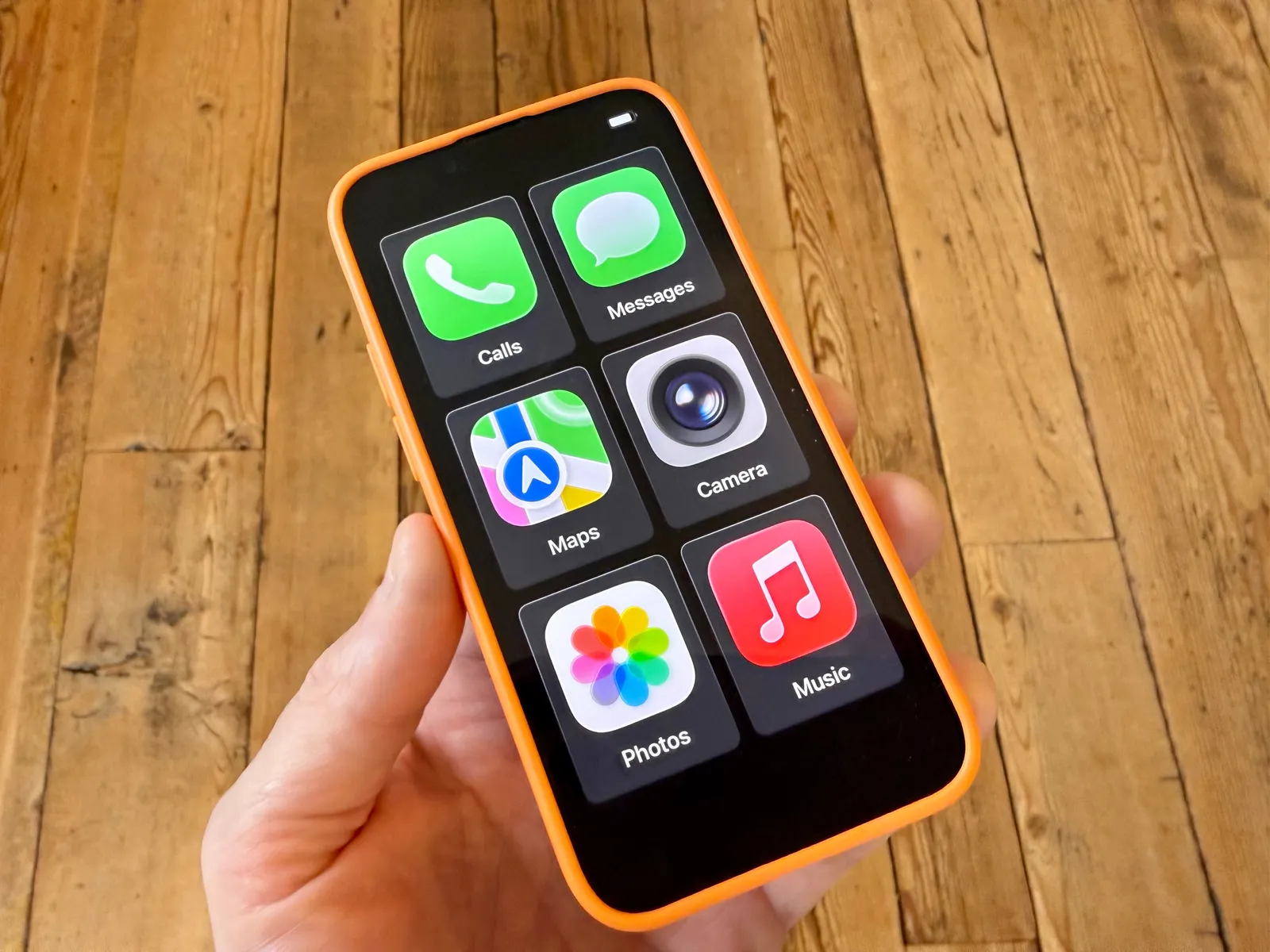
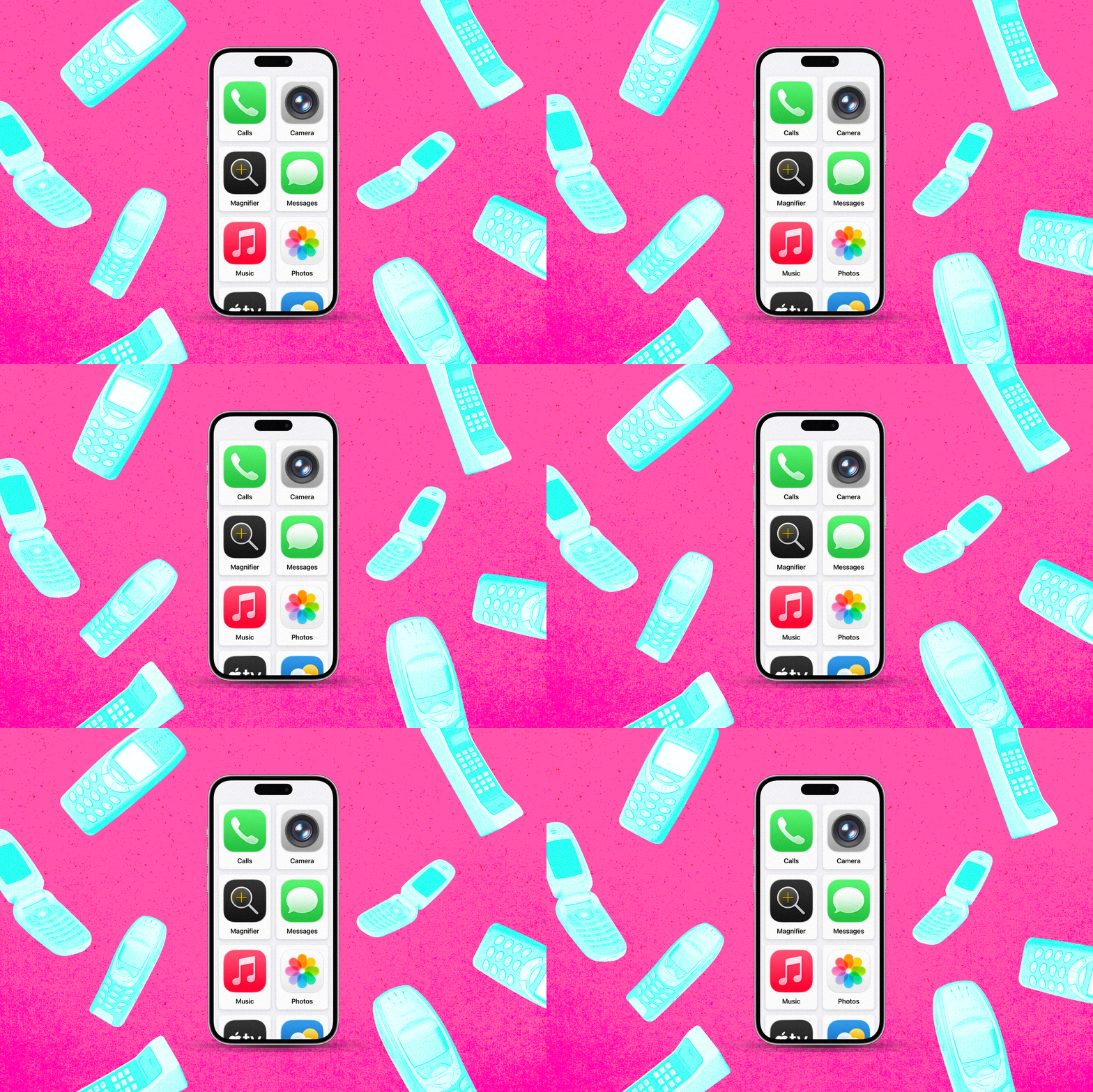
iPhone Assistive Access replaces the standard iOS interface with a simplified, tile-based layout — large, friendly icons on a grid that make it easier for users with cognitive disabilities to navigate their device. Apple introduced it with iOS 17, and the design is deliberately stripped back: fewer distractions, more focused features, and an aesthetic that, as a side effect, happens to look exactly like what you’d want for a child’s first phone.
The critical difference between this and Screen Time is what happens at the system level. In iPhone Assistive Access, any link that arrives in a Messages conversation is rendered as plain text. It can’t be tapped. It goes nowhere. The system is built to prevent accidental navigation away from the simplified interface — a design goal that, for parents, is basically a gift. Where Screen Time restrictions sit on top of iOS and can be worked around, iPhone Assistive Access operates deeper in the stack. There is no known workaround for a child to exit the mode without the dedicated four-digit Assistive Access passcode.
Internet access is off by default. You only get it if you deliberately add a browser to the approved app list. That’s the opposite of how every other parental control system works, and it’s a genuinely better approach.
How to Set Up iPhone Assistive Access for a Child
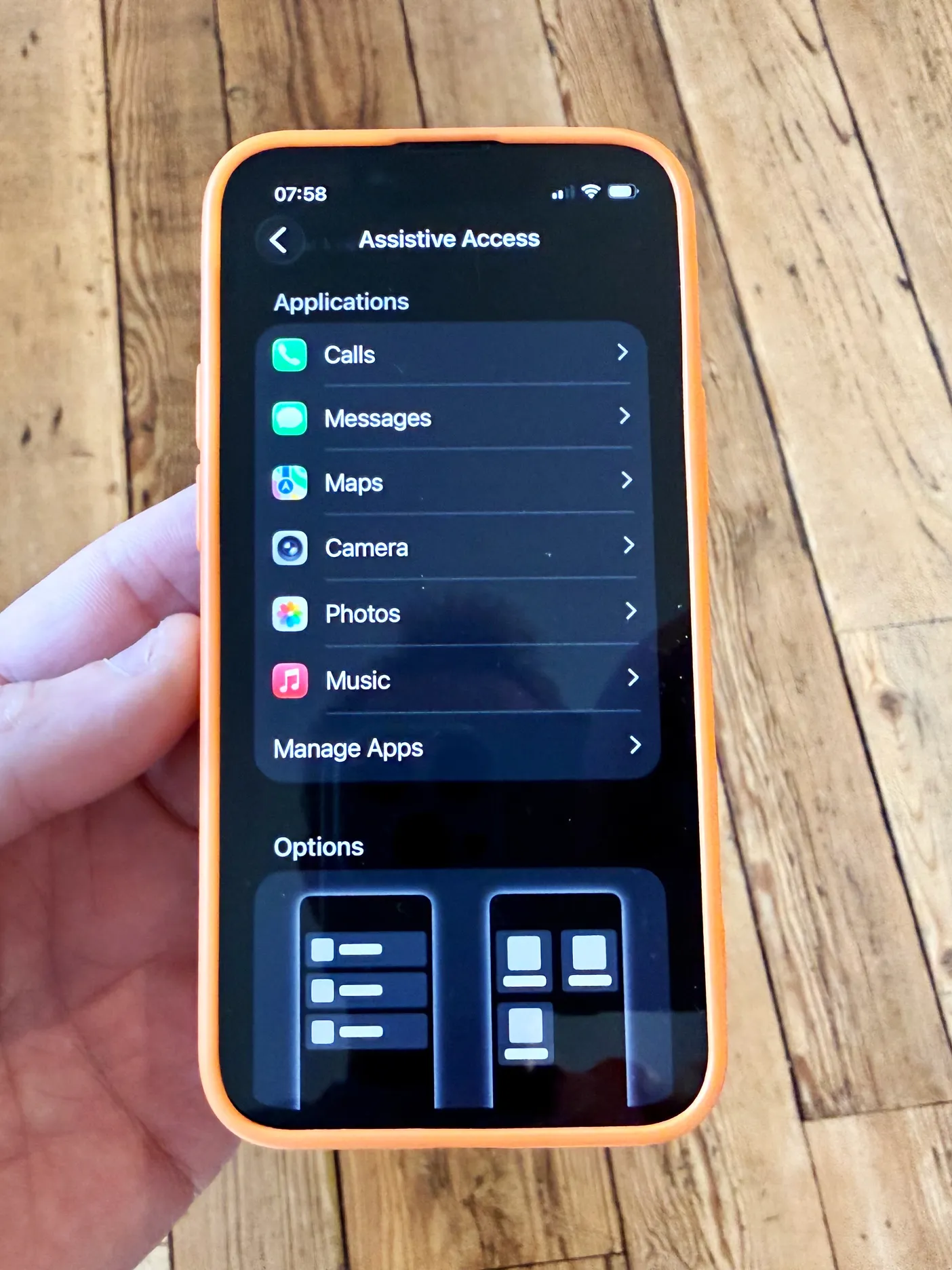
The setup process is straightforward once you know where to look. Head to Settings → Accessibility, scroll all the way to the bottom to the General section, and tap Assistive Access. Hit ‘Set Up Assistive Access’ and follow the prompts. You’ll choose between a row or grid layout — go with grid for the large, tile-based icons. Then comes the important part: selecting which apps to allow.
This is where iPhone Assistive Access separates itself from everything else. You build the phone from scratch. Add Calls and Messages if you want the child to communicate — and when you do, you configure exactly who they can contact or receive calls from: everyone, contacts only, or a handpicked list of favourites. You can even decide whether the keypad or speaker is available during calls. Add Maps and they get navigation. Add Camera and they get photos and video calls. Add Music and you pre-approve which playlists are accessible. Leave Safari off the list and the web simply doesn’t exist on this device.
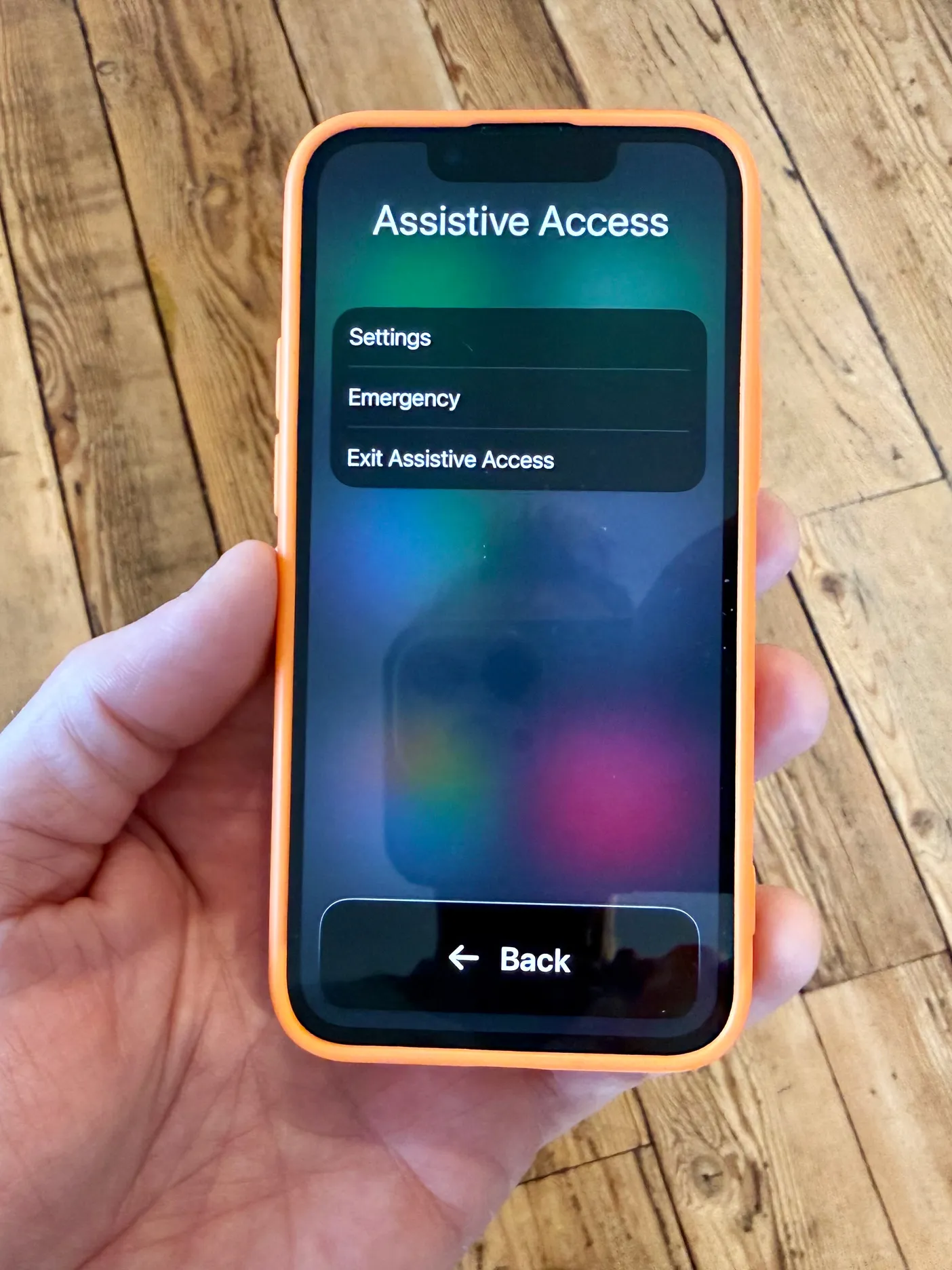
Small details are configurable too: whether the time shows on the lock screen, how notifications appear, whether the mute switch does anything. Once you’re satisfied, you set the iPhone Assistive Access passcode — separate from the device passcode — which is what you’ll need to enter when triple-clicking the side button (on Face ID phones) or Home button (on Touch ID models) to drop back into the full iOS interface.
A lean but practical setup for a young child might include Calls, Messages, Maps, Camera, Photos, and Music. That’s it. Six apps, no browser, full location tracking via Find My, and the ability to FaceTime home. An old iPhone 13 sitting in a drawer becomes, at zero additional cost, a more capable and more controlled device than anything in the dedicated kids’ phone market.
iPhone Assistive Access vs the Alternatives
The dedicated kids’ phone market has expanded considerably in recent years. Devices like the Gabb Phone are purpose-built to give children calls and texts without internet access, and they’re genuinely well-made products. But they start at around $100 for hardware, plus a monthly plan — and they sit outside whatever ecosystem your family already uses. No Find My. No FaceTime. No Apple Watch pairing.
The Screen Time approach, meanwhile, has always been porous. Apple has improved it over successive iOS versions, but the fundamental architecture means restrictions live at the app layer rather than the system layer. Workarounds spread between schoolchildren like playground gossip. Parents who’ve spent an hour locking down a device find it circumvented within a week.
iPhone Assistive Access doesn’t have that problem. It wasn’t designed as a parental control — it was designed so that a person with a cognitive disability could use a smartphone safely and without confusion. The security properties that serve that use case (no accidental navigation, no unexpected web access, a locked interface that requires a passcode to exit) happen to map almost perfectly onto what parents need. That’s a lucky accident of design, and it’s a significant one.
The Catch — and Why It’s Smaller Than You’d Think
Nothing is perfect. iPhone Assistive Access does have a few rough edges worth knowing about. The interface, designed for simplicity, is less polished than standard iOS — don’t expect your child to find it as slick as what their friends are using. The Music app only surfaces pre-approved playlists rather than giving access to a full library, which could frustrate older kids. And because the feature is primarily aimed at accessibility use cases, Apple’s own documentation on it is sparse; don’t expect robust support resources if something behaves unexpectedly.
There’s also the longer-term question of what happens as a child grows. But that’s actually where iPhone Assistive Access gets interesting rather than limiting. It’s not a static setup. Adding Wallet so a child can use Apple Pay with a connected junior account is a single tap. Dropping in Spotify or a game down the line is just as easy. The configuration can scale with the child’s age and the parent’s comfort level, which no dedicated kids’ phone on the market can credibly claim.
Why Apple Should Be Talking About This More
The fact that iPhone Assistive Access exists as the most effective free parental control on iOS — and that Apple doesn’t appear to market it as such — is a genuine missed opportunity for the company. At a time when Apple is facing real public pressure over children’s smartphone safety, when legislators in the UK, US, and Australia are actively debating screen time regulations for minors, and when rival Android manufacturers are making noise about family-friendly features, Apple is sitting on a tool that largely solves the problem and pointing people toward Screen Time instead.
That might change. Apple has been steadily expanding Screen Time capabilities with each iOS release, and iOS 18 brought further refinements to communication limits and downtime scheduling. But none of those additions address the fundamental browser-bypass problem that iPhone Assistive Access sidesteps entirely. Until Apple either patches Screen Time at a deeper system level or explicitly positions iPhone Assistive Access as a parental tool, parents willing to find it themselves will be the ones who benefit — while everyone else keeps paying for third-party apps to do a worse job.
The kids’ phone problem isn’t going away. If anything, as social media age-verification laws tighten globally and schools ban devices more aggressively during the day, the demand for a phone that is simultaneously smart enough to be useful and locked down enough to be safe is only going to grow. Apple already has the answer. It just hasn’t told anyone yet.
Frequently Asked Questions
What is iPhone Assistive Access and how does it work for kids?
iPhone Assistive Access is an iOS 17 accessibility feature that replaces the standard interface with large, tile-based app icons and limits the device to only the apps a parent approves. It blocks web browsing by default and treats links in messages as plain text, making it a strong parental control option.
Can kids bypass iPhone Assistive Access like they can Screen Time?
Unlike Screen Time restrictions, iPhone Assistive Access has no known workarounds. It operates at a deeper system level, preventing navigation to standard iOS Settings or system UI layers entirely. Only someone with the dedicated four-digit Assistive Access passcode can exit the mode.
Which iPhones support Assistive Access?
Assistive Access is available on any iPhone running iOS 17 or later, including older models. You exit the mode by triple-clicking the side button on Face ID devices or the Home button on Touch ID iPhones, then entering the passcode.
Does iPhone Assistive Access block all internet access?
By default, Assistive Access turns off internet browsing entirely. It only allows internet access if you specifically add a browser or web-enabled app to the approved list. Links sent via Messages are treated as plain text and can’t be tapped to open a browser.
How do you set up iPhone Assistive Access for a child?
Go to Settings, tap Accessibility, scroll to the bottom and select Assistive Access, then tap Set Up Assistive Access. Choose a grid or row layout, select which apps to allow, configure contact permissions, and set a unique four-digit passcode to lock the configuration.