

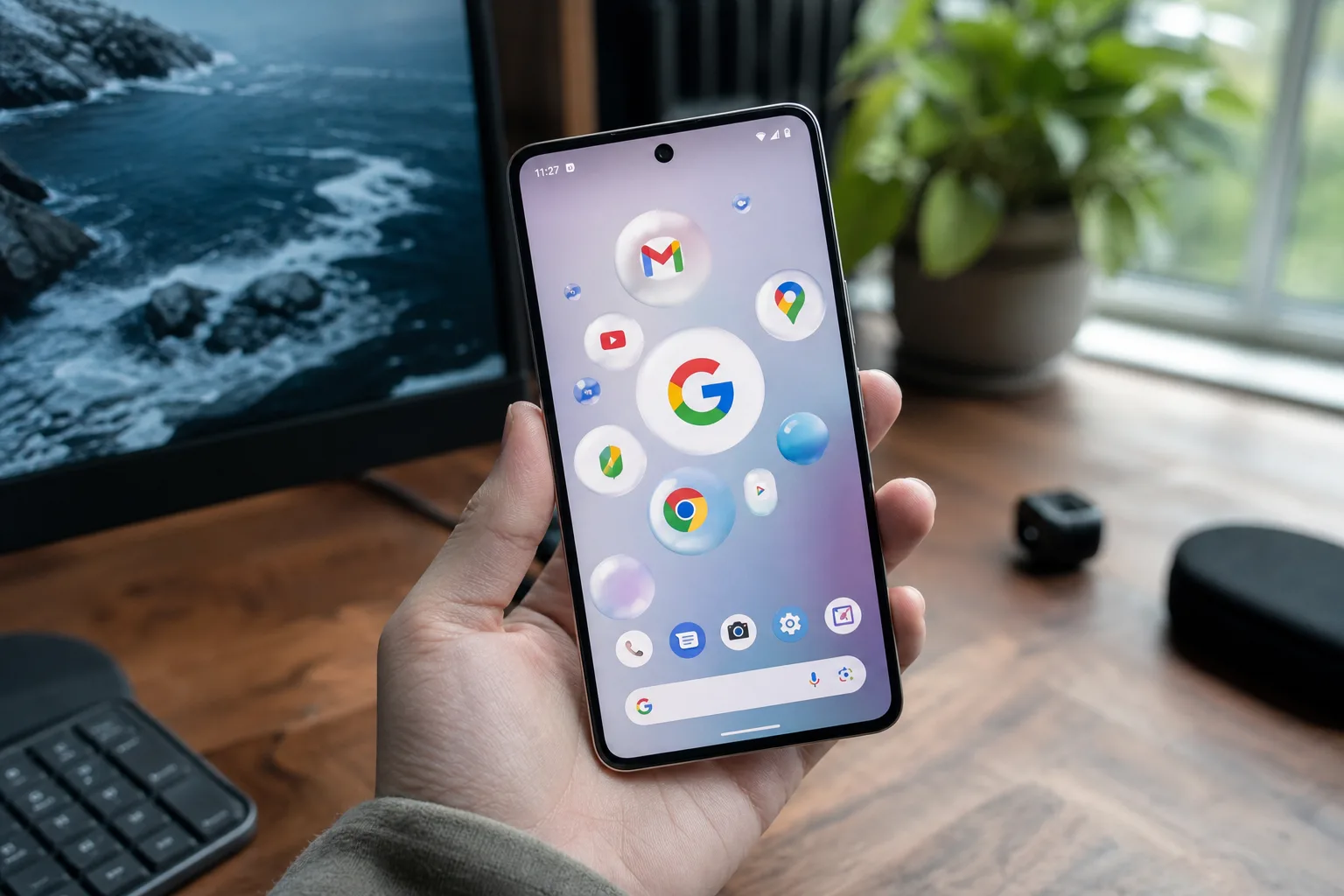
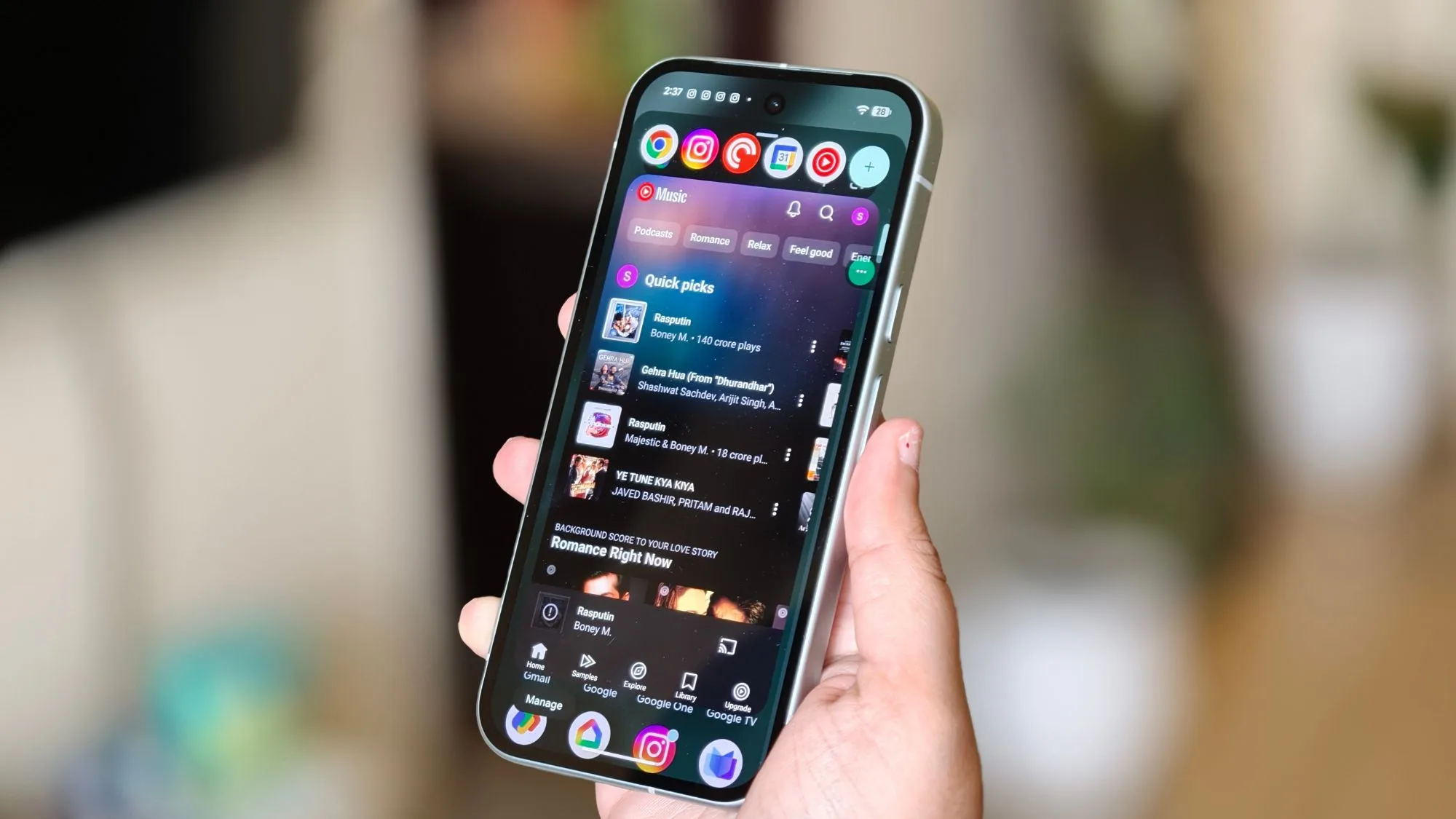
Android 17 app bubbles have quietly become one of the most talked-about additions in Google’s latest major OS release — and after spending time with the feature on the Pixel 10a, it’s easy to see why. What sounds like a small cosmetic tweak turns out to be a genuinely different way to navigate a phone.
- Android 17 app bubbles are now live in the stable release, letting Pixel users float up to five apps in a persistent overlay.
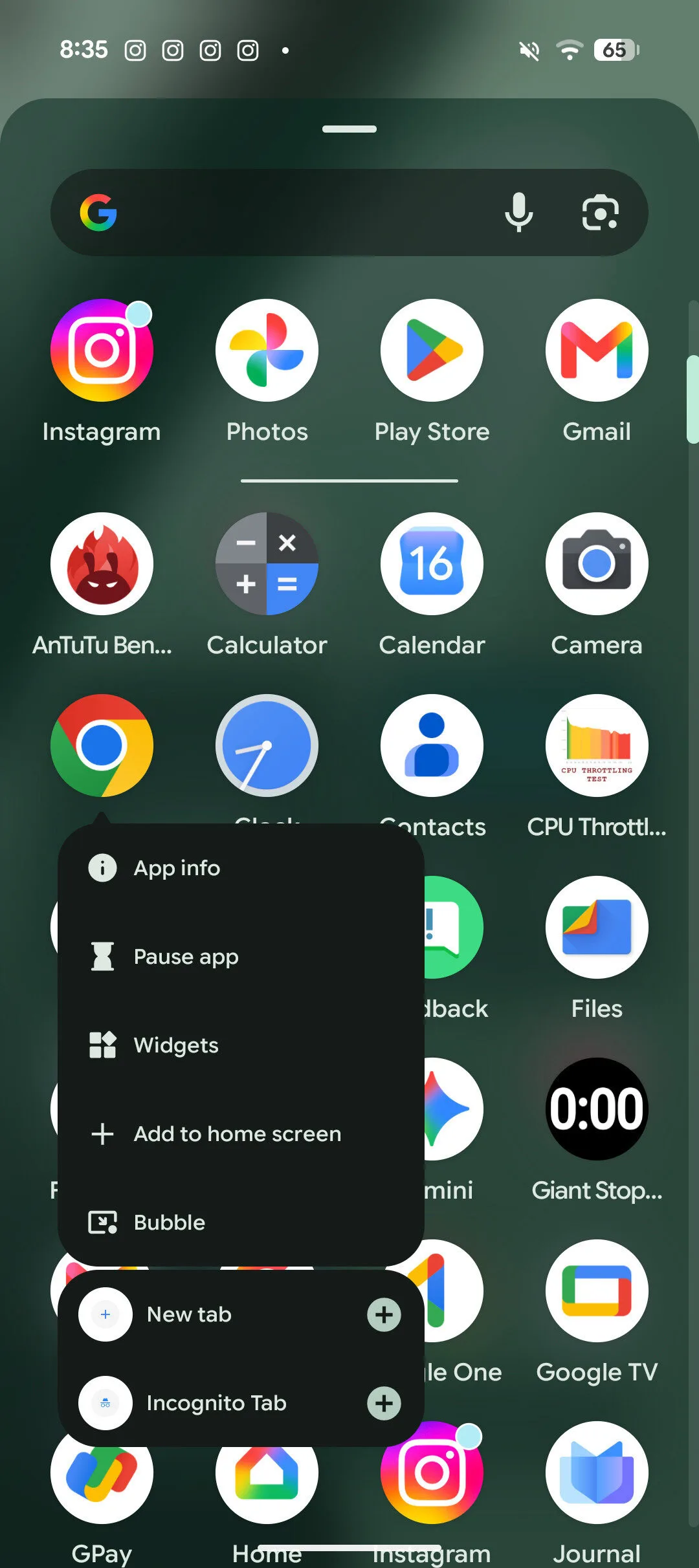
- Setting up Android 17 app bubbles takes seconds — long-press any app in the drawer and tap Bubble from the pop-up menu.
- The five-bubble limit means you’ll need to be deliberate about which apps earn a spot in your floating tray.
- Google’s bubble system echoes Facebook’s Chat Heads from years ago, but extends the idea well beyond just messaging.
Table of Contents
What Are Android 17 App Bubbles?
If you used Facebook Messenger back in 2013, the concept will feel familiar. Facebook’s ‘Chat Heads’ floated contact avatars over whatever else you were doing on your Android phone — a persistent, draggable bubble that let you drop into a conversation without fully switching apps. Google tried something similar with a Bubbles API introduced in Android 11, but adoption was patchy and the experience never felt polished enough to matter.
Android 17 changes that calculus entirely. This isn’t a developer-facing API quietly sitting in the background — it’s a first-class system feature built into the launcher itself, available to every app in your drawer without needing any developer opt-in. The difference in scope is significant.
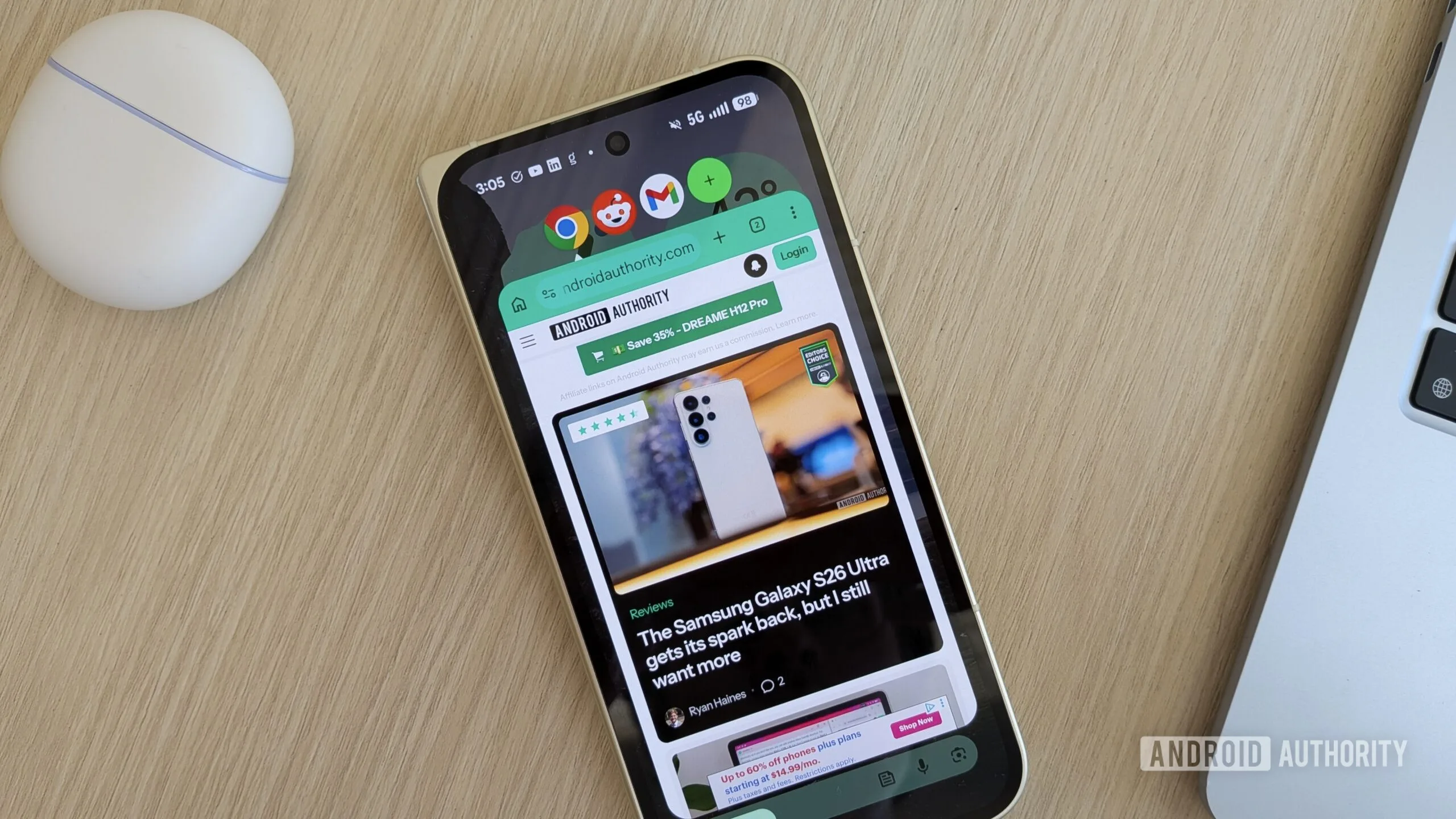
Rather than individual bubbles per contact or conversation, Google has taken a broader approach: you pick the apps that matter most to you, float them as compact bubbles, and the OS groups them into a persistent panel. It’s multitasking without the overhead of split-screen, and without the constant back-and-forth of the recent apps switcher.
How to Set Up Android 17 App Bubbles on Your Pixel
The setup process is genuinely one of the least fussy things you’ll do on your phone. Once you’re running the stable Android 17 update, here’s the full flow:
- Open your app drawer.
- Long-press the app you want to convert into a bubble.
- Tap Bubble from the pop-up context menu that appears.
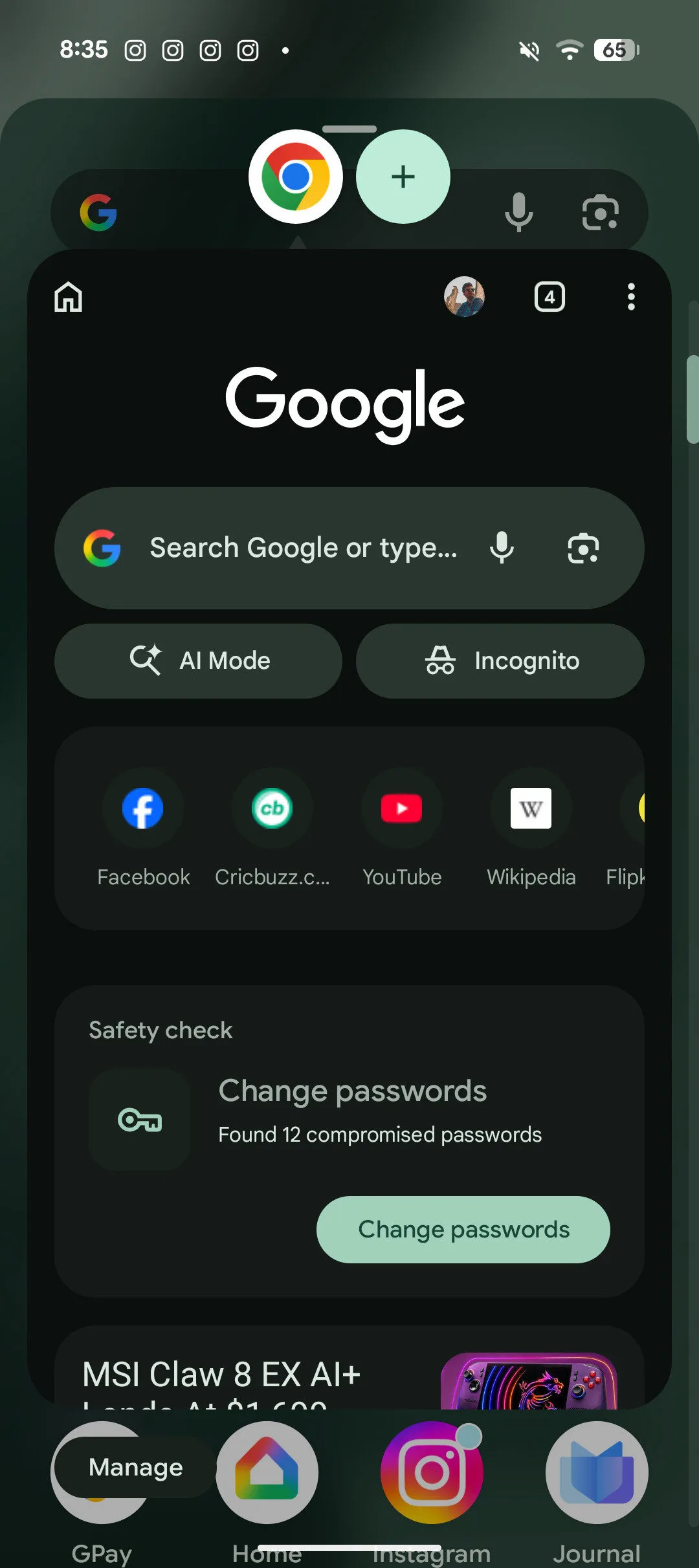
- The app immediately shifts into a compact floating view.
- Repeat for any other apps — the system will start grouping them into a bubble panel automatically.
- If auto-grouping doesn’t kick in, tap the + icon in the bubble panel and add them manually from your home screen.
One hard limit worth knowing upfront: Android 17 app bubbles max out at five. Try to add a sixth and the newest bubble will bump out one of the existing ones. Google hasn’t offered a setting to change this cap, so you’ll need to be intentional about which apps earn real estate in your floating tray.
Why This Matters for Small-Screen Pixel Phones
There’s a real tension at the heart of the Pixel 10a and phones like it. Google has leaned into making the 10a an accessible, reasonably priced option — but a more compact screen naturally squeezes your multitasking options. Split-screen works in theory, but squinting at two half-size app windows on a smaller display isn’t anyone’s idea of productivity.
Android 17 app bubbles sidestep that problem rather than solving it head-on. Instead of dividing the screen, you keep one app front and center while the others float nearby, accessible with a single tap. It’s a much more natural rhythm, particularly for the apps people constantly dip in and out of — messaging, email, music controls.
For context, Samsung has offered a similar concept through its ‘Edge Panels’ on Galaxy devices for years, and the company’s pop-up view feature predates Android 17 by a wide margin. But Samsung’s implementation has always felt like a power-user feature buried in settings menus. Google’s version is visible, discoverable, and takes about thirty seconds to configure. That accessibility gap matters enormously for mainstream adoption.
Building a Bubble Setup That Actually Works
The feature’s flexibility is what makes it stick. A reasonable starting point for most people would be a messaging app like WhatsApp or Telegram, an email client, a music player for quick playback controls, and whatever social or news app you check most compulsively. That’s your four core bubbles, with one slot in reserve.
The limit of five is actually a useful forcing function. It stops you from turning the bubble panel into a second app drawer and nudges you toward identifying which apps genuinely benefit from instant access versus which ones you’re happy to launch normally. YouTube, for instance, earns a bubble specifically because you want to pause or skip a track without fully surfacing the app — not because you’re watching anything at length.
Slack is another strong candidate for anyone working in a team environment. The nature of Slack is that you’re never really done with it — you’ll glance at it, respond, and want to get back to something else immediately. That’s precisely the use case Android 17 app bubbles were built for.
Android 17 App Bubbles in the Wider Context of the Update
Bubbles are drawing the most attention right now, but they’re arriving alongside a broader set of Android 17 changes that Google has been rolling out through the beta programme since earlier this year. The update touches adaptive refresh rate behaviour, improvements to the notification system, and several under-the-hood privacy refinements.
What’s interesting about the bubbles feature specifically is that it represents Google making a usability bet rather than a technical one. This isn’t about processing power or AI integration — it’s a straightforward rethinking of how you navigate between the handful of apps that run your day. Those kinds of changes are often the ones that age best.
The stable Android 17 rollout is now live for Pixel devices, with broader Android hardware to follow as manufacturers push their own builds. If app bubbles are any indication of the care Google put into the rest of this release, it’s shaping up to be one of the more substantive Android updates in recent memory — not because of any single headline feature, but because the small things finally feel finished.
Frequently Asked Questions
How many apps can I add with Android 17 app bubbles?
Android 17 app bubbles support a maximum of five apps at once. If you try to add a sixth, it automatically replaces one of the existing bubbles. The source does not mention any way to override this cap.
Do I need a Pixel phone to use Android 17 app bubbles?
Android 17 app bubbles are part of the stable Android 17 release rolling out broadly to all Android users, not a Pixel-exclusive feature. However, Pixel devices were among the devices highlighted in early coverage of the update.
Can any app be turned into a bubble on Android 17?
Apps accessible through the app drawer can be turned into a bubble by long-pressing the app icon and selecting the Bubble option from the pop-up menu. The source does not provide information about which specific apps may or may not fully support the floating view.
What happens if app bubbles don’t group automatically?
If Android 17 doesn’t automatically group your bubbles into a panel, you can manually add them using the plus icon in the app bubbles panel at the top of the screen and selecting from available bubble apps on your home screen.