

Samsung has finally spotted an awkward wrinkle in Samsung Lockdown mode: sometimes you need the power menu without turning your phone into a biometric dead zone. A setting found in One UI 9 beta 4 suggests the company is separating those two actions for Galaxy S26 testers, and that’s a small but genuinely thoughtful change.
- Samsung Lockdown mode can now be optional when Galaxy owners open the power menu from the Quick Settings panel.
- The new Samsung Lockdown mode setting appears in One UI 9 beta 4 under Secure lock settings.
- Long-pressing the physical side button still locks the phone and disables biometric authentication automatically.
- The change makes emergency security tools less disruptive for people who use the software power-menu shortcut regularly.
Table of Contents
Samsung Lockdown mode gets a choice in Quick Settings
Lockdown is one of Android’s more serious personal-security features. Once activated, it locks the handset and prevents face recognition or fingerprint authentication from getting you back in. The next unlock has to be done with a PIN, password, or pattern. That matters in situations where somebody could physically pressure a phone owner to look at a screen or place a finger on a sensor.
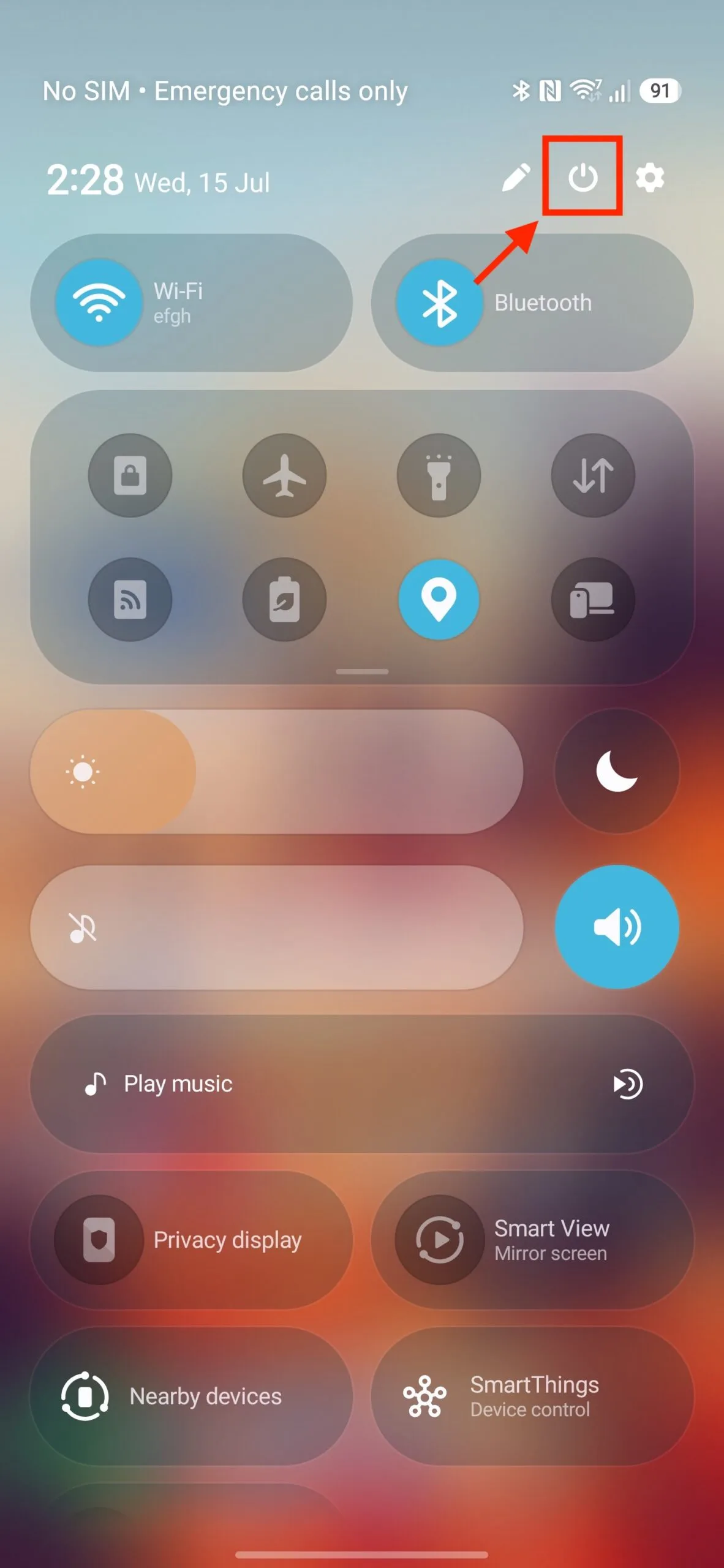
Samsung folded that behavior directly into its power menu in earlier One UI 9 beta builds. Open the menu with a long press of the side button, or tap the power icon in Quick Settings, and the device would enter the secured state as part of the process. Exit the menu and you were looking at the lock screen, not the app you had been using.
For the physical button, that design makes sense. A long press is a deliberate action, and the extra layer of protection is exactly why Samsung Lockdown mode exists. But the Quick Settings shortcut is more ambiguous. Plenty of people open it to restart a balky phone, turn it off before a flight, or just check their power options. Automatically locking the device every time is a little like having your car’s alarm go off whenever you open the glove compartment.
A new toggle, and a sensible default
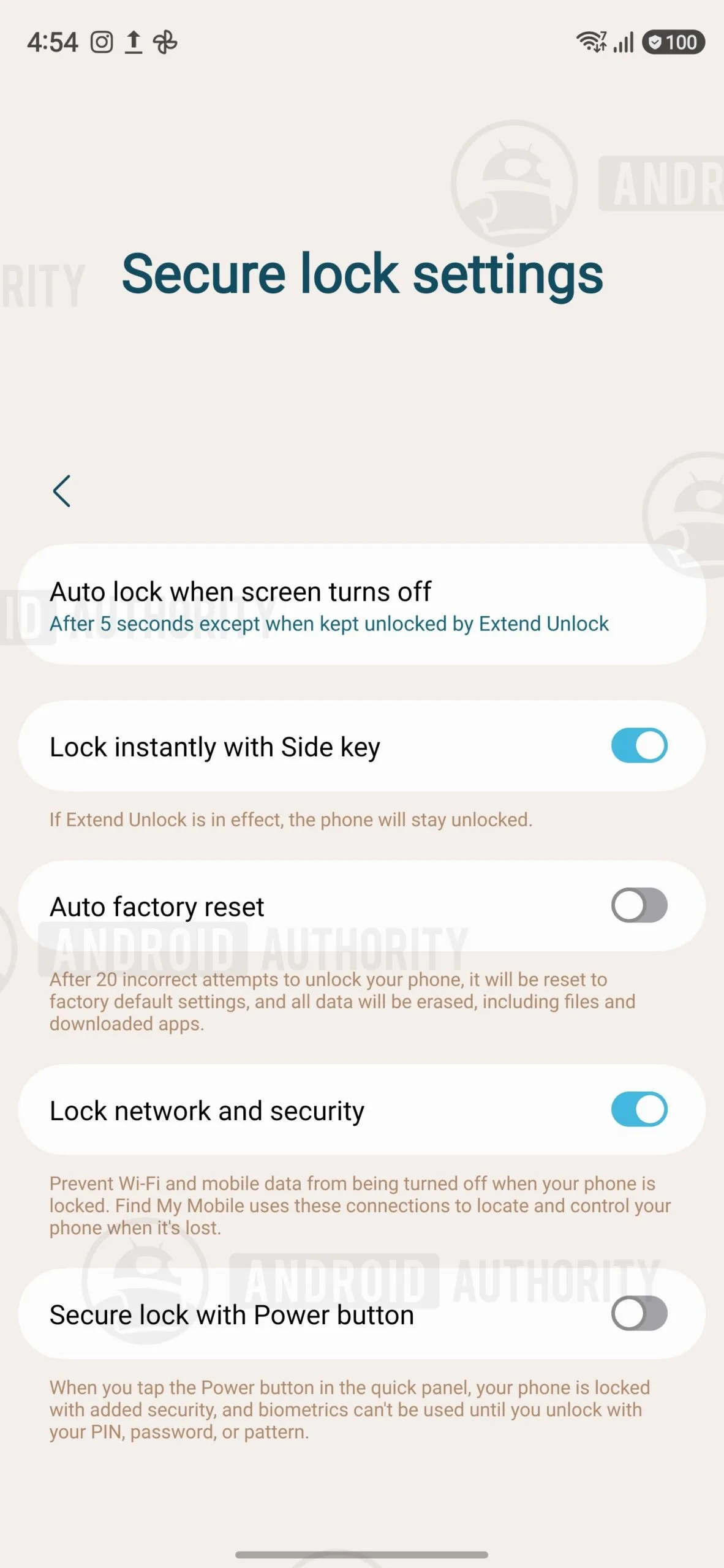
In the fourth One UI 9 beta, Samsung appears to have added a setting called ‘Secure lock with Power button’ under Settings, Lock screen and AOD, then Secure lock settings. The wording is slightly confusing because Samsung calls the Quick Settings icon a Power button too, but its behavior is fairly clear: the toggle controls the software shortcut, not the handset’s physical side key.
With the option off by default, tapping the Quick Settings power icon opens the familiar power menu without triggering Samsung Lockdown mode. Back out of that menu and you return to whatever app was open. Turn the switch on, and opening the menu via Quick Settings once again sends the device to the lock screen and blocks biometric access until the owner enters their credential.
That default is the right call, frankly. A software button sitting alongside Wi-Fi, Bluetooth, and flashlight controls shouldn’t carry a hidden security consequence that many ordinary users won’t expect. Yet users who want the old behavior can restore it. This is what a mature mobile operating system looks like: not fewer protections, but controls that acknowledge people use the same phone differently.
The physical button remains the emergency route
Samsung isn’t weakening the more important safeguard. Long-pressing the physical side button, assuming it is configured to open the power menu, continues to activate Samsung Lockdown mode automatically. That leaves a fast, tactile route when a user needs to secure the device without digging through menus or trusting a finicky touchscreen.
Lockdown temporarily disables fingerprint and face unlock until a PIN, pattern, or password is entered. The company’s official Android help documentation frames the feature around personal safety, which is the correct lens. Biometrics are wonderfully convenient, but they are also physical. You can be compelled to provide a finger or face in ways that are much harder to apply to a memorized secret.
The point extends beyond this one setting. Your lock screen is not merely a convenience feature; it is the front door to a remarkably intimate archive of messages, photos, health records, banking apps, and location history.
Beta software still leaves room for change
The catch is that this feature has surfaced in beta software and through newly added interface text, not as a polished public announcement from Samsung. Features in beta builds can move, change names, or disappear before release. Still, the presence of a dedicated setting, a description of its security effect, and a clear home in the Settings app all suggest this is more than a stray experiment.
It also fits the direction Samsung has been taking with One UI. The company has spent years layering choices into Android’s baseline behavior, sometimes to a fault. Anyone who has wandered through Samsung’s settings app looking for one simple option knows the feeling. But Samsung Lockdown mode is a case where an additional switch earns its place. The tradeoff is real: maximum protection on one side, fewer interruptions on the other.
If this reaches the stable One UI 9 release, Galaxy owners will have a better division of labor. The side button remains the no-nonsense emergency lock. The Quick Settings button becomes a normal power-menu shortcut unless the owner explicitly wants it to double as a security action. That may not make for a flashy software demo, but it is the kind of decision that determines whether people actually leave a security feature enabled.
My read is that Samsung should keep pushing in this direction. Security controls work best when they are easy to invoke under stress and unobtrusive the rest of the time. Getting that balance right is harder than adding another AI button — and far more useful.