

Mobile plans have improved dramatically, but their data caps remain a peculiar relic: your phone can pull down a feature-length film in minutes, while your carrier may still punish you for doing it too often. If you want to reduce iPhone data use, the good news is that iOS has more useful controls than Apple’s usually minimalist settings screens suggest.
The trick is to think beyond the obvious culprit of video. A phone can burn through an allowance while sitting in a pocket, courtesy of photo backups, app updates, social feeds refreshing in the background, and a weak Wi-Fi network quietly handing work over to 5G. As Engadget reported, Apple’s current cellular settings make it possible to see and restrict that activity app by app. That is the right starting point, not a last resort after the carrier warning text arrives.
- To reduce iPhone data use, start with Apple’s per-app cellular controls and identify the services consuming data quietly in the background.
- Low Data Mode can reduce iPhone data use by limiting automatic downloads, cloud syncing, and background refreshes when cellular service is active.
- Turning off Connectivity Assist prevents an unreliable Wi-Fi connection from silently falling back to a cellular plan.
- Offline maps and lower audio or video quality offer practical savings without cutting off the apps people rely on every day.
Table of Contents
Reduce iPhone data use by finding the real culprits
Open Settings > Cellular, scroll to the Cellular Data section, and tap Show All if necessary. iOS lists installed apps and the mobile data each has consumed. Sort the list by usage rather than alphabetically. It is a small change, but it turns a cluttered settings page into something closer to an expense report.
There is no universal villain. For one person it will be Instagram preloading reels; for another it will be a podcast client downloading shows on the move, or a work chat app carrying an endless stream of images. A large number beside an app is not automatically bad. The question is whether that app needs cellular access when you are not actively using it.

Each app has a toggle beside it. Switch cellular data off for services that can wait for Wi-Fi, and they will generally stop loading fresh content in the background over the mobile network. Notifications and live updates may be affected, so avoid treating this as a blunt instrument for essential tools such as messaging, authentication, ride-hailing, or banking apps. But for a game, a shopping app, or a social network you check occasionally, the compromise is often painless.
One caveat deserves attention: these statistics are only useful if their measurement period makes sense. iOS does not automatically reset its cellular usage totals with every billing cycle. Scroll to the bottom of the Cellular page and reset the statistics at the beginning of your plan month. This is a simple way to reduce iPhone data use based on current habits rather than months of old data.
Low Data Mode is the sensible default for capped plans
For most people, the more balanced setting is Low Data Mode. Go to Settings > Cellular > Cellular Data Options > Data Mode and select it. Rather than cutting your iPhone off from the internet, this setting asks iOS and compatible apps to be less eager: fewer background refreshes, fewer automatic downloads, and less cloud work when you are away from Wi-Fi.
That makes Low Data Mode the closest thing Apple offers to an economy setting for a mobile plan. It will not magically make a two-hour high-definition video stream cheap, because physics and compression still matter. What it can do is reduce iPhone data use from the thousand small tasks that are easy to miss and hard to audit one by one.
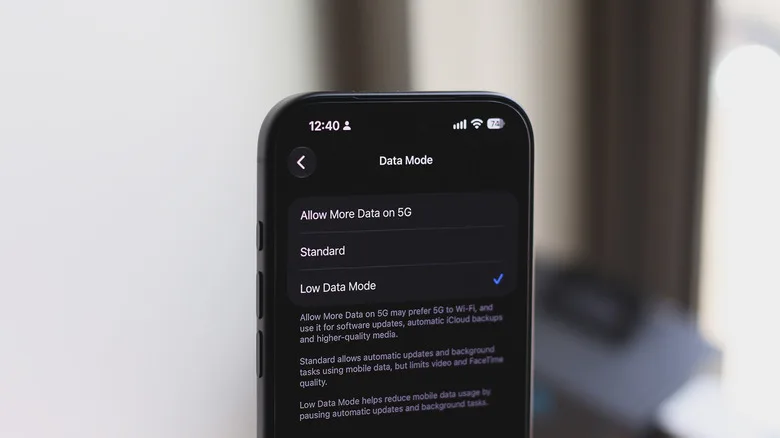
The important distinction is between stopping cellular data and asking the phone to use less of it. Turning off cellular data entirely makes sense when you are travelling, approaching a hard limit, or have a plan where overages are genuinely expensive. Low Data Mode is better for ordinary life. Your maps still work, messages still arrive, and your phone remains a phone. It simply stops behaving as if every connection were unlimited home broadband.
Low Data Mode can limit background activity, as described here. The company’s own language is cautious because apps control some of their behavior themselves. Still, enabling the mode sends a clear system-level signal that conserving cellular data matters.
Stop Wi-Fi from quietly spending your cellular allowance
One of the more frustrating ways to lose data is to be visibly connected to Wi-Fi while the phone is also using the cellular network. Apple calls the feature Connectivity Assist in newer iOS versions; it was previously known as Wi-Fi Assist. Its job is understandable: if your coffee shop network is crawling, your iPhone switches to mobile data so a page or stream does not stall.
Convenient? Sometimes. Predictable? Not always. To reduce iPhone data use where every gigabyte counts, visit Settings > Wi-Fi, scroll down, and turn Connectivity Assist off. Turning it off is one of the clearest ways to reduce iPhone data use when unreliable public Wi-Fi is part of your routine. The downside is that a weak wireless network may stay weak until you choose another network or disable Wi-Fi manually. Frankly, that is often preferable to discovering later that a flaky hotspot turned into a cellular streaming session.
This setting highlights a bigger problem with modern connectivity: software is designed to hide friction. That is normally good design. But when the bill has a ceiling, invisible handoffs are not a convenience; they are a budgeting hazard.
Put downloads, backups, and streaming on a shorter leash
Automatic App Store downloads are another quiet drain. Under Settings > Apps > App Store, disable Automatic Downloads in the Mobile Data section if you would rather updates wait for Wi-Fi. Most app updates are small, but the exceptions are not. A major game update or an app that ships large video assets can make a dent in a limited plan before you notice.
iCloud deserves the same scrutiny. In Settings > your name > iCloud > iCloud Backup, make sure Back Up Over Mobile Data is disabled unless you have an unusually generous plan and a specific reason to enable it. Device backups can be substantial, particularly after a new phone setup or after a long stretch without a Wi-Fi backup. This single toggle can help reduce iPhone data use without changing how the phone works day to day.
Streaming remains the obvious heavyweight. Apple Music’s cellular streaming quality is found under Settings > Apps > Music > Audio Quality > Data Streaming. Lossless audio has a place for listeners with the right headphones and an unlimited plan, but on cellular it is a luxury purchase made repeatedly, track after track. Spotify, Tidal, YouTube Music, Netflix, and other services offer their own quality controls. Find them and make an intentional choice to reduce iPhone data use.
The same logic applies to video. Lowering YouTube playback to 720p on a phone screen can be a reasonable trade, especially outdoors or on a commute. Nobody needs to pretend lower quality is ideal, but data conservation is about deciding where quality matters rather than allowing every app to default to maximum consumption.
Offline downloads are better than rationing yourself
There is a more pleasant way to reduce iPhone data use: prepare before leaving Wi-Fi. Download playlists, podcasts, shows, and maps at home or at work. Apple Maps and Google Maps both support offline map downloads, which can save a surprising amount of data on long drives or overseas trips while also providing a fallback in areas with poor reception.
Messaging apps need a look as well. In WhatsApp, set media auto-download for photos, videos, and documents to Wi-Fi rather than mobile data. Instagram has a setting labelled Use less mobile data under Media quality. The wording varies by app, but the principle is consistent: prevent autoplay, preloading, and auto-download behavior from deciding how much of your plan gets spent.
This is not an argument for treating your smartphone like a 2009 handset that should only go online in emergencies. It is an argument for making the carrier plan match the way the phone actually behaves. As more apps assume permanent, fast connectivity, the ability to reduce iPhone data use will become less about self-denial and more about demanding that software disclose its appetite. Apple has the pieces in place; the next step should be clearer alerts before a background process turns a modest plan into an expensive surprise.
Frequently Asked Questions
What is the fastest way to reduce iPhone data use?
The quickest option is enabling Low Data Mode in Settings, then checking which apps have cellular access. Restricting high-use apps such as video, social media, cloud storage, and music streaming can stop background activity from consuming an allowance unexpectedly.
Does Low Data Mode affect Wi-Fi on an iPhone?
Low Data Mode can be configured for cellular service and, separately, for individual Wi-Fi networks. On cellular, it limits background activity and automatic downloads. It does not turn off apps, but some content may update later when a less restricted connection is available.
Why is my iPhone using data when connected to Wi-Fi?
Apple’s Connectivity Assist can move traffic to cellular when Wi-Fi is weak or congested, helping an app stay online. Cellular data may also be used by services configured for mobile backups, automatic App Store downloads, cloud syncing, or streaming.