

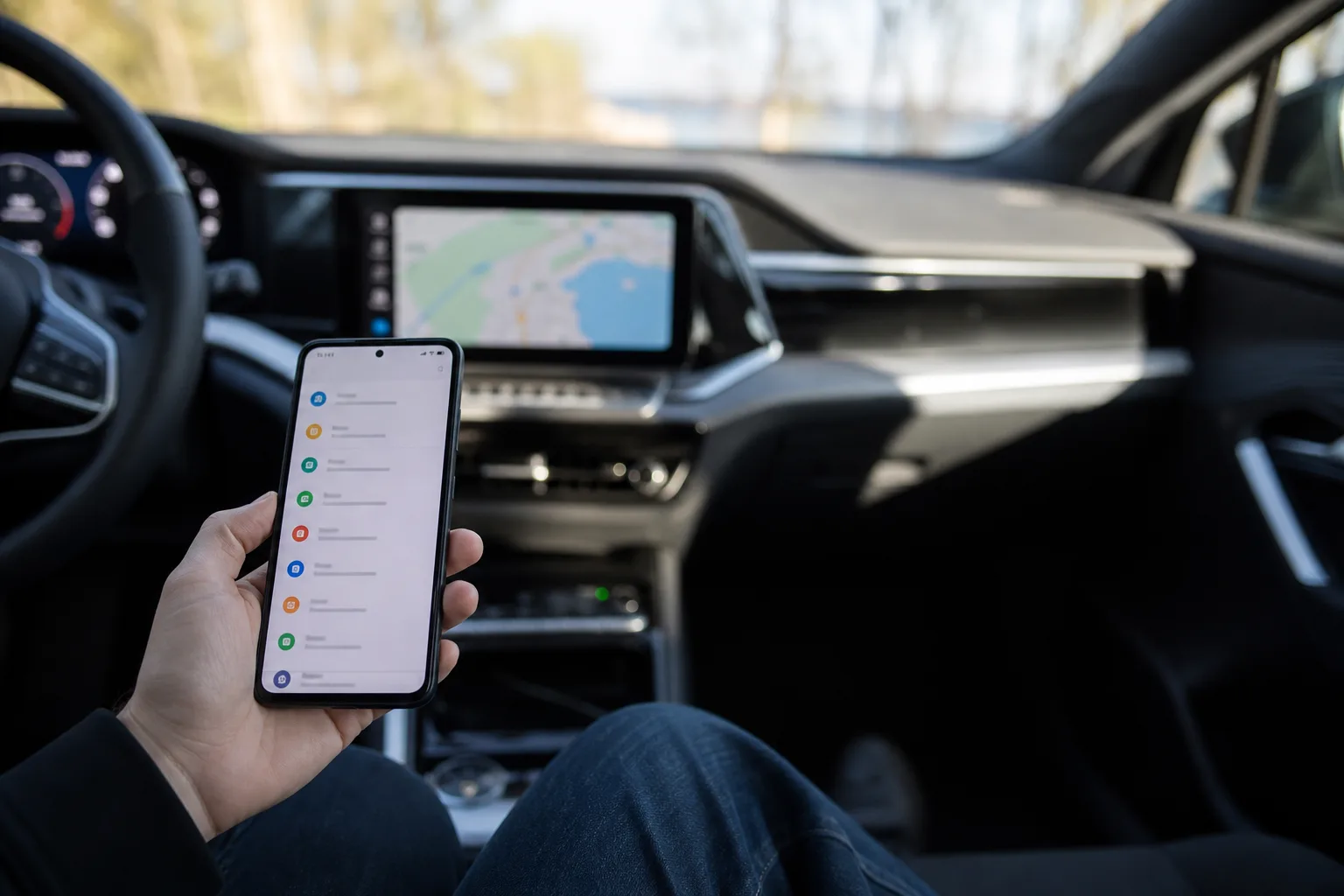
- The Android Auto developer menu can be enabled through repeated taps on Version and permission information in the app’s settings.
- Most drivers will find the Android Auto developer menu useful chiefly for diagnosing wireless connection problems and checking display output settings.
- Allowing unknown sources can expose unsupported media apps, but Google’s safety restrictions exist for a very good reason.
- Recording and logging tools can heat a phone, consume storage and drain its battery during ordinary driving.
Table of Contents
The Android Auto developer menu is hiding in plain sight
Your car’s infotainment screen is one of the few consumer interfaces where Google deliberately gives you less freedom, and frankly that’s usually sensible. But the Android Auto developer menu, tucked behind a familiar Android tap sequence, offers a rare look at the controls Google keeps out of the ordinary settings page.
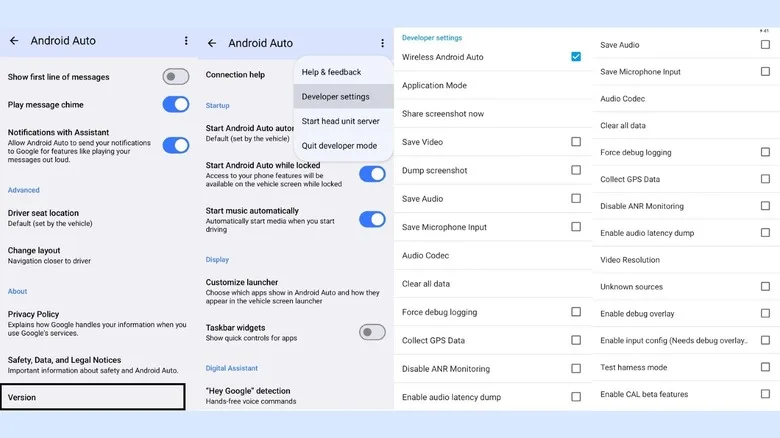
It takes only a moment to reveal it. Open Android Auto from your phone’s Settings app, scroll to Version and permission info, then tap that entry repeatedly — roughly 10 times. Confirm the prompt to enable developer settings. Back at the top of the Android Auto page, open the three-dot overflow menu and select Developer settings.
That sequence will feel instantly familiar to longtime Android users. It’s the same basic idea as enabling Developer options from the Build number page: a small gate between everyday settings and switches that can affect how a device behaves. Google doesn’t surface these settings because most people don’t need them, not because they are forbidden knowledge.
The distinction matters. The Android Auto developer menu is useful for troubleshooting and experimentation, but it is not a secret performance booster for your dashboard. Think of it more like the service panel behind a restaurant’s soda machine: helpful when something is wrong, unnecessary when everything is working.
How to use the Android Auto developer menu without breaking anything
The most practical switch is the wireless projection setting. Wireless Android Auto can be wonderfully convenient when it works: get in, start the car, and maps and music appear without digging a cable out of the center console. When it doesn’t work, though, the experience is less magical and more like Bluetooth in 2009.
In the Android Auto developer menu, verify that wireless Android Auto is enabled. If a compatible car or adapter refuses to connect, toggling the option off and on, then restarting both the phone and the head unit, is a reasonable first move. It will not cure every pairing problem — car software, Wi-Fi interference and adapter firmware can all be involved — but it rules out one surprisingly basic cause.
There is also a video resolution control. Android Auto normally negotiates its display mode with the car’s infotainment hardware. That automatic choice is usually fine, yet some vehicles and aftermarket receivers can leave text and map labels looking softer than they should. Forcing a higher setting may improve clarity, particularly on larger modern displays.
Proceed carefully here. A head unit that cannot reliably handle a chosen resolution may behave badly, fail to connect, or fall back to a less useful mode. My read is that this is a diagnostic option, not something to change because a Reddit thread promised sharper icons. Make one adjustment, test it on a parked vehicle, and revert it if the connection becomes flaky.
Unknown sources are where convenience meets a safety wall
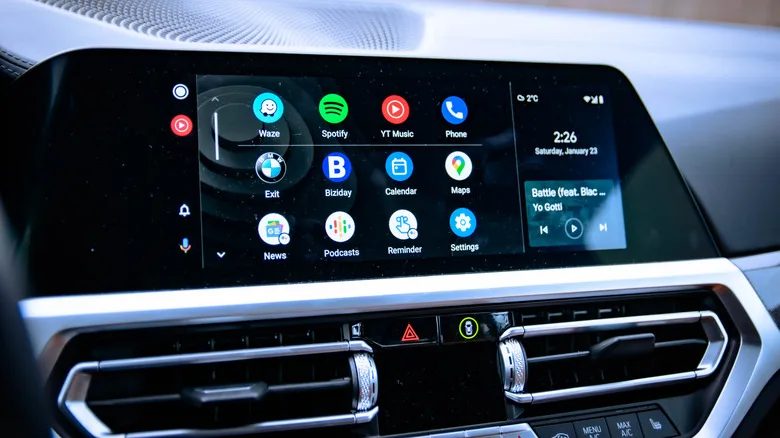
The setting people will be most tempted by is Unknown sources. Enabling it in the Android Auto developer menu can allow compatible apps outside Google Play’s approved Android Auto catalog to appear on the car display. Tools such as Fermata Auto and CarStream have been used to put video services, including YouTube, on a dashboard screen.
The appeal is easy to understand. If you are parked outside a school pickup, waiting at a charging station, or killing time while someone finishes practice, a large car screen is right there. But Google’s reluctance is not arbitrary paternalism. Android Auto is designed around driving tasks: navigation, calls, messages and audio. Video apps turn a glanceable interface into a very effective distraction machine.
Android Auto help documentation frames the platform around using phone apps safely while driving. That policy has frustrated enthusiasts, but it is also one of the reasons Android Auto feels less like an unmoderated tablet bolted to a dashboard.
So yes, the Android Auto developer menu gives owners a way to test unsupported software. It does not make that software safe, supported by Google, or legal to use while moving. If you enable unknown sources, reserve video for when the vehicle is parked. This should not need saying, but it does.
The settings best left to developers
The menu also includes tools for capturing what Android Auto is doing: saved video, saved audio, microphone input, bug reports and related logging controls. These options are valuable for an app developer trying to reproduce a fault, or for a support technician collecting evidence. For everyone else, they are mostly a fast route to a warm phone and a mysteriously shrinking storage meter.
Continuous recording can load the processor, use battery power and create sizable files. That is a poor trade for a feature you are unlikely to inspect. The Android Auto developer menu may make these switches easy to reach, but easy to reach does not mean useful in daily life.
The same goes for experimental audio and projection settings. Before changing anything, take a screenshot or note the original value. Android’s developer controls frequently carry technical labels with little consumer-facing explanation, and a single altered default can make troubleshooting harder rather than easier.
Google should offer a safer middle ground
For most people, the Android Auto developer menu is worth knowing about for two reasons: wireless troubleshooting and display diagnostics. Those are mundane needs, but they are real ones, especially as carmakers increasingly replace physical controls with software layers that can be awkward to repair.
What Google ought to do is separate those consumer-friendly tools from the rest. A visible connection diagnostics page, a plain-language display compatibility test and a parked-only media framework would serve users better than asking them to unlock a developer panel.
Still, hiding practical controls behind a tap ritual feels like an old Android compromise. The Android Auto developer menu reveals that Google has already built many of the tools enthusiasts want. The question is whether it will ever trust ordinary drivers with a cleaner, safer version of them.
Frequently Asked Questions
How do I open the Android Auto developer menu?
On an Android phone, open Android Auto settings, scroll to Version and permission info, and tap it repeatedly until developer settings are enabled. Return to the top of the page, open the three-dot menu, and select Developer settings. Labels can differ slightly by phone maker and Android version.
Why is wireless Android Auto not connecting?
First confirm that both the car or wireless adapter and the phone support wireless Android Auto. Then check that wireless projection is enabled in developer settings, restart the phone and infotainment system, and remove then reconnect the vehicle if the pairing remains unreliable.
Is it safe to enable unknown sources in Android Auto?
It can be safe only when the app comes from a source you trust and is used responsibly. Unknown sources may permit apps Google has not approved for the driving interface, including video players. Drivers should never use visually distracting apps while a vehicle is moving.