

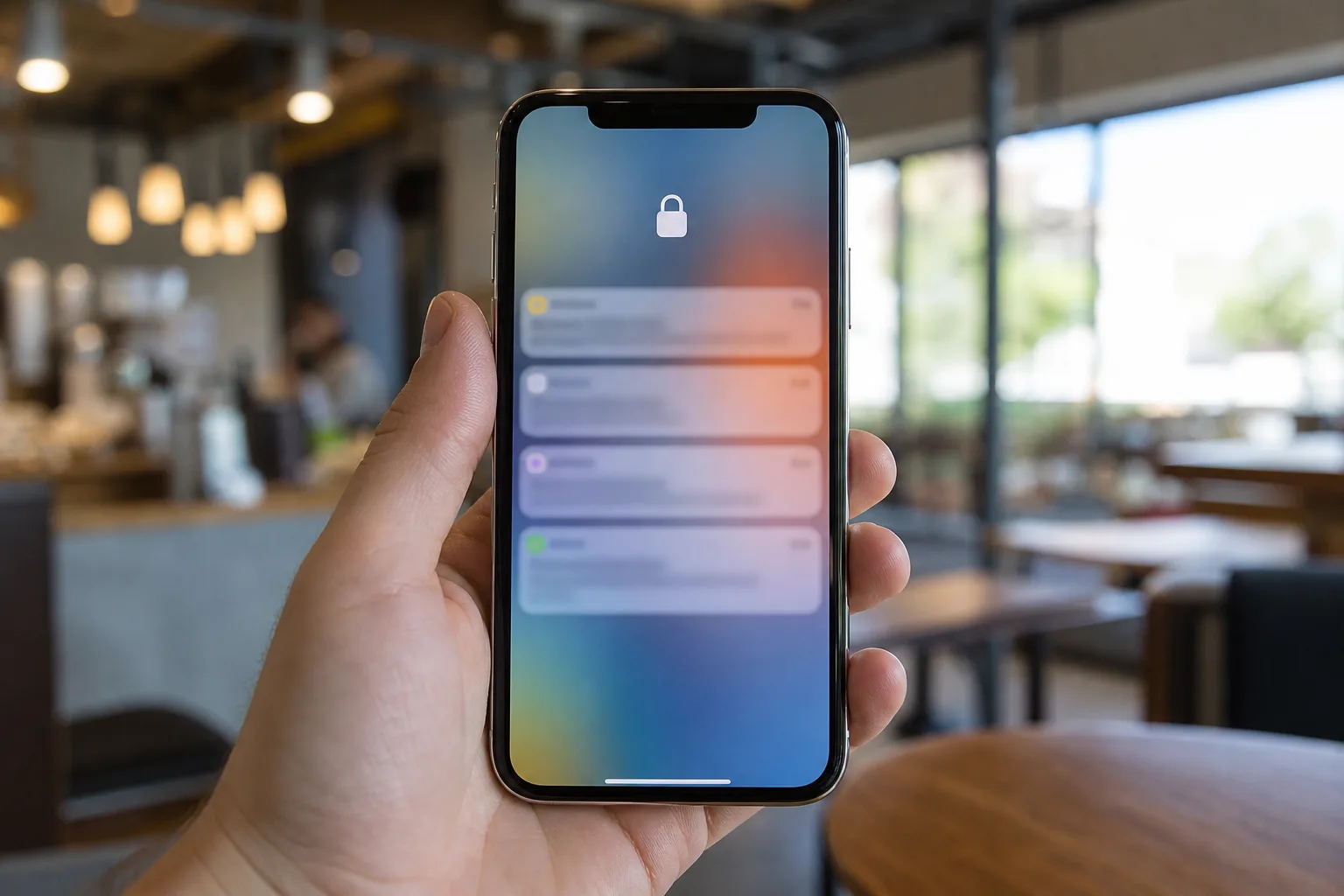
- These iPhone security settings shut down easy loopholes that can expose notifications, account controls, location data, and sensitive apps to strangers.
- Reviewing iPhone security settings takes minutes, yet it can sharply reduce the fallout from a lost phone or an overreaching app.
- Apple’s Safety Check offers a useful audit of shared location access, connected people, and app permissions in one place.
- Stolen Device Protection adds friction where it matters most: changing passwords and making high-risk account changes away from familiar locations.
Table of Contents
iPhone security settings are the boring kind that pay off
Your phone is effectively a pocket-sized copy of your life: banking alerts, family photos, work messages, location history, two-factor codes and probably a Notes file you’d rather nobody read. That’s why iPhone security settings deserve more attention than the average new wallpaper. Apple does a respectable job protecting an iPhone by default, but the gaps tend to appear in the moments people don’t plan for: a phone left in a cab, an acquaintance asking to make a call, or a free app quietly collecting more than it needs.
The goal is simple: remove the low-effort paths into your data without turning your iPhone into a locked-down corporate handset. A few iPhone security settings can make a stolen device less useful to a thief, stop your lock screen from narrating your private life, and rein in apps that have accumulated permissions over months or years.
The Platform Security guide goes deep. For the useful version, start with three jobs: protect the screen, audit access, and add friction around your most valuable accounts.
Start with the lock screen, not your passcode
Face ID and a solid passcode matter, obviously. But a locked iPhone can still reveal plenty. Notification previews may show messages, one-time login codes, delivery addresses or calendar details. Control Center access can also be a headache: someone who finds your phone could enable Airplane Mode, making it harder for Find My to report its position. That’s the digital equivalent of letting a burglar unplug the alarm panel from outside.
For stronger iPhone security settings, open Settings, then Notifications, then Show Previews, and choose “When Unlocked.” Messages still arrive, but their content stays hidden until Face ID or Touch ID recognizes you. Next, visit Settings, then Face ID & Passcode, enter your passcode, and scroll to “Allow Access When Locked.” Consider disabling Control Center, Siri, Reply with Message, Home Control and Wallet. Your tolerance will vary, but Control Center is the clear one to shut off.
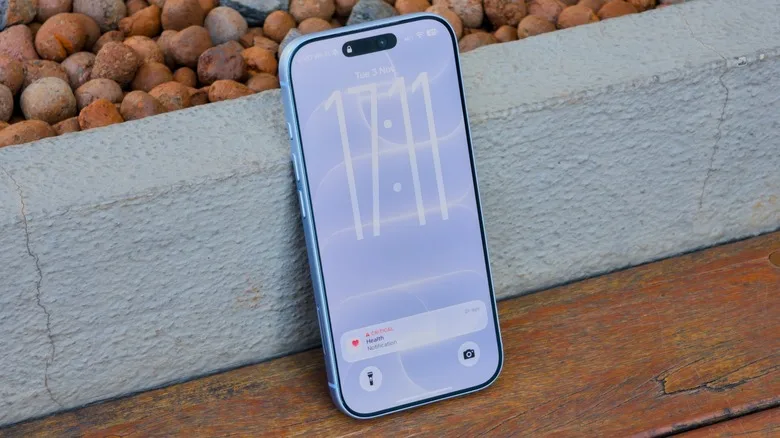
There’s a trade-off here. Turning off lock-screen conveniences means a few more authentication prompts during the day. Frankly, that’s fine. Your iPhone should be slightly annoying to a stranger, not exceptionally accommodating.
Audit who and what can see your information
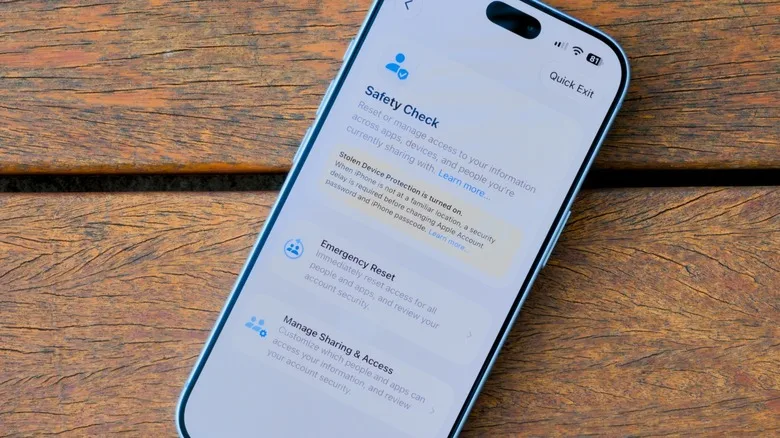
Permission prompts are built to be dismissed quickly. An app wants your photos? Tap Allow. It asks for location? Sure. Six months later, you may have no clue what it can still access. Apple’s Safety Check is the closest thing iOS has to a privacy spring-cleaning tool, and it’s particularly valuable for people leaving a controlling or abusive relationship. But everyone can use it.
Go to Settings, Privacy & Security, then Safety Check. Choose “Manage Sharing & Access” to work through location sharing, people with access to shared information, connected devices, and app permissions. Safety Check also offers an Emergency Reset option that quickly stops sharing, though that’s a serious step best reserved for situations where speed matters.
After that guided review, keep digging through Privacy & Security. Check Location Services, Photos, Microphone, Camera and Contacts. For many apps, “While Using the App” is a more defensible choice than “Always.” And unless an app truly needs exact coordinates — mapping and ride-hailing apps are obvious examples — switch off Precise Location. Good iPhone security settings are about matching access to a legitimate purpose, not reflexively denying every request.
Lock the apps that could cause real damage
iOS 18 added a quietly excellent feature: individual app locking and hiding. Press and hold an app on the Home Screen, select “Require Face ID,” and confirm. The app will ask for biometric authentication even after the phone itself has been unlocked. You can also choose to hide an app, which moves it to an authenticated Hidden folder in the App Library.
This sounds like a niche feature until you picture the familiar social-engineering move: somebody asks to borrow your phone for an urgent call, then starts hunting through payment apps, password managers, messages or photos. App locking gives you a second line of defense. Put it on banking apps, payment apps, password managers, health services, cloud storage and any private messaging service you use.
One caveat: hidden apps do not surface notifications or calls. That makes hiding a poor fit for an app where you need alerts, but locking remains useful. It’s one of those iPhone security settings Apple should arguably make more prominent during setup.
Cut down on tracking, including Apple’s own ads
Since iOS 14.5, apps must request permission before tracking your activity across other companies’ apps and websites. Most people have seen that prompt and probably answered it while trying to get to a recipe or a video. Instead of judging every request one by one, go to Settings, Privacy & Security, Tracking, and turn off “Allow Apps to Request to Track.” Future requests are denied automatically.
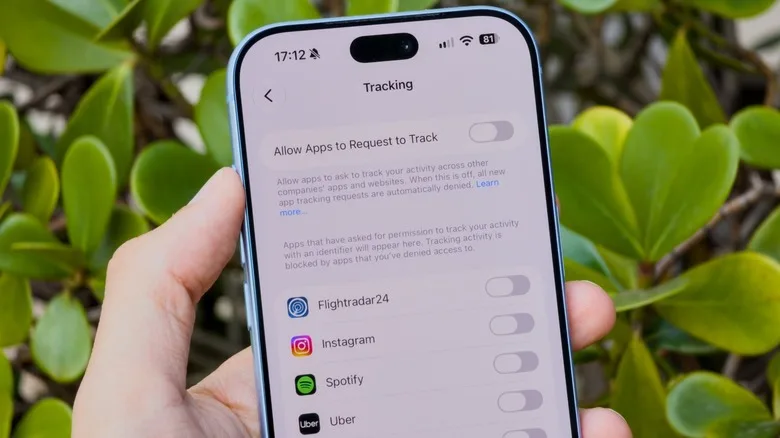
This does not make you invisible online. It won’t stop an app from collecting data you provide directly, nor does it neutralize every ad-tech technique in existence. Still, it denies a valuable category of cross-app tracking, and that’s a sensible baseline for iPhone security settings.
Apple also sells advertising inventory in places such as the App Store, Apple News and Stocks. The company says its ad platform does not share your personal data with third parties, but tailored advertising is still tailored advertising. In Privacy & Security, open Apple Advertising and disable “Personalized Ads” if you’d prefer Apple not use your activity to customize those placements.
Turn on Stolen Device Protection before you need it
A passcode can be especially dangerous because it helps an attacker change Apple Account credentials, access saved passwords, and undermine the protections meant to recover the device.
Find the feature under Settings, Face ID & Passcode, then Stolen Device Protection. When you are away from familiar locations such as home or work, it requires Face ID or Touch ID for sensitive actions and can impose a security delay before major account changes.
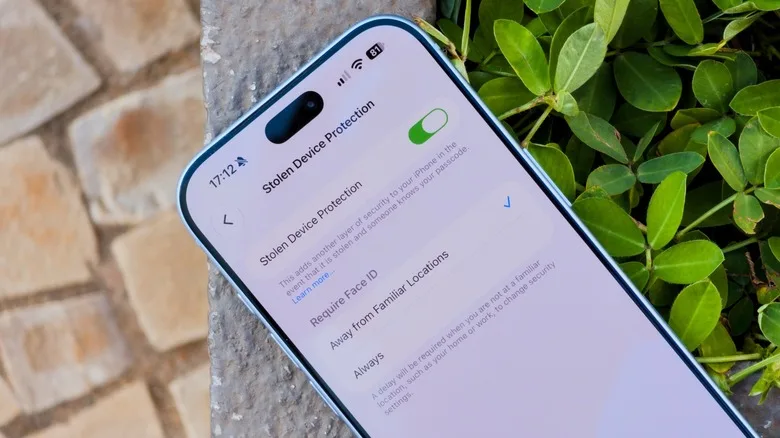
That protection is worth considering if you travel often or simply don’t want location-based judgment calls involved. Alongside Find My, this is among the most consequential iPhone security settings available. Make sure Find My is enabled too, including the Find My network, so a lost device can still be located through nearby Apple devices.
None of this turns an iPhone into Fort Knox. Taken together, these iPhone security settings force an intruder to clear several separate hurdles instead of relying on one lucky moment with your unlocked screen. Apple keeps adding privacy controls, but the company still tends to bury its best defenses three menus deep. My read is that iPhone owners shouldn’t wait for a scary loss or a close call to find them.
Frequently Asked Questions
What iPhone security settings should I change first?
Start with Lock Screen access and notification previews. These settings can help prevent access to controls and private messages before Face ID, Touch ID, or a passcode is required.
Does turning off app tracking stop all data collection on an iPhone?
No. Disabling Allow Apps to Request to Track automatically denies apps’ requests to track you. It does not block all data collection, but it can reduce the amount of data apps and websites have about you.
What does Apple Safety Check do?
Safety Check is an iPhone tool for reviewing who can see information you share, including location sharing through Find My, and which apps have access to sensitive data. It can help you review and revoke permissions you no longer want apps to have.
Can I lock individual apps on my iPhone?
Yes. On iPhones running iOS 18 or later, press and hold an app icon and choose Require Face ID or Require Touch ID. You can also hide certain apps in the App Library’s Hidden folder, though hidden apps will not display notifications or incoming calls.