

Knowing how to share your location — whether you’re navigating a new city, coordinating a meetup, or just letting someone know you got home safe — has become one of those quiet essentials of modern smartphone life. It sounds simple enough. But between Google Maps, Apple’s Find My, WhatsApp, Messenger, and platform-level emergency features, the actual options are surprisingly varied. Here’s a clear breakdown of what works where, and when each tool actually makes sense.
- You can share your location on iPhone or Android using Google Maps, Find My, WhatsApp, or Facebook Messenger — each with live or timed options.
- To share your location on iPhone with other Apple users, the built-in Find My app offers the simplest and most private experience.
- Emergency SOS on iPhone and Android’s Emergency Location Service can automatically share your location with contacts or services when you need help.
- WhatsApp lets you share your location for anywhere from 15 minutes to 8 hours, making it one of the most flexible options available.
Table of Contents
Why Location Sharing Got So Good (and So Complicated)
A decade ago, sharing your whereabouts meant texting a pin from Google Maps and hoping for the best. Today, every major platform has built live location sharing directly into its interface. Google Maps alone claims over one billion monthly active users, which partly explains why its location-sharing tools feel so seamlessly integrated. Meanwhile Apple’s Find My framework has quietly become the backbone of an entire ecosystem — not just for sharing your location, but for tracking AirTags, MacBooks, and lost AirPods.
The trade-off with all of this convenience is a familiar one: every method requires trusting a platform with fairly sensitive data. Where you are in real time is about as personal as it gets. That’s worth keeping in mind as you pick your tool.
Share Your Location Using Google Maps
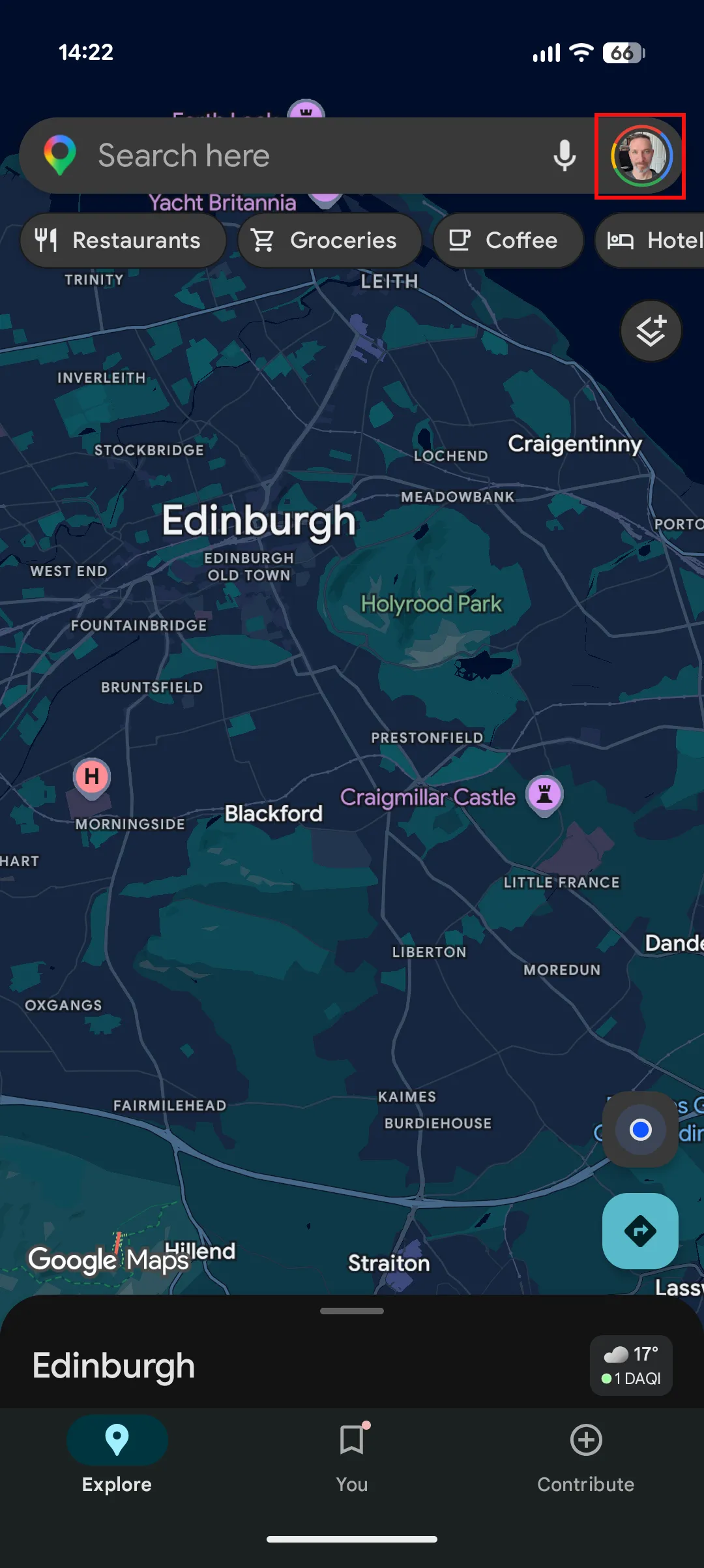
Google Maps is the most practical choice for cross-platform location sharing — it runs on both Android and iOS, and most people already have it installed. The process to share your location is straightforward: open the app, tap your profile picture in the top right, then hit ‘Location sharing.’ From there you can choose how long to share (anything from an hour to indefinitely) and select who to share with from your contacts, as long as they’ve got a Gmail address attached.
One thing that often catches people off guard: if you want to share with someone who doesn’t have a Google account, you can still generate a shareable link. On Android, scroll right along the bottom row of sharing options and tap ‘Copy to,’ then ‘Share.’ On iPhone, tap ‘More options’ and you can push the link through iMessage or copy it to paste elsewhere. It’s not the most elegant flow, but it works.
Once someone’s sharing back with you, their profile picture appears directly on the map. Tapping it pulls up quick options to get directions to their location or stop sharing. It’s a genuinely useful feature for coordinating in real time — think arriving at a festival, a busy train station, or anywhere with poor signal where back-and-forth texts fall apart.
Share Your Location on iPhone Using Find My
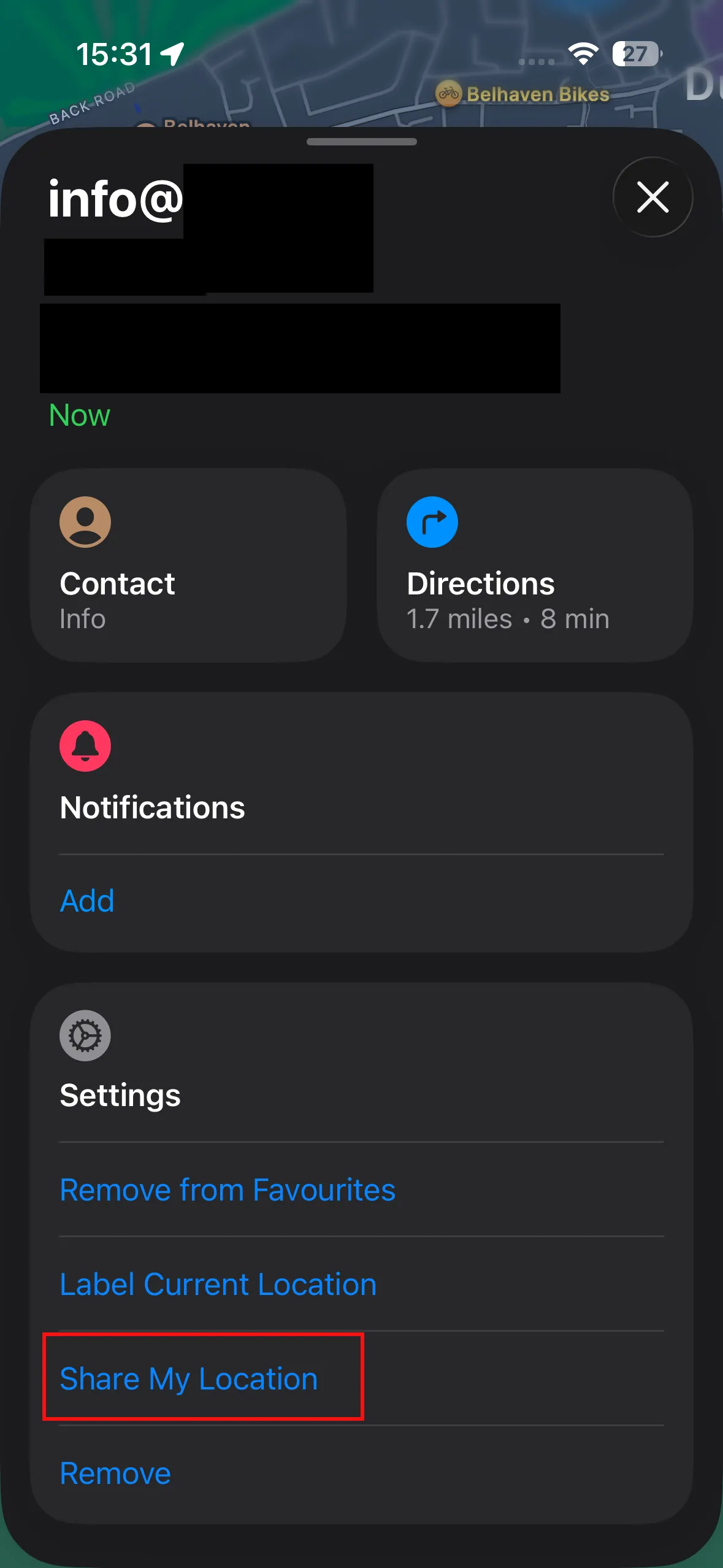
If everyone involved is on an Apple device, Find My is simply the cleanest option to share your location. There’s no third-party app to open, no account to sign into separately — it’s baked into iOS and tied directly to your Apple ID. Open the Find My app, go to the People tab, and tap the plus icon to add someone by name or phone number. You then pick a duration: one hour, until end of day, or indefinitely.
Stopping a share is just as simple. Tap the person’s name on the People tab and hit ‘Stop Sharing My Location.’ If you want to go nuclear and stop sharing with everyone at once, the Me tab has a master toggle. Apple hasn’t made a big marketing push around this feature the way it has with AirDrop or AirPlay, but it’s one of those quietly reliable tools that iPhone users tend to discover and then never stop using.
The obvious limitation is the walled garden: Find My only works within the Apple ecosystem. Android users are out. For mixed-device groups, you’ll need one of the cross-platform options.
WhatsApp and Messenger: Location Sharing Built Into the Chat
For a lot of people, the most natural place to share your location is inside the conversation already happening. Both WhatsApp and Facebook Messenger have live location sharing built into their chat interfaces, and neither requires leaving the app.
In WhatsApp, open the conversation, tap the attachment icon (the plus on iPhone, paperclip on Android), and choose ‘Location.’ You can either send a static snapshot of where you currently are, or start a live share for 15 minutes, 1 hour, or up to 8 hours. That upper limit of 8 hours puts WhatsApp ahead of most competitors for sustained sharing — useful for long travel days or situations where you want someone to be able to check in on your progress without you having to constantly update them.
Messenger handles it slightly differently. Tap the plus icon in a conversation, then the location arrow, and you can either share a live location (active for one hour with a countdown visible to both parties) or drop a static pin. The live share in Messenger auto-expires, which is actually a sensible default — it nudges you toward intentional sharing rather than leaving it running indefinitely.
Both apps require you to grant location permissions the first time you use the feature, and it’s worth reviewing those permissions in your phone’s settings periodically. Background location access is broader than most people realise they’ve granted.
Emergency Location Sharing: iPhone and Android
Beyond the everyday meetup use case, both iOS and Android have emergency-specific location sharing features that are genuinely underused and worth setting up before you need them.
On iPhone, the Emergency SOS feature does three things simultaneously when triggered: it calls emergency services, sends a text to your designated emergency contacts, and shares your real-time location with those same contacts. To trigger it, hold the power button and a volume button (or rapidly press the power button five times on older models like the iPhone 7) and drag the Emergency SOS slider. Setting it up requires adding emergency contacts through the Health app — go to your profile picture, then Medical ID, then Emergency Contacts.
Apple’s recommendation is to do a dry run with your emergency contacts so they know what to expect when they receive the alert. That’s practical advice: an unexpected emergency-sounding message can cause real panic.
Android’s equivalent is more fragmented, which is a familiar frustration with the platform’s hardware diversity. Most modern Android phones, including Google’s own Pixel line, let you access emergency settings through Settings → Safety and Emergency, where you can add emergency contacts and configure Emergency SOS. Separately, under Settings → Location → Location Services, there’s an Emergency Location Service toggle — when enabled, this automatically shares your position with emergency services when you call or text an emergency number, where that capability is supported by local infrastructure.
Samsung, OnePlus, and other manufacturers sometimes layer their own emergency modes on top of Android’s baseline, typically accessible by holding the power button. The feature parity isn’t perfect across devices, but the core capability — getting your location to the right people in a crisis — is broadly available if you take a few minutes to configure it in advance.
Choosing the Right Tool
The honest answer is that there’s no single best way to share your location — it depends almost entirely on what your contacts are already using. Google Maps wins on cross-platform reach and map integration. Find My wins on simplicity within the Apple world. WhatsApp wins on flexibility for duration. And for anything safety-related, the platform-level emergency features on both iOS and Android are worth configuring regardless of which apps you use day to day.
What’s notable is how much this space has matured. Five years ago, live location sharing felt like a novelty. Now it’s table stakes across every major platform, and the real differentiation is in the details — how long you can share, how easy it is to stop, and how transparently the app communicates what it’s doing with that data. As privacy regulations tighten globally and users become more alert to data practices, expect platforms to keep competing on those finer points just as much as on the features themselves.
Frequently Asked Questions
Can I share your location with someone who doesn’t have a Google account?
Yes. In Google Maps, you can generate a shareable link by tapping ‘Copy to’ then ‘Share’ on Android, or ‘More options’ on iPhone. That link can be sent via email, iMessage, or any messaging app — no Google account required on the recipient’s end.
How long does WhatsApp let you share live location?
WhatsApp offers flexible durations for live location sharing, ranging from 15 minutes up to 8 hours. Once the selected time expires, sharing stops automatically. You can also end it manually at any point by returning to the conversation.
Does Apple’s Find My app work with Android users?
No. Apple’s Find My is an Apple-ecosystem feature, available only on iPhone, iPad, and iPod Touch. If you need to share your location with Android users, Google Maps or cross-platform apps like WhatsApp are the better options.
What happens when Emergency SOS is triggered on an iPhone?
Triggering Emergency SOS on an iPhone calls emergency services and simultaneously sends a text message with your current location to any emergency contacts you’ve set up in the Health app. It’s designed to work quickly without unlocking the phone.