

If you’ve ever enrolled a Pixel in Android’s beta programme and watched it spiral into an endless bootloop, you already know that particular brand of panic. The good news is you can unbrick your Pixel without touching a terminal window or memorising ADB commands — and Google’s own websites are what make that possible. There are two of them, they serve different situations, and knowing the difference could save you a very bad afternoon.
- You can unbrick your Pixel using two official Google tools without needing advanced ADB knowledge or terminal skills.
- To unbrick your Pixel with the Android Flash Tool, you’ll need an unlocked bootloader — and it will erase all data.
- The Pixel Repair site works on locked bootloaders and is the safer first option since it preserves your data.
- Knowing which tool to reach for first can mean the difference between a quick fix and a full factory reset.
Table of Contents
Why Pixels Brick in the First Place
Google’s Pixel line has a storied history with bad updates. Botched over-the-air updates, beta builds that corrupt the A/B partition system, interrupted writes mid-install — these are all real failure modes that have hit real users over the years. Some beta releases have been pulled entirely while Google pushed a fix. The Pixel 6 era was particularly rough, with multiple updates causing bootloops across a wide user base. It’s not a niche problem, and it’s exactly the kind of situation where knowing how to unbrick your Pixel quickly becomes invaluable.
Part of what makes Android’s update architecture both powerful and fragile is the A/B partition scheme, where the OS maintains two system slots so it can update in the background and switch over on reboot. When that switch goes wrong — or when a download gets corrupted partway through — you can end up with a device that won’t boot at all. That’s where recovery tools earn their keep, and why having a clear plan to unbrick your Pixel before disaster strikes is worth the effort.
The Android Flash Tool: Full Control, Higher Stakes
The Android Flash Tool is Google’s browser-based answer to the traditional ADB-and-fastboot command-line workflow. If the idea of typing fastboot flash system system.img into a terminal fills you with dread, this is the tool that removes that barrier entirely. It runs in Chrome or Edge via WebUSB, walks you through each step visually, and lets you pick the exact build you want to flash — including older releases and specific beta versions. For many users, it’s the most powerful way to unbrick your Pixel when things have gone seriously wrong.
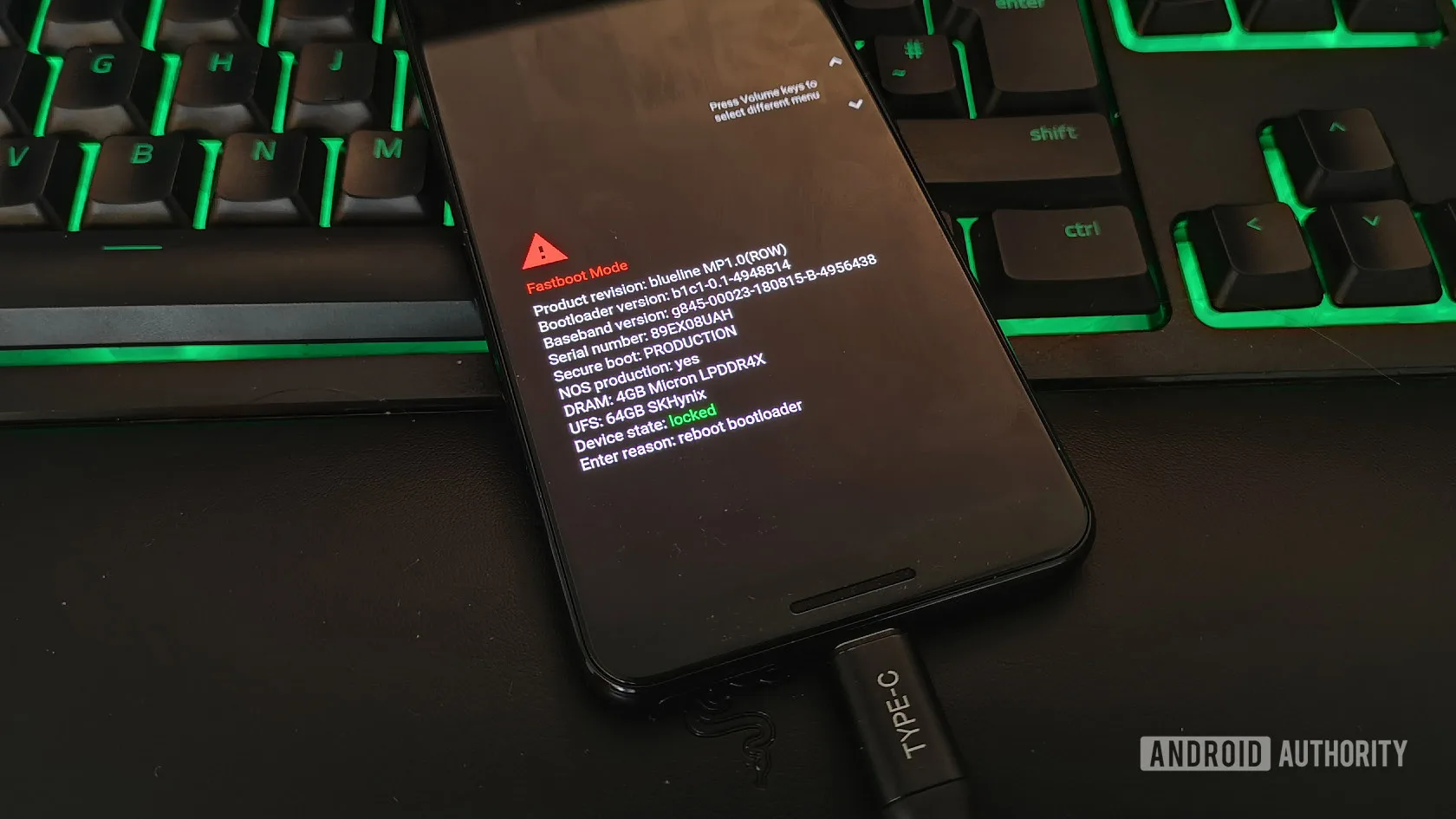
The process involves unlocking your bootloader, connecting your Pixel directly to your computer (skip the USB hub — seriously, they cause more detection failures than anything else), and selecting your target build from a menu. Google handles driver installation on Windows; Mac, Linux, and Chrome OS users don’t need anything extra. If your device is stuck in a bootloop, you’ll need to manually force it into Fastboot mode first by holding volume down during power-on.
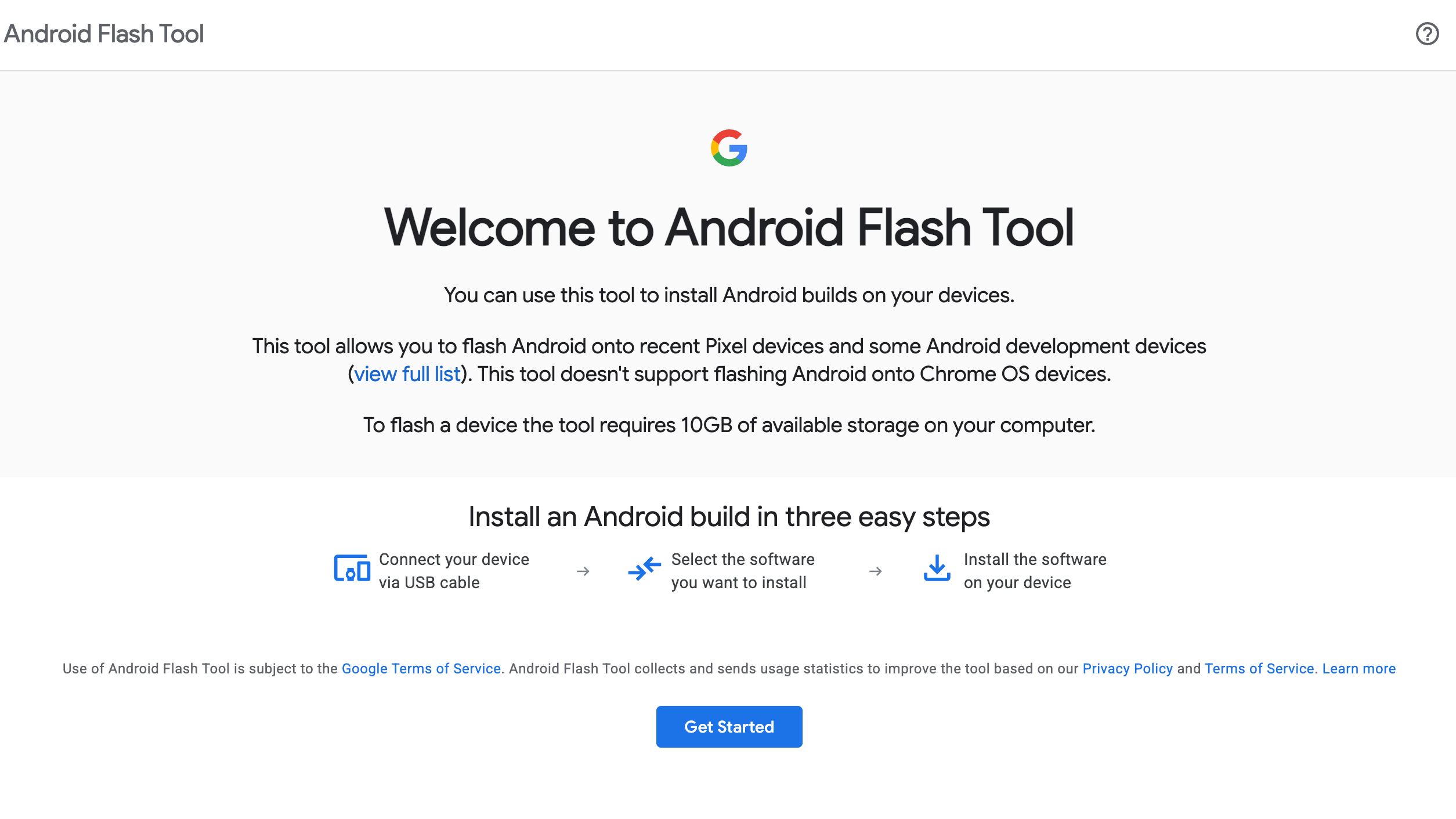
Here’s the part that matters most: the Android Flash Tool flashes a complete factory image. That means everything on the device gets erased. Photos, apps, messages — gone. It also requires an unlocked bootloader, which means if you didn’t enable that option in Developer Settings before things went sideways, you’re stuck. Carrier-locked Pixels where the operator has disabled bootloader unlocking won’t work with this tool either. Those are real constraints that lock out a significant portion of everyday users who are trying to unbrick their Pixel.
That said, when it works, it’s the most thorough fix available. Deep partition corruption, failed beta exits, deliberate downgrades — the Flash Tool handles all of it. If you’re a developer or a beta tester who routinely lives on the bleeding edge of Android builds, having this bookmarked is essentially non-negotiable.
The Pixel Repair Site: The Safer First Move
Far fewer people know about Google’s second tool — the Pixel Update and Software Repair site — and that’s a shame, because for most bricked-phone scenarios it’s the better starting point. It supports the Pixel 3 and every model released since, and crucially, it works on locked bootloaders. That’s the detail that changes everything for the average user trying to unbrick their Pixel without losing everything stored on it.
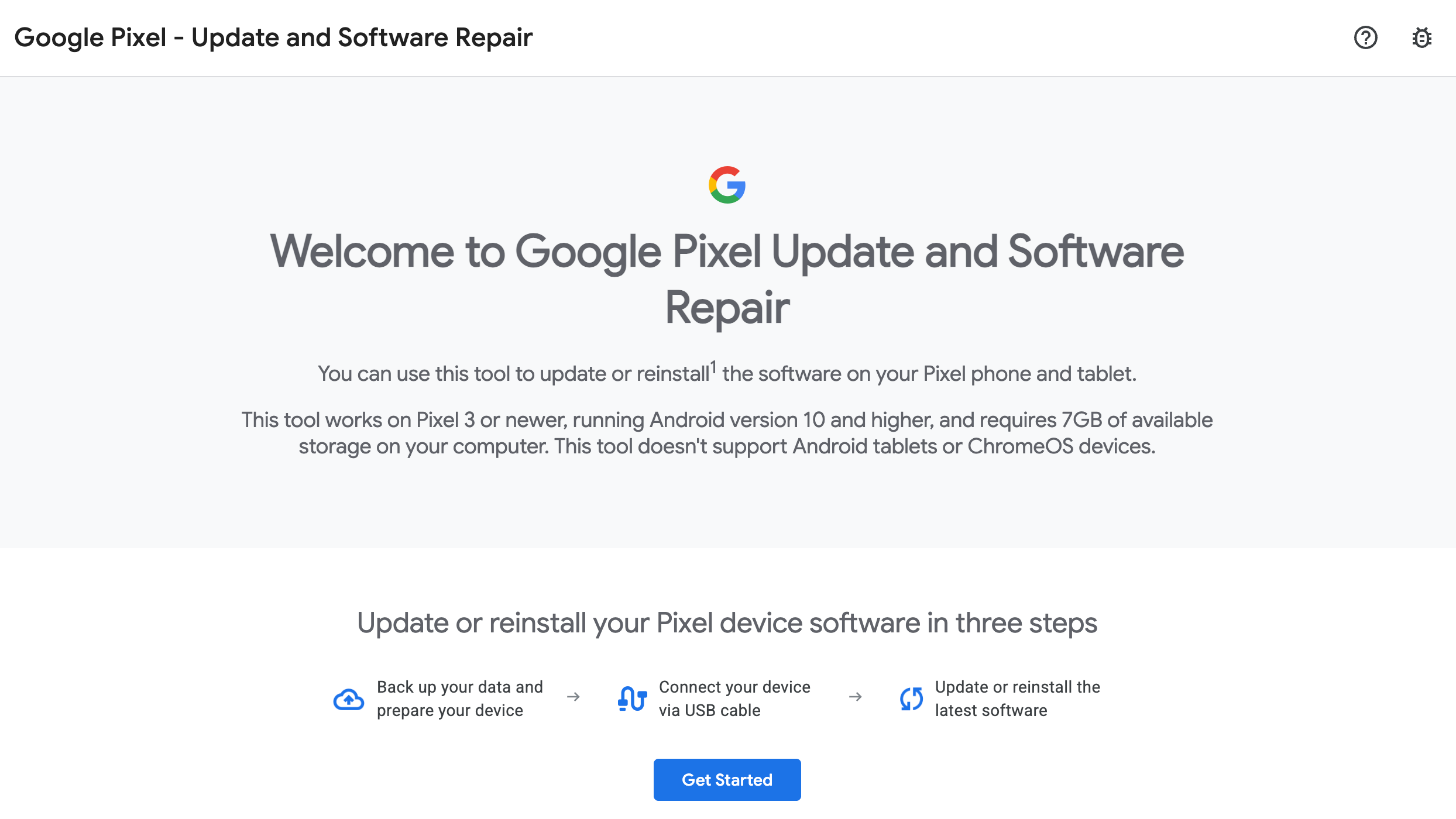
The workflow is similar on the surface: you use a Chromium-based browser, install the Google USB Driver on Windows if needed, power down your Pixel, enter Fastboot, then navigate into what Google calls Rescue Mode before connecting the phone. Once detected, the tool delivers the over-the-air update Google considers most appropriate for your device — either a reinstall of your current version or an upgrade to the latest available.
Critically, it doesn’t flash a raw factory image. That distinction is what lets it preserve your data in most cases and operate without bootloader access. It’s particularly well-suited to situations where an update was interrupted mid-install, where system-level cache has become corrupted, or where one of the A/B partitions has gone bad but the device itself is otherwise intact. Think of it less as a nuclear option and more as a targeted repair — the gentlest way to unbrick your Pixel when the damage isn’t catastrophic.
The trade-off is flexibility. You can’t choose a specific build, you can’t downgrade, and you can’t use it to escape a beta programme by rolling back to stable. You get what Google decides your phone needs. For most non-technical users dealing with a botched update, though, that’s absolutely fine.
Which Tool Should You Unbrick Your Pixel With First?
The practical answer is almost always: try the Pixel Repair site first. It has fewer prerequisites, it’s less likely to leave you starting from zero, and it handles the most common failure scenarios — bad updates, interrupted installs, cache corruption — without demanding an unlocked bootloader or wiping your storage. If your Pixel just started bootlooping after an overnight update, there’s a reasonable chance the Repair tool gets you back up and running inside twenty minutes. For the vast majority of everyday users, it’s the right first attempt to unbrick your Pixel before escalating to heavier options.
Reach for the Android Flash Tool when the Repair site fails, when you need a specific build, when you want a completely clean slate, or when the system corruption is deep enough that a targeted fix won’t cut it. Here’s a quick breakdown of when each tool fits:
- Use the Android Flash Tool if your bootloader is already unlocked, you need to downgrade or flash a specific build, you’re trying to exit the Android beta programme, or the Pixel Repair tool didn’t resolve the issue and you still need to unbrick your Pixel completely.
- Use the Pixel Repair site if your bootloader is locked (including carrier-locked devices), you want to preserve your data, something went wrong during a routine update, or you just need to reinstall the current software cleanly.
The Bigger Picture: Browser-Based Repair Is the Right Direction
There’s something genuinely smart about Google shipping these tools as websites rather than standalone desktop applications. WebUSB support in Chromium-based browsers has matured considerably, and browser-based flashing eliminates the platform fragmentation headache that used to make Android recovery a Windows-only affair in practice. Mac and Linux users who previously had to fight driver issues or rely on third-party tools like Android Platform Tools now have a much cleaner path to unbrick your Pixel regardless of which operating system you’re running.
It also reflects a broader shift in how manufacturers are thinking about device recovery. Apple has had Finder and iTunes recovery for years; Samsung has its own Emergency Recovery Mode. But Google’s approach of putting browser-based, step-by-step tools on the open web — accessible to anyone with a cable and a laptop — is arguably more democratic than what most of its rivals offer. The question is whether enough users actually know these tools exist. Right now, most don’t, and that’s a discovery problem Google still hasn’t solved. Burying recovery resources in support documentation means the people who most need to unbrick their Pixel are often the least likely to find the right tool during a crisis. A more prominent mention in the Pixel setup flow or Settings app wouldn’t go amiss.
Frequently Asked Questions
Can you unbrick your Pixel without unlocking the bootloader?
Yes. Google’s Pixel Update and Software Repair tool works on locked bootloaders, including carrier-locked devices. It pushes the latest OTA update via Rescue Mode, making it a strong option when the bootloader cannot be unlocked.
Will using the Android Flash Tool delete all my data?
Yes, the Android Flash Tool flashes a complete factory image, which wipes everything on the device. If preserving your data matters, try the Pixel Repair site first — it targets corrupted updates without overwriting your personal files.
What is Fastboot mode and how do I enter it on a Pixel?
Fastboot is a low-level interface used for flashing firmware. On a Pixel, you enter it by powering the phone off, then holding the volume down button while turning it back on. Both Google tools may require your phone to be in Fastboot for detection.
Does the Pixel Repair tool work on all Pixel models?
Google’s Pixel Update and Software Repair tool supports the Pixel 3 and all newer models. It uses WebUSB in the browser and requires the Google USB Driver on Windows, while Mac, Linux, and Chrome OS users can connect without any additional driver installation.
Can I downgrade my Pixel’s Android version using these tools?
Only the Android Flash Tool supports downgrading to specific older builds. The Pixel Repair site only allows reinstalling the current version or upgrading to a newer one — downgrades aren’t an option through that tool.