

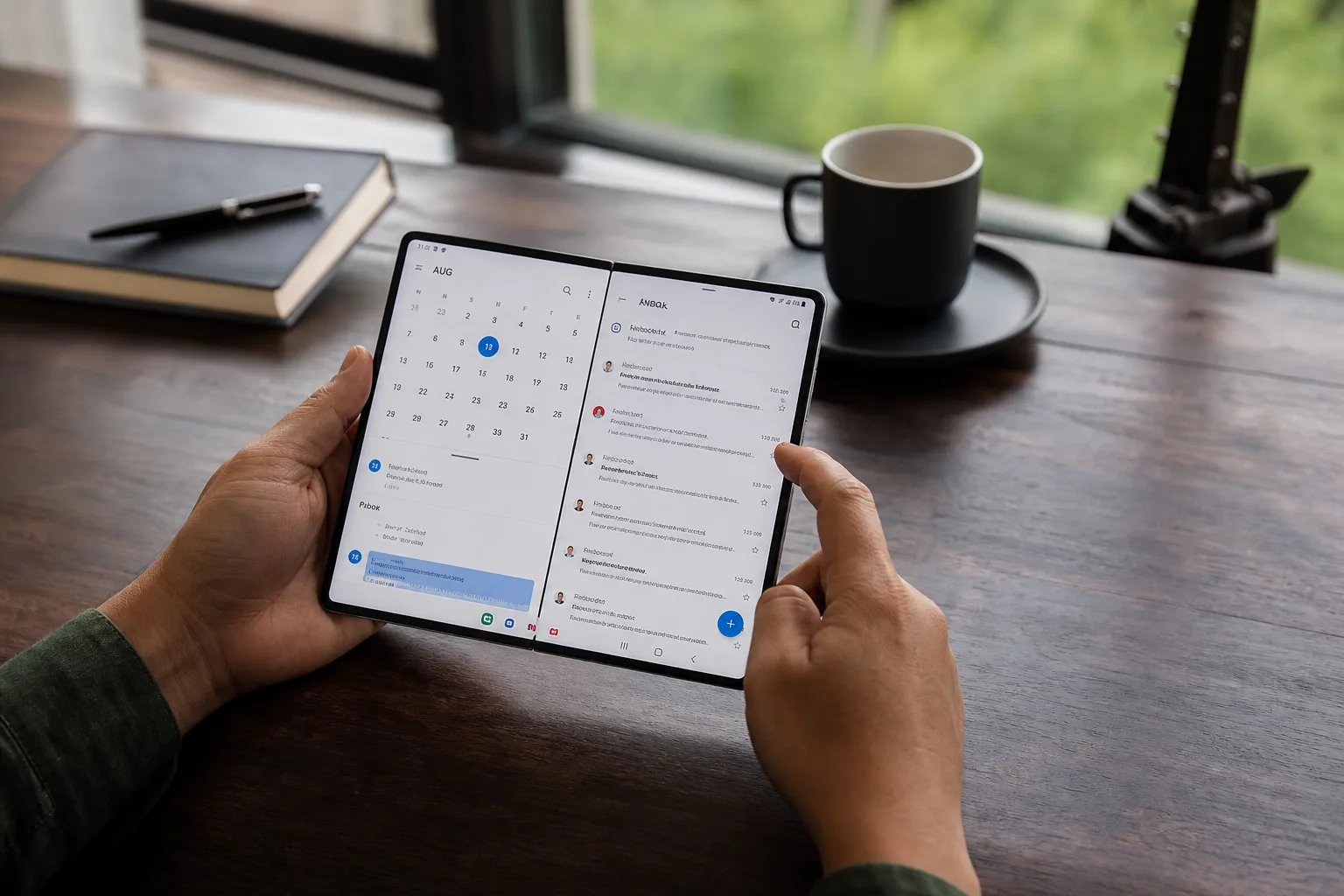
- Galaxy Z Fold 8 setup starts with app pairs and split-screen shortcuts, the features that best justify its premium folding display.
- The Galaxy Z Fold 8 works best when its cover display and inner screen have separate jobs, layouts and frequently used apps.
- Samsung Labs can force stubborn apps into multi-window and wider layouts, though a few will still behave awkwardly.
- Tent mode turns the outer screen into a practical video display, offering a useful alternative to Samsung’s absent Flex Mode support.
Table of Contents
The Galaxy Z Fold 8 earns its price only when you use the big screen
The Galaxy Z Fold 8 can be treated like a very expensive ordinary phone. Plenty of owners will do exactly that: scroll a feed on the narrow outer screen, occasionally unfold it for YouTube, then wonder why they spent flagship-laptop money on it. That’s the wrong approach. Samsung’s book-style foldable makes sense when the inner display changes how you move between tasks, not when it merely makes everything larger.
At roughly $1,900, depending on configuration and market, this is a purchase that demands some intent. The first hour with a Fold matters more than it does on a conventional slab phone because One UI has to be taught what kind of device you want it to be. My advice: don’t rush through setup screens and restore every old icon exactly where it was. Build for the unfolded phone first.
Samsung has spent years refining its foldable software, and its Galaxy Z Fold lineup remains the clearest example of Android treating a pocketable device as a small tablet. Google’s Pixel Fold family has made progress, while OnePlus has pushed strong hardware, but Samsung still gives power users the most knobs to turn. Some of those knobs are buried, because of course they are.
Galaxy Z Fold 8 multitasking should be your first stop
The signature feature of the Galaxy Z Fold 8 is not the hinge or the camera bump. It’s the simple act of putting two useful apps side by side without feeling like you’re trying to read a restaurant menu through a keyhole. Open your first app, tap the small dash at the top of the display, and One UI 9 offers split-screen and floating-window controls. Add a second app and start resizing.
For me, the winning setup is often an email inbox alongside Google Docs, Calendar, or a browser. A wide 90:10 split is particularly handy when one app is mostly reference material. You can keep a message visible while entering an address, tracking number, date, or meeting detail elsewhere. That sounds mundane because it is mundane. So is a kitchen counter, until you’ve tried cooking on a postage stamp.
Save combinations you repeat as app pairs. Two apps open together can be stored from the three-dot divider menu and placed in Samsung’s Edge Panel, turning a few taps into one. A browser and notes app, Slack and Calendar, Gmail and Drive: these aren’t flashy demos, but they’re the habits that make the Galaxy Z Fold 8 feel materially different after the novelty wears off.
Samsung also allows three apps on screen at once, an ability shared with its tablets and larger TriFold-style devices. I’d argue that this is more occasional than essential on a 7.6-inch panel. Three full apps can get cramped fast. Still, a document, a chat window and a music controller is a perfectly defensible arrangement when you’re traveling or working away from a laptop.
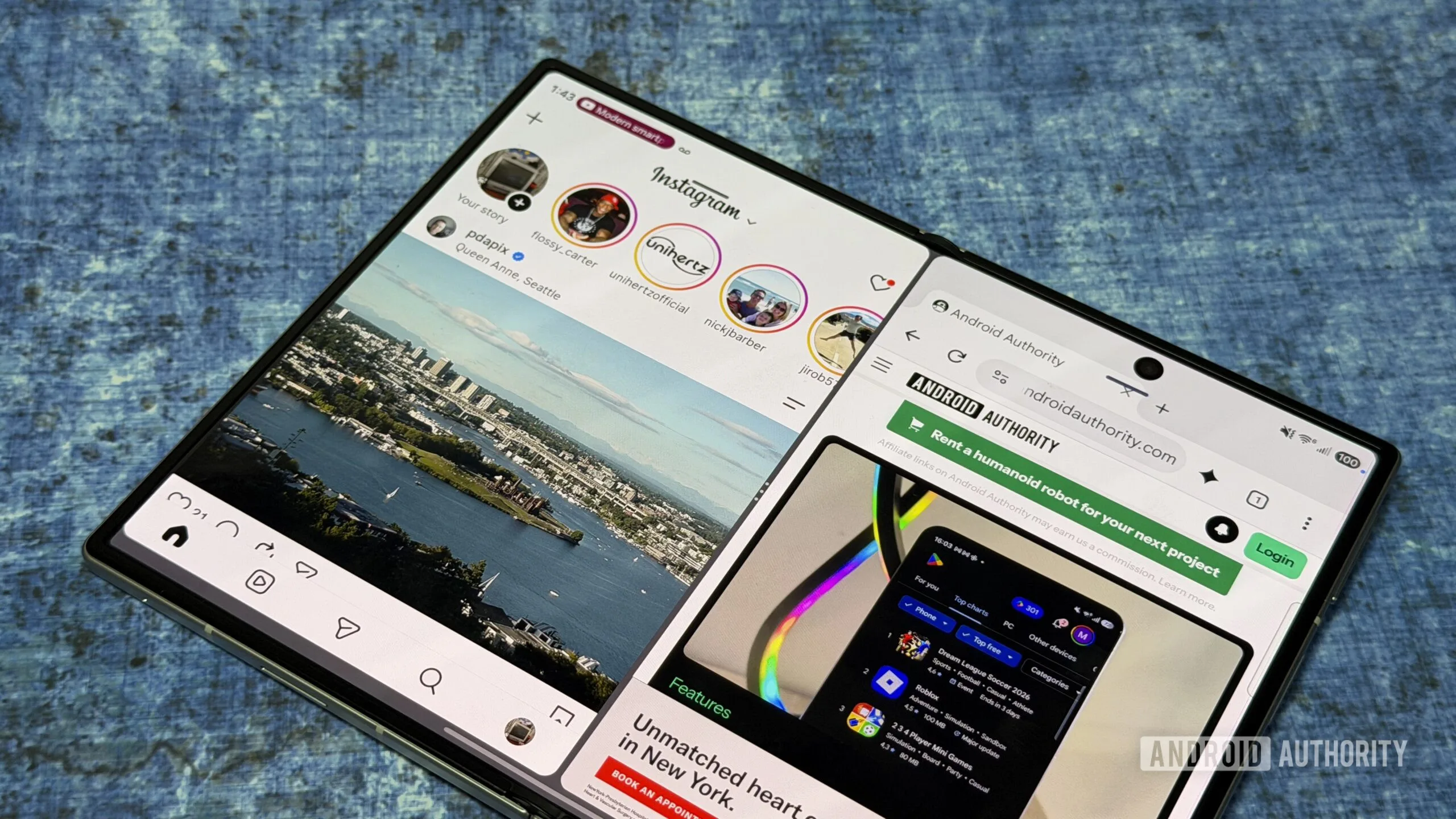
Rotate the Galaxy Z Fold 8 instead of fighting bad app layouts
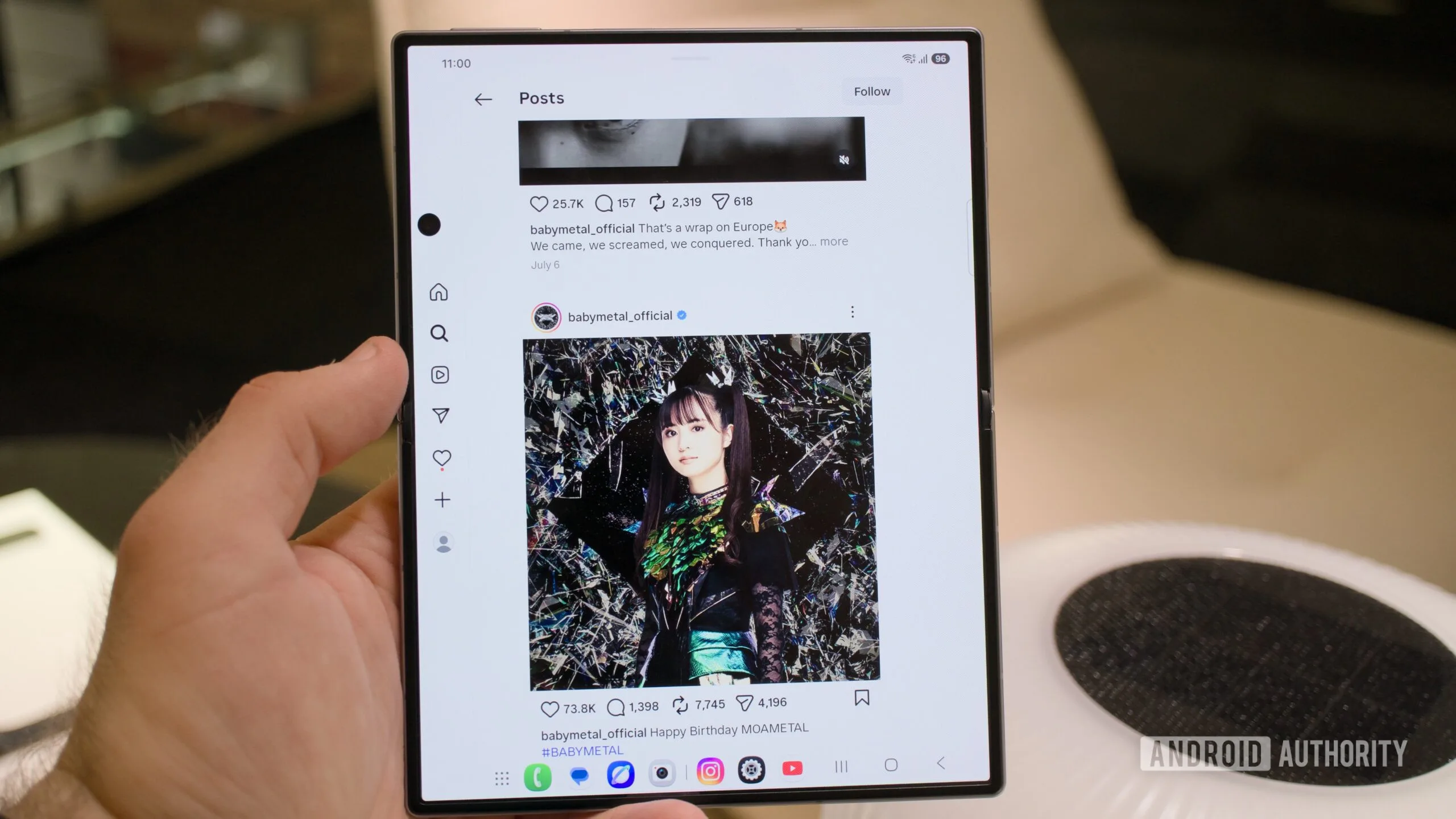
Foldable apps remain a mixed bag. The good ones adapt gracefully; the bad ones act as if the larger display is an administrative error. That’s why owners should get comfortable turning the Galaxy Z Fold 8 between landscape and portrait rather than assuming its natural unfolded position is the only useful one.
Social apps are the obvious example. Instagram and Threads can look oddly shallow in landscape, with too much empty width and too little vertical room for a feed. Rotate the device and it behaves closer to an 8-inch tablet: still compact, still comfortable to hold, but far better for reading and scrolling. Samsung’s relatively broad inner proportions are doing real work here. Older tall-and-narrow foldables often felt like they were begging users to stay horizontal.
This is a small behavioral change, yet it gets at the appeal of a mature foldable. The phone isn’t asking you to accept one compromise all day. You can use the orientation that fits the app in front of you.
Open Labs, but expect a few rough edges
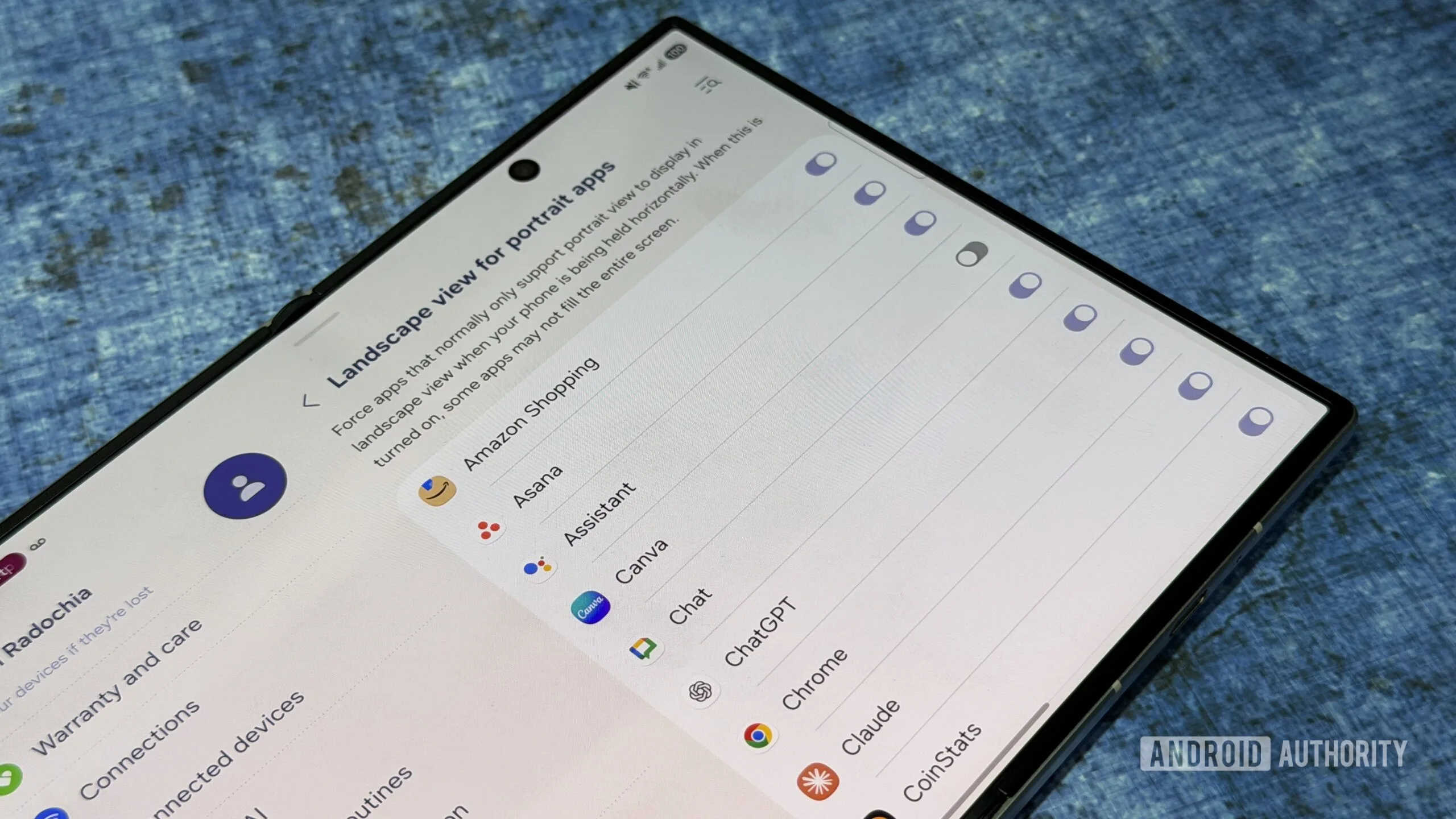
Samsung’s Labs menu is where the Galaxy Z Fold 8 stops being polite. Find it in Settings, then Advanced features, then Labs. The headline switch is multi-window support for all apps, which attempts to make apps run in split-screen even when their developers haven’t properly built for it.
Enable it. Then test the apps you actually use.
There will be failures: squashed layouts, controls that land in strange places, an app that abruptly insists on portrait. But the alternative is accepting that a $1,900 productivity device must follow the limitations of software designed for a six-inch rectangle. Frankly, that’s backwards. The feature also lets you review per-app screen behavior, including wider landscape use. Check social apps manually; they may not be set up the way you expect out of the box.
Foldables are still partly a software experiment, even from the market leader. Apple’s absence from the category has spared iOS developers this headache. Android developers haven’t been so lucky, and Samsung is effectively offering users a workaround while the ecosystem catches up.
Tent mode and separate home screens make the Fold feel personal
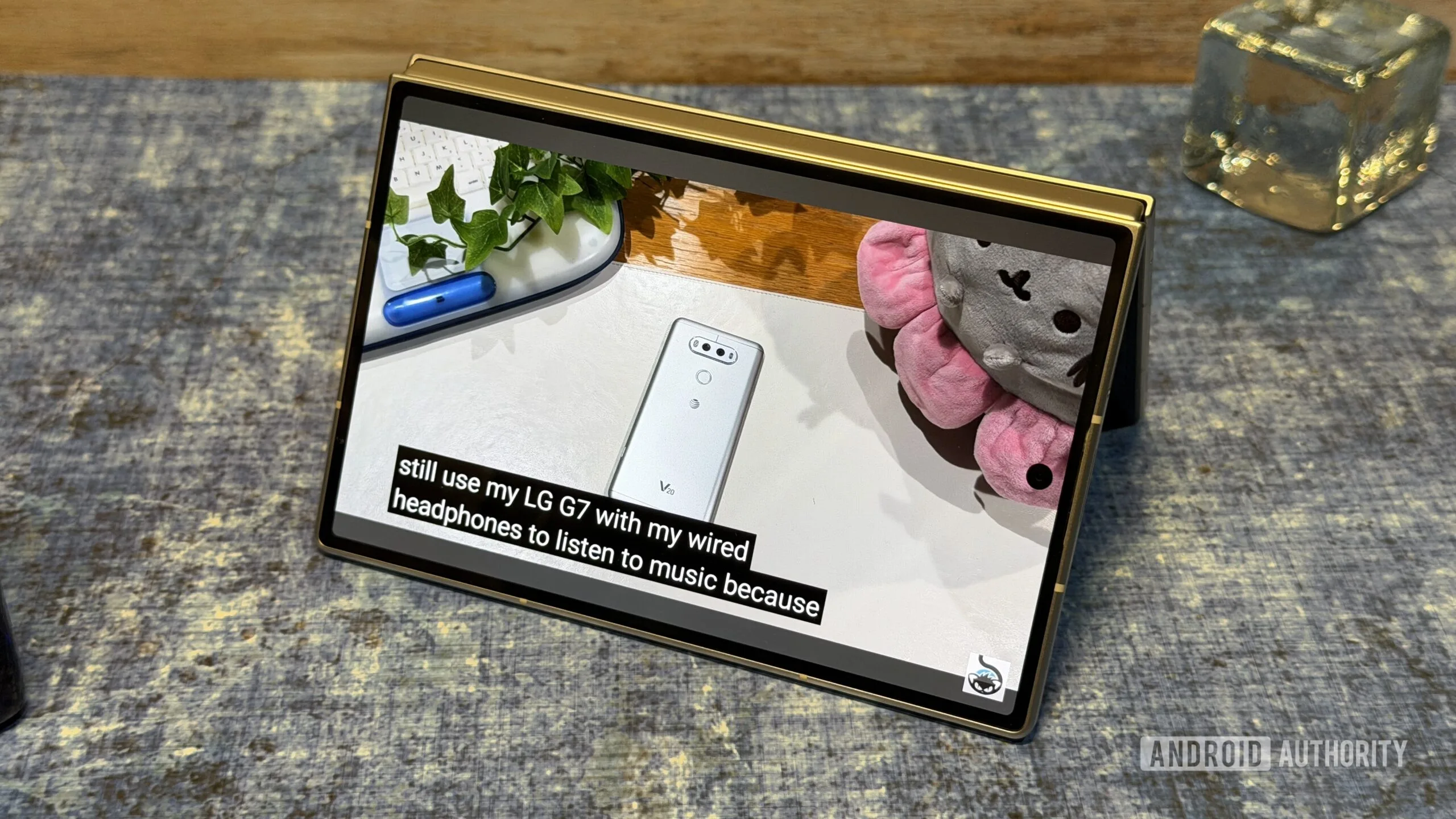
One unusual strength of the Galaxy Z Fold 8 is tent mode: fold the handset into an inverted V and use the exterior display as a freestanding video screen. It’s the sort of thing that sounds gimmicky until you’re watching a match, recipe, or long video at a desk, on a tray table, or beside a bed. Then it feels obvious.
Samsung’s conventional Flex Mode has drawn attention for what it does not offer here, but tent mode has a more direct everyday purpose. The outer display’s 16:10-ish presentation makes video look more natural than it did on narrower cover screens. It won’t replace a tablet or a laptop, obviously. It does mean you can stop propping a $1,900 device against a water glass like the rest of us.
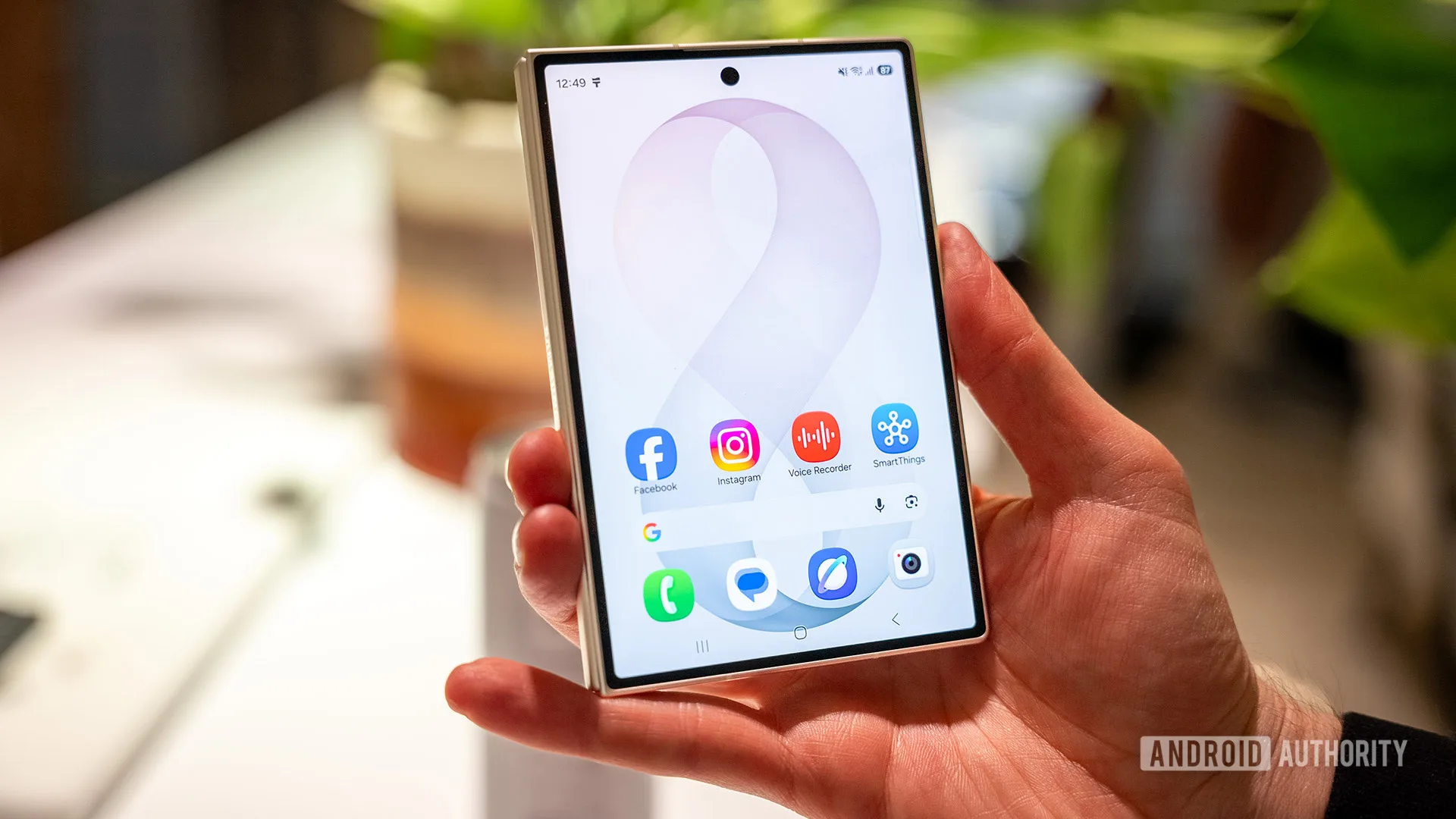
Keep the cover-screen and inner-screen home layouts separate. One UI 9 does not force screen mirroring by default, and that is a sensible decision. Make the outer display quick and light: communications, payment apps, a couple of widgets, perhaps your camera. Treat the inside as a workspace with browser folders, reading apps, app pairs and the tools that benefit from room to breathe.
That division is the real trick to living with the Galaxy Z Fold 8. It should feel like two deliberately arranged devices, not one stretched phone. If Samsung can keep improving this software while developers learn to respect flexible screens, the next foldable battle won’t be about thinner hinges. It’ll be about which company best understands what people do when they finally have space to do it.
Frequently Asked Questions
How do I set up multitasking on the Galaxy Z Fold 8?
Open an app, then use the dash at the top of the screen to enter split-screen or multi-window mode and choose another app. Once a combination works for you, save it as an app pair from the menu between the two windows and add it to the Edge Panel.
What is Samsung Labs on a foldable phone?
Samsung Labs is a settings area under Advanced features that includes display and multitasking options. On the Fold 8, it can enable multi-window use for apps that do not officially support it and let you set apps to use landscape orientation.
Should the Fold 8 cover screen mirror the inner display?
Separate home-screen layouts can help the cover display stay focused on frequently used apps, social media, and a few widgets, while the larger display can be organized more like a tablet with productivity apps and saved app pairs.