

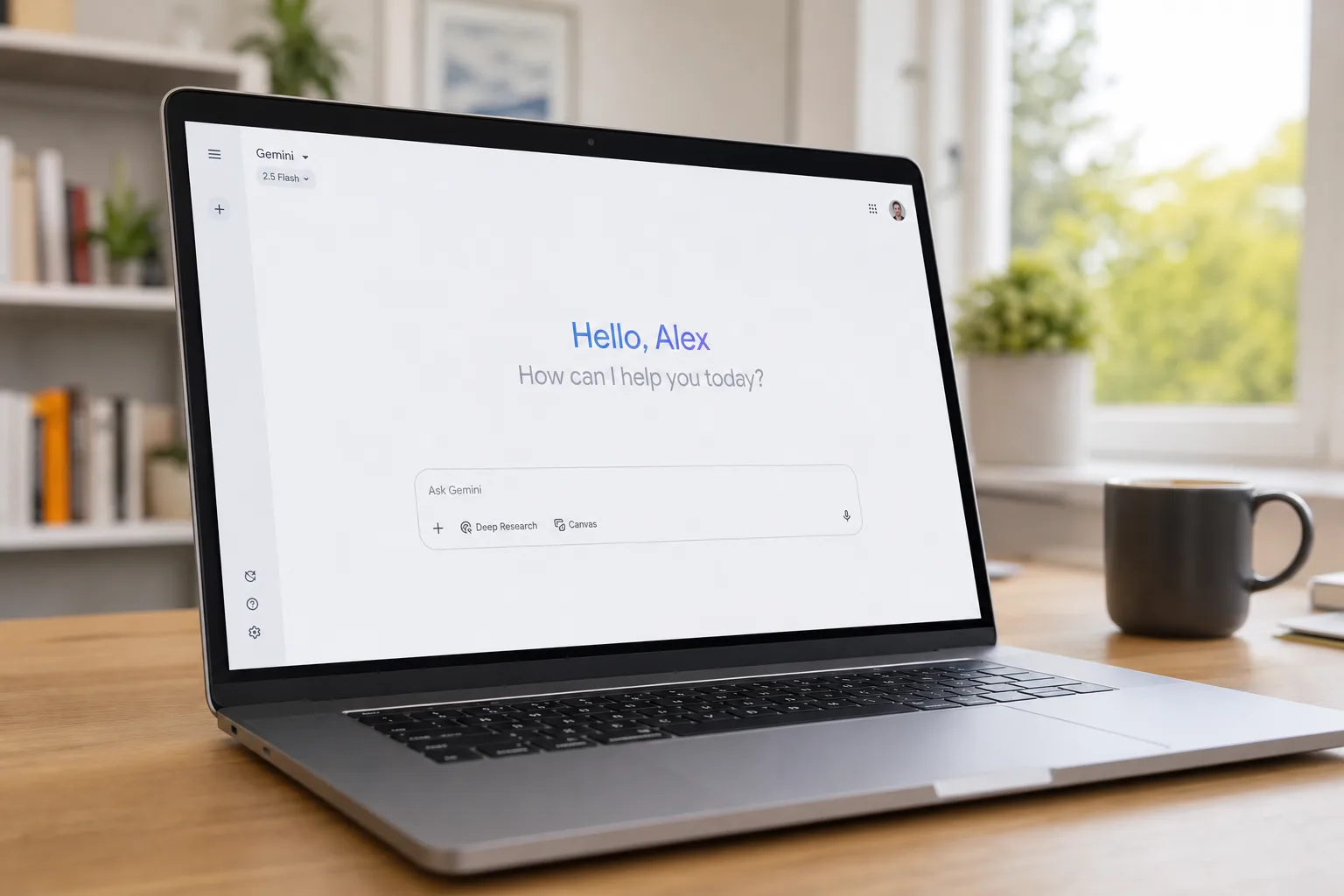
Google’s Gemini desktop app on macOS has quietly become one of the more interesting AI clients on the platform — but it’s still missing several features that mobile users have had for a while. That gap looks like it’s starting to close. According to a report from TestingCatalog, Google is now running a small-scale test of four significant additions to the Mac app: Gemini Live, system-wide voice dictation, a cursor-aware assistance tool called Magic Pointer, and a cryptic new option to connect a second Mac.
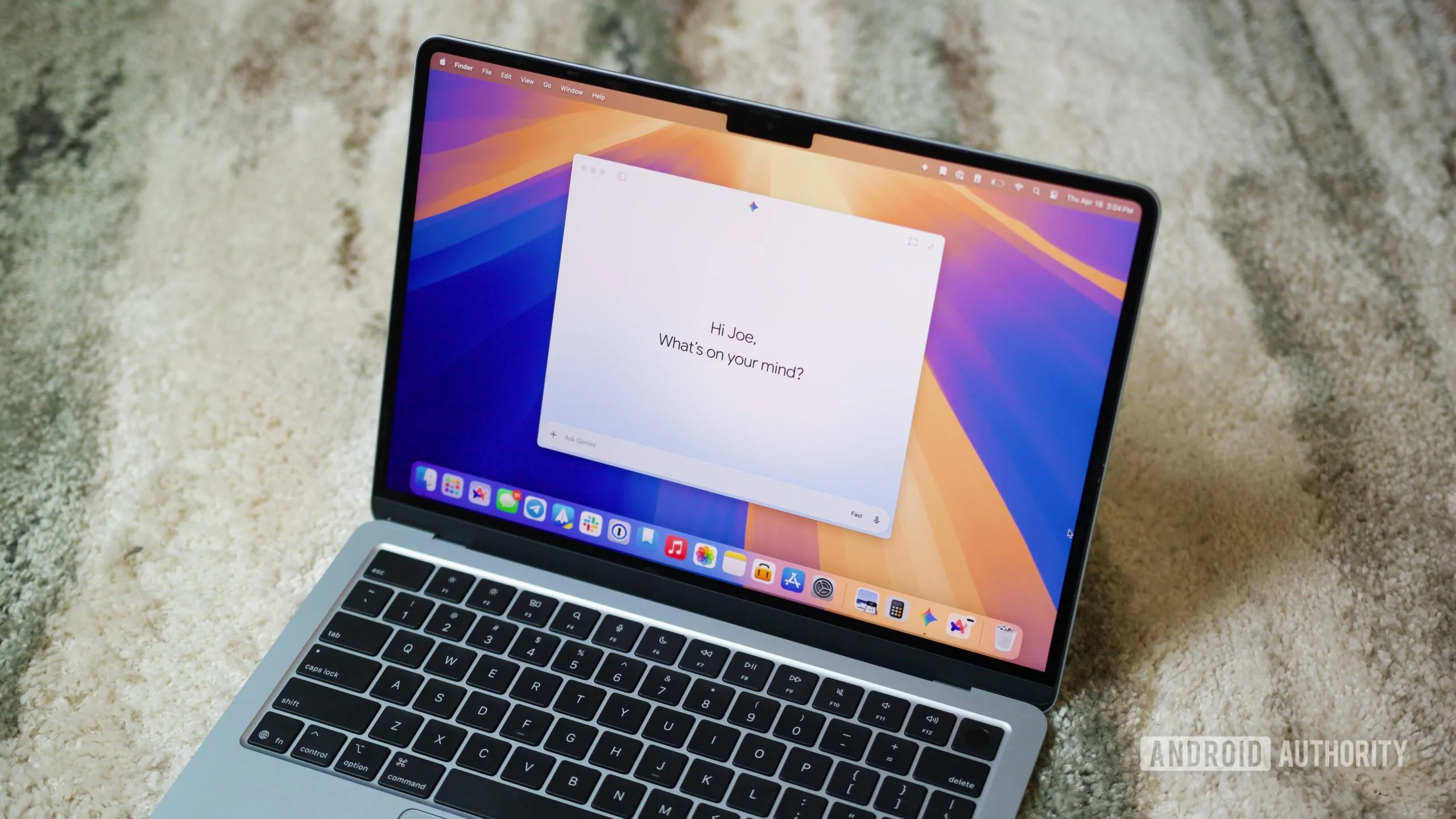
- Gemini desktop on Mac is testing Gemini Live support, bringing the conversational AI interface to macOS for the first time.
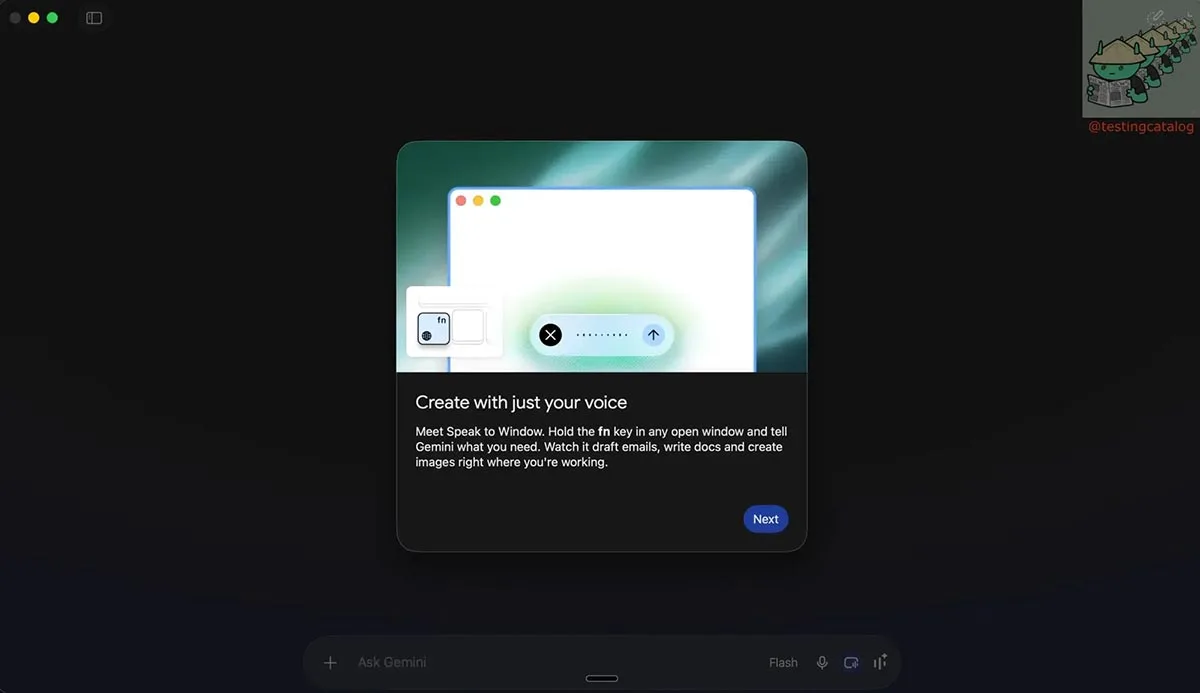
- A new ‘Speak to Window’ feature will let Gemini desktop users dictate text into any app using a custom hotkey.
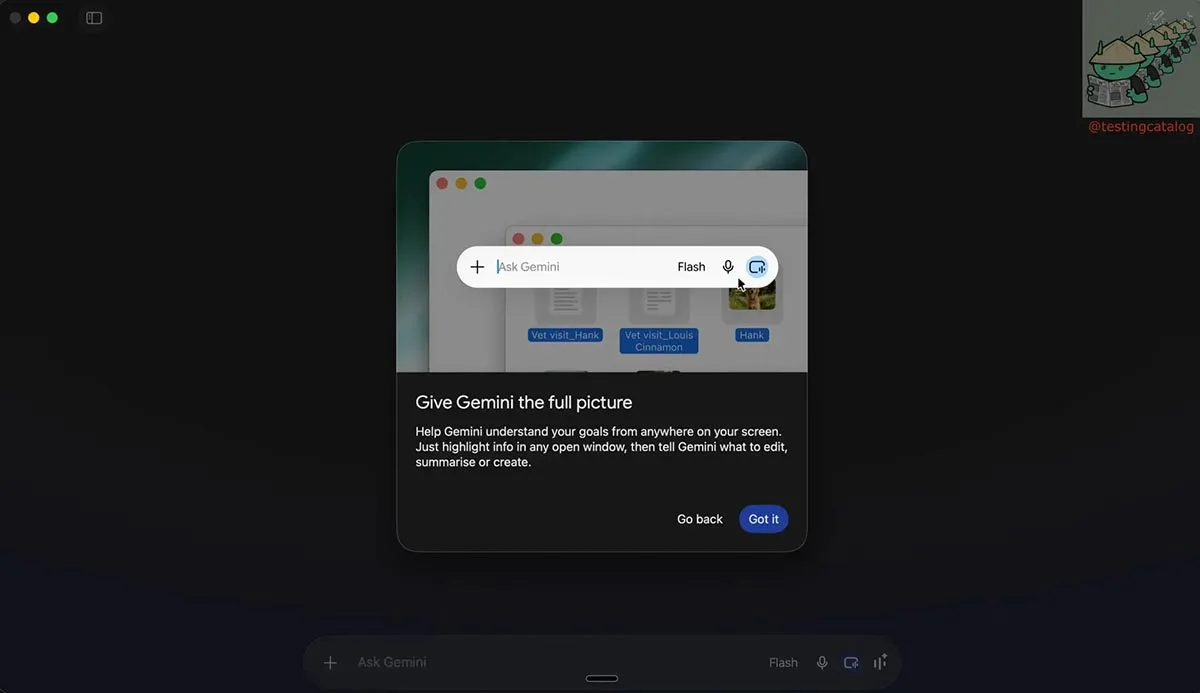
- Magic Pointer could let Gemini read your cursor’s context on screen, offering help based on exactly what you’re looking at.
- A mysterious ‘Connect another Mac’ option has appeared in testing, possibly enabling Gemini to control a second machine remotely.
Table of Contents
Gemini Live finally arrives on Gemini desktop
Gemini Live has been one of the flagship features of Google’s mobile AI experience since it launched — it’s the conversational, real-time voice mode that lets you have a more natural back-and-forth with the assistant rather than firing off single queries. It’s been on Android and iOS for months. The Mac app, though, has gone without it. That’s a strange omission for a desktop app that’s supposed to be a serious productivity tool.
According to the TestingCatalog report, the Gemini desktop implementation of Gemini Live will use an interface that mirrors what mobile users are already familiar with: a largely blank canvas with Live controls anchored at the bottom of the screen. That design choice makes sense — it keeps the focus on the conversation itself rather than cluttering things with additional UI elements. Whether Google has made any adjustments for the larger screen real estate, or simply ported the mobile layout across, isn’t clear yet.
The absence of Gemini Live on Mac has been particularly noticeable since Google’s I/O 2026 event, where the company showed off Gemini Spark and a broader set of smarter voice capabilities. Those announcements raised expectations that desktop users would see a more capable assistant experience soon. This test suggests that’s finally happening.
Speak to Window brings Gemini desktop voice dictation everywhere
The second feature in testing is arguably the most immediately practical. Google is apparently working on a system-wide voice dictation tool for the Gemini desktop app called ‘Speak to Window.’ The premise is straightforward: you set a hotkey in the Gemini app, switch focus to whatever application you’re working in — a browser, an email client, a notes app, a word processor — press the hotkey, and start talking. Gemini transcribes your speech and inputs it directly.
This puts Gemini in direct competition with Apple’s own built-in dictation on macOS, as well as third-party tools like Whisper-based apps that have built a following among power users who want accurate, low-latency transcription. The key differentiator Google could lean on here is Gemini’s broader AI context — though the current description suggests ‘Speak to Window’ is a transcription tool first, not a full AI composition assistant.
The real test will be accuracy and latency. Apple’s dictation has improved dramatically over the years, and tools like Superwhisper have raised the bar for what users expect from voice input on a Mac. If Google can match or exceed that while keeping it tightly integrated with the rest of the Gemini desktop experience, it could genuinely shift how people interact with the app day-to-day.
Magic Pointer makes the cursor a source of context
Perhaps the most technically interesting feature in the batch is Magic Pointer. The idea is that Gemini desktop will be able to follow your cursor around the screen and use its position as context when you ask for help. So if you’re hovering over a paragraph in a document, or pointing at a specific chart in a spreadsheet, Gemini should understand what you’re referring to without you having to describe it explicitly.
This kind of cursor-aware assistance has been teased in a few other Google contexts — the TestingCatalog report notes similarities with Magic Pointer features previewed for Googlebooks and with Gemini on Chrome in some regional rollouts. The concept is related to the broader ‘screen awareness’ capabilities that several AI assistants are now chasing. Microsoft’s Copilot has been pushing in this direction on Windows, and Apple has been threading similar ideas through its Apple Intelligence features on macOS Sequoia and beyond.
What makes cursor context specifically powerful is its passivity. You don’t have to take a screenshot, copy text, or explain your layout — the assistant infers relevance from where your attention is already pointing. Done well, it’s the kind of feature that becomes invisible in use. Done badly, it becomes an annoying distraction that constantly misreads your intent. The execution here will matter enormously.
The mysterious ‘Connect another Mac’ option
The fourth feature is the one with the least explanation attached to it. Apparently, a new entry has appeared in the Gemini desktop toolbar during testing simply labelled ‘Connect another Mac.’ The functionality behind this label isn’t documented yet, but the most logical interpretation is that it would let Gemini exert some level of control over a second Mac — potentially for remote assistance, file access, or some kind of cross-device AI workflow.
This would put Gemini desktop in proximity to tools like Apple Remote Desktop or even the Screen Sharing functionality already built into macOS, but with an AI layer on top. There are legitimate use cases — IT support, helping a family member troubleshoot a problem, or syncing AI context across multiple machines. There are also obvious questions about privacy and permissions that Google would need to address clearly before this sees a broad rollout.
Right now it’s too early to read too much into a label. But it’s the kind of feature that, if it works the way it might, would represent a meaningful expansion of what a Gemini desktop app can actually do compared to a browser tab pointed at gemini.google.com.
What this means for the broader AI desktop race
Google is playing a catch-up game on the desktop — and it knows it. While Gemini has been strong on mobile, the Mac app has lagged behind both the browser experience and what competitors like OpenAI (with ChatGPT’s desktop client) and Anthropic (with Claude’s Mac app) have been building. All four features in testing today are things those competitors already offer in some form.
That said, Google has a structural advantage: deep integration with services like Google Docs, Gmail, and Calendar that a standalone OpenAI or Anthropic app can’t replicate natively. If Gemini desktop can combine those integrations with system-level features like cursor awareness and universal voice dictation, the whole package starts to look more compelling than the sum of its parts.
The features are still being tested with a limited group, and Google hasn’t said when — or even confirmed that — they’ll roll out more widely. But the direction is clear. The Gemini desktop app is being built into something that wants to sit at the center of a Mac user’s workflow, not just serve as a convenient window into a chatbot. Whether Google can execute that vision before users settle on a competing option is the real question hanging over all of this.
Frequently Asked Questions
When will Gemini desktop get Gemini Live on Mac?
There’s no confirmed release date yet. Google is currently testing Gemini Live on its Mac desktop app with a small group of users, according to TestingCatalog. A wider rollout timeline hasn’t been announced.
What is the Magic Pointer feature in Gemini?
Magic Pointer lets Gemini track your cursor position and use it as context for assistance. If you hover over text or an element on screen, Gemini can offer help relevant to that specific content — similar to features teased for Gemini on Chrome.
How does the ‘Speak to Window’ voice dictation work?
Users set a custom hotkey in the Gemini desktop app, then switch to any app — a browser, notes app, or text editor — and start speaking. Gemini transcribes the speech and inserts the text, working system-wide rather than only inside the Gemini app itself.
Does Gemini desktop currently support Gemini Live?
Not yet for most users. Gemini Live has been available on Android and iOS for some time, but the Mac desktop app has lacked it entirely. The feature is now in limited testing and could arrive more broadly in the coming months.