

Table of Contents
Why Switching Phones Fails for Many Users?
Most phone migrations fail for three simple reasons:
- The old phone was erased too early
- Messaging services stayed linked to the old system
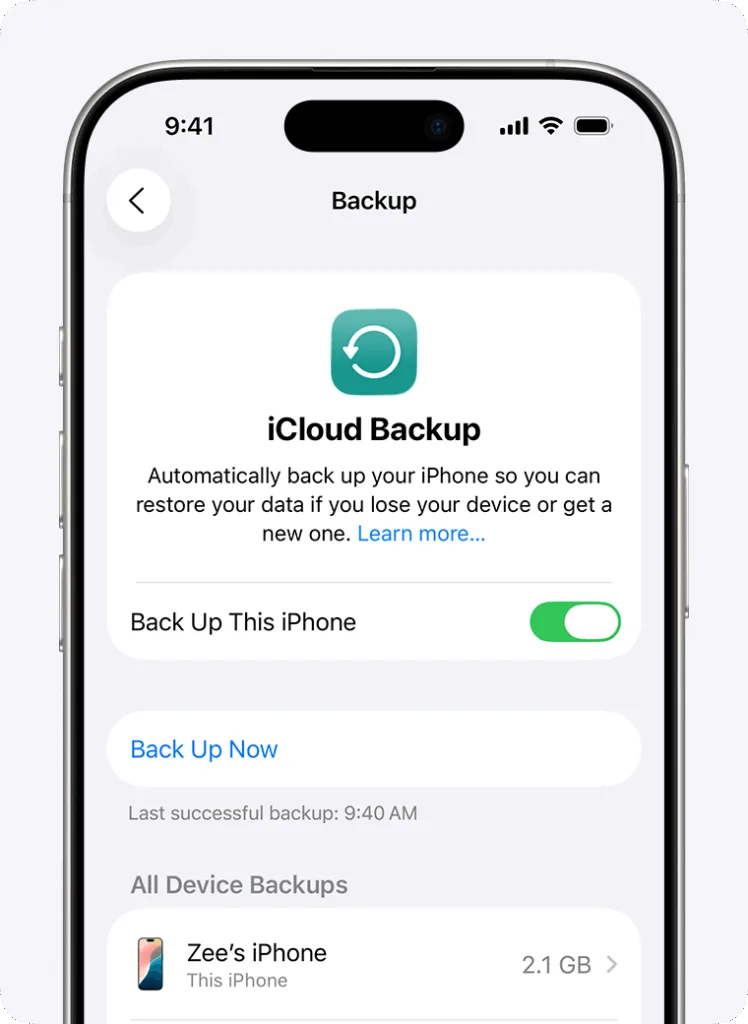
- Cloud backups were incomplete or outdated
People often follow setup screens without understanding what happens in the background. When something breaks, they do not know how to recover it.
This guide solves that problem by explaining every major challenge before it happens.
Scenario 1: Old iPhone to New iPhone (Most Common Upgrade)
What Usually Goes Wrong
Even though Apple promotes “easy upgrades,” users still face problems such as:
- Photos missing after setup
- Apps stuck downloading
- Messages not syncing
- Face ID and Apple Pay failing
These issues usually come from interrupted transfers or outdated backups.
Best Method: Direct iPhone-to-iPhone Transfer
This method is safest because it copies data device to device.
Before you start:
- Update both iPhones to the latest iOS
- Plug both phones into chargers
- Turn on Wi-Fi and Bluetooth
- Keep at least 5 GB free storage on the new phone
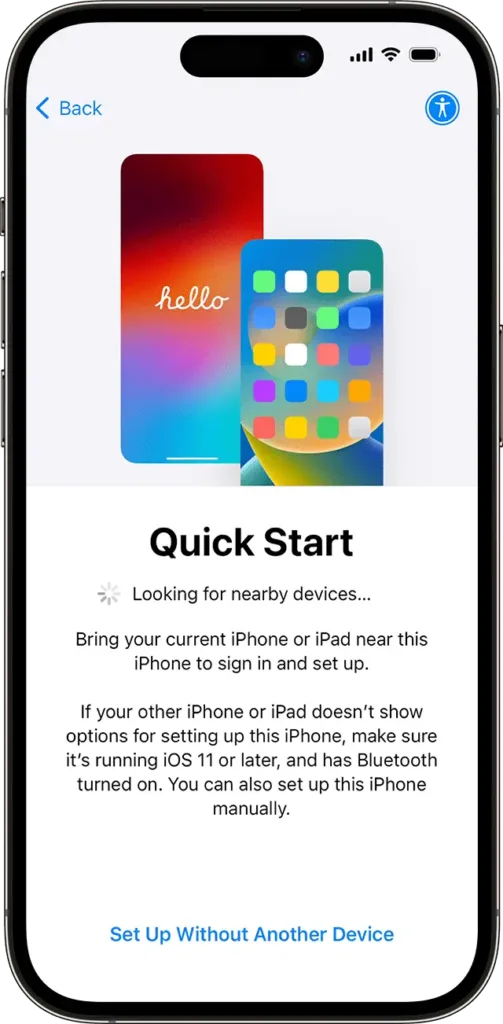
Transfer steps:
- Turn on the new iPhone and place it next to the old one
- Use Quick Start and scan the animation
- Choose “Transfer Directly from iPhone”
- Do not lock or move either phone
- Wait until the home screen appears
Common Problems and Fixes
Problem: Transfer freezes
Fix: Restart both phones and retry. Use iCloud backup if it fails twice.
Problem: Photos missing
Fix: Enable iCloud Photos and wait 24 hours on Wi-Fi.
Problem: Apps not opening
Fix: Sign out and back into Apple ID on the new phone.
Scenario 2: Android to iPhone (Most Error-Prone Switch)
This is where most users panic.
Why Android to iPhone Is Tricky
Android and iOS handle:
- Messages differently
- App permissions differently
- Cloud storage separately
Because of this, some data cannot move automatically.
Correct Way to Switch: Move to iOS App
Before starting:
- Charge both phones above 50%
- Disable battery saver on Android
- Turn off mobile data switching
- Update Android system apps
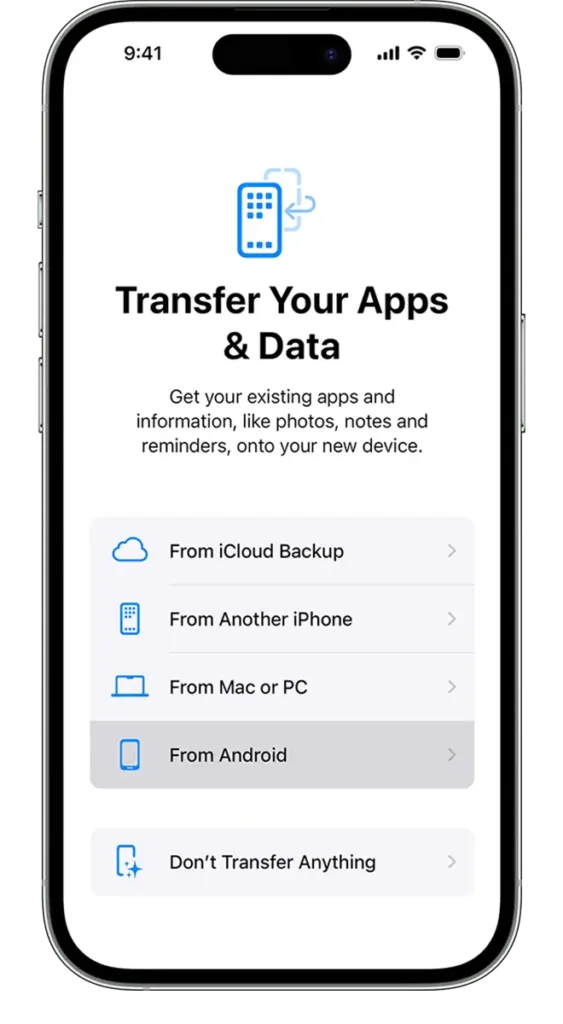
Transfer steps:
- Start iPhone setup
- Choose “Move Data from Android”
- Install Move to iOS on Android
- Enter the code shown on iPhone
- Select all available data
Biggest Challenges and Solutions
Challenge: Messages stop arriving after switch
Cause: Android RCS or iMessage conflict
Fix:
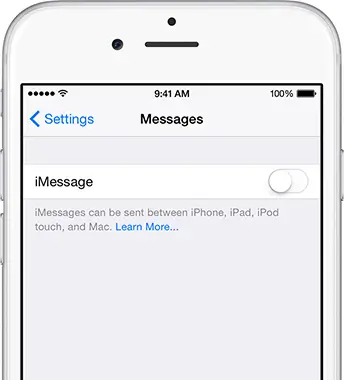
- Turn off RCS in Google Messages
- Disable iMessage on old iPhone (if used before)
Challenge: WhatsApp chats missing
Cause: Unsupported device or version
Fix: Update WhatsApp and retry before erasing Android
Challenge: Photos missing
Fix: Install Google Photos on iPhone and enable sync
Scenario 3: iPhone to Android (Most Overlooked Details)
Why This Switch Breaks Messaging
Apple keeps phone numbers tied to iMessage.
If you skip one step, text messages will disappear.
Critical Step: Disable Apple Services First
Before moving data:
- Turn off iMessage
- Turn off FaceTime
- Sign out of iCloud
If this is skipped, SMS messages will not reach the Android phone.
Transfer Options That Actually Work
- USB cable transfer during Android setup
- Google Drive backup from iPhone
- Manufacturer tools (Samsung Smart Switch)
Avoid third-party apps claiming “one-tap transfer.”
Common iPhone to Android Issues
Problem: Contacts missing
Fix: Enable Google Contacts sync on iPhone before switching.
Problem: App data lost
Fix: Log in with the same accounts after reinstalling apps.
Data That Never Transfers Automatically (Important)
No system can transfer:
- Paid app licenses
- Downloaded offline music
- Game progress without cloud sync
- Secure app data like banking tokens
Always check critical apps manually.
When NOT to Erase Your Old Phone
Do not erase your old phone if:
- Messages look incomplete
- Photos are still syncing
- Apps show login errors
- WhatsApp is missing history
Keep the old phone for at least 72 hours after switching.
Emergency Recovery If Something Goes Wrong
If data is missing:
- Stop using the new phone immediately
- Restore again from backup
- Reinsert SIM into old phone if needed
- Contact Apple or Android support before erasing anything
Most data loss is reversible within 7 days.
Final Advice for a Stress-Free Switch
Phone switching fails because people rush.
If you:
- Back up properly
- Follow the correct order
- Understand what does not transfer
You can switch phones without losing a single file.
Stay Updated: Mobile – Editors’ Pick