

Android is one of the most customisable mobile operating systems on the planet — yet so much of what makes it genuinely powerful is buried under layers of menus, manufacturer skins, and settings pages that most people never open. These hidden Android features don’t announce themselves. They sit quietly in the background, waiting for someone to stumble across them. Here are seven that deserve far more attention.
- Several hidden Android features — like the privacy dashboard — can dramatically improve your security and daily workflow.
- Hidden Android features such as metered connections and Wi-Fi QR codes can save you data and frustration instantly.
- The Quick Settings long-press trick lets you skip Android’s notoriously tangled settings menus entirely.
- Google’s decision to assign the power button to Gemini AI by default has frustrated users who want basic controls back.
Table of Contents
The Privacy Dashboard Android Should Have Promoted Better
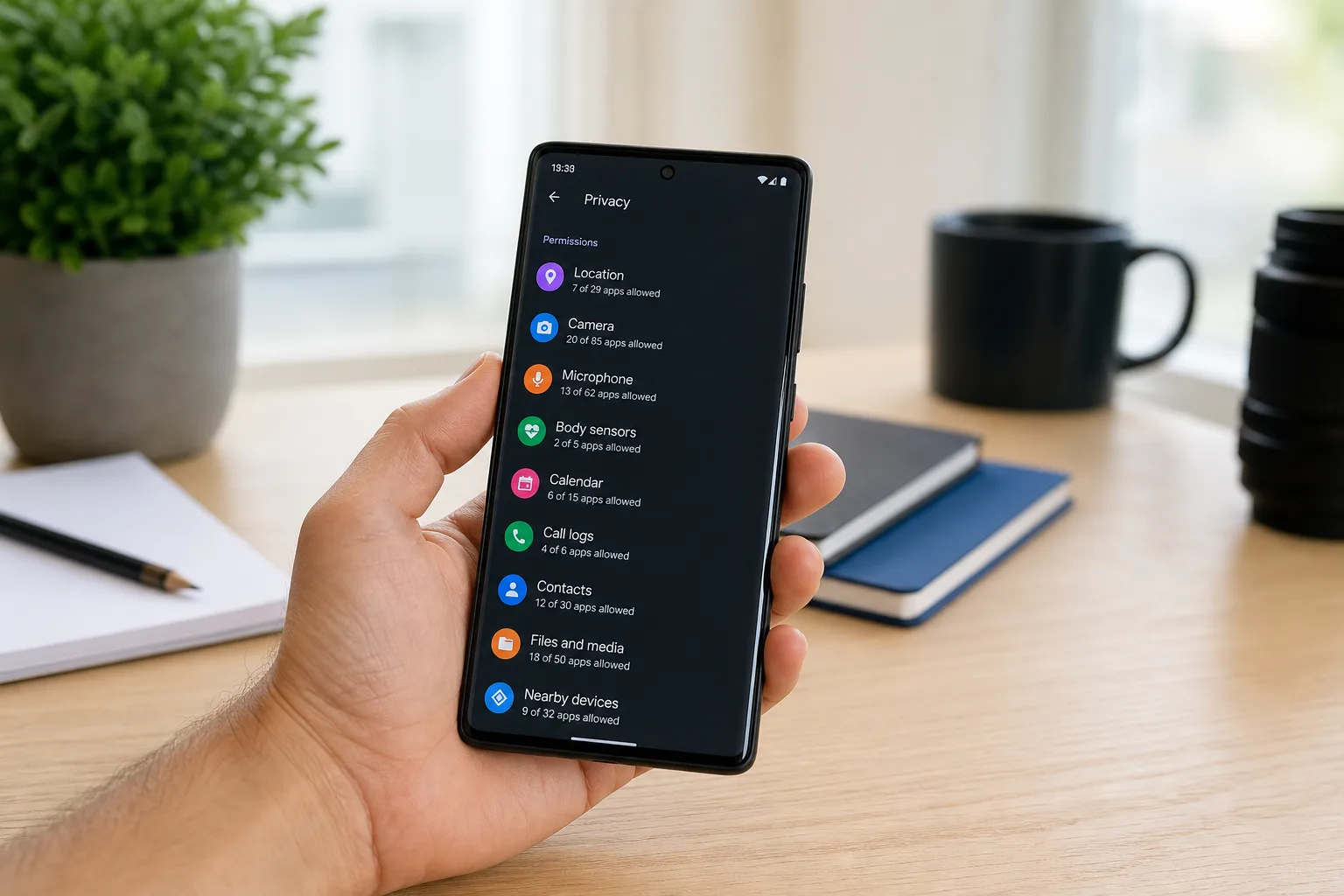
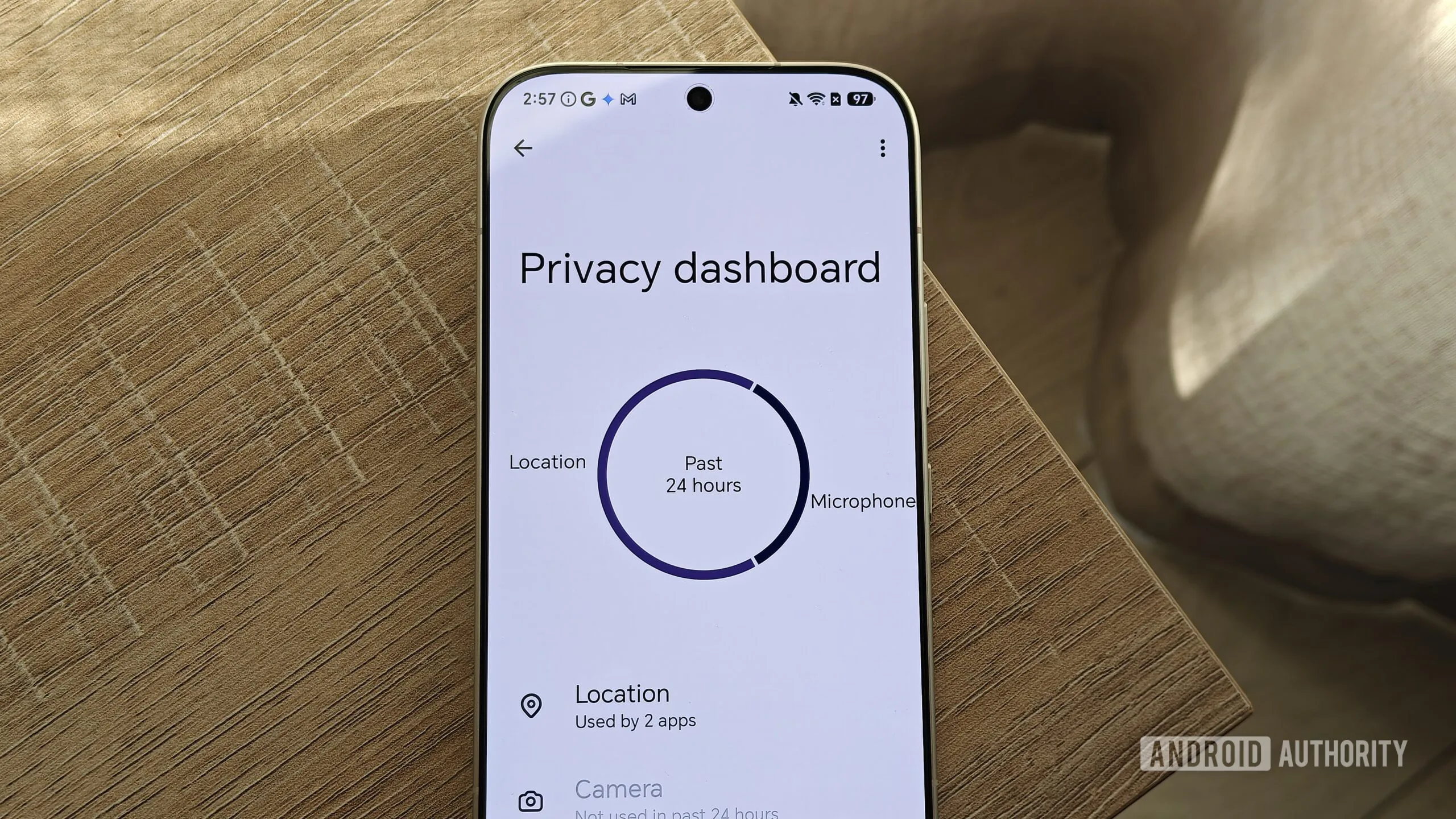
If you’ve ever wondered which apps are silently accessing your microphone, location, or contacts without you actively using them, Android already has the answer — most people just don’t know where to look. The built-in privacy dashboard presents a 24-hour view of every permission accessed by every app on your device, laid out in a visual chart that’s actually readable at a glance.
This isn’t just a novelty. These hidden Android features can have real consequences for your data. One longtime Android writer discovered that X (formerly Twitter) had been granted contacts access — permission they had no memory of granting. Several other apps were doing the same thing. Without the dashboard, that kind of quiet over-reach goes completely unnoticed.
On stock Android, you’ll find it under Settings > Security & privacy > Privacy dashboard. Samsung’s One UI routes you to Settings > Security and privacy > Permissions used in last 24 hours, though frustratingly, Samsung strips out the visual chart. It still works — it’s just less intuitive. Either way, spending five minutes in this dashboard is one of the most worthwhile things you can do for your phone’s privacy hygiene right now.
Stop Reciting Your Wi-Fi Password to Guests
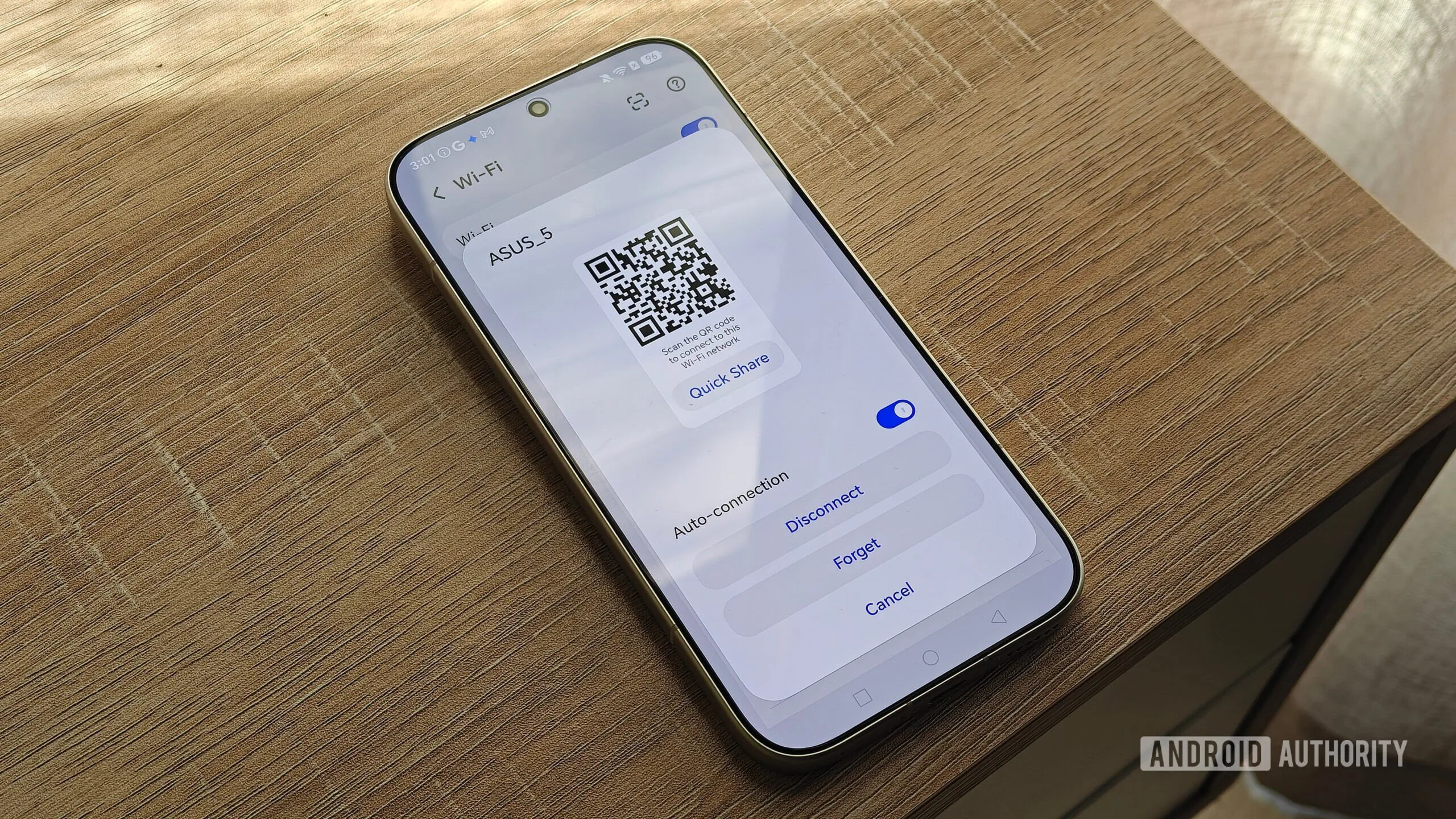
The ritual is familiar: someone visits, asks for the Wi-Fi password, you either shout it across the room or type it out on their phone while they awkwardly watch. Android solved this problem years ago with built-in Wi-Fi QR code sharing, and somehow almost nobody knows about it.
The exact path varies by device. On Samsung Galaxy phones, head to Settings > Connections > Wi-Fi, tap the cog icon next to your connected network, and there’s a QR code button at the bottom of the screen. Your guest scans it from their own Wi-Fi settings — no Google Lens, no third-party app, no fumbling with passwords. The receiving device also scans it directly through the Wi-Fi settings scan icon, keeping the whole process contained within the OS.
It’s one of those hidden Android features that makes you wonder why it isn’t more prominently surfaced during setup. Google’s own Android support documentation covers network sharing, but manufacturers have done a poor job of making these options discoverable. The feature works smoothly across most current Android skins — it just takes one trip into settings to set up the first time.
Metered Connections: The Data-Saver Setting Power Users Swear By
If you’ve ever tethered a secondary phone or tablet to a mobile hotspot, you’ve probably experienced the silent data drain that comes with it. Android, by default, treats any Wi-Fi connection as effectively unlimited — meaning background app updates, OS downloads, and sync processes all proceed as if you’re on broadband. When the Wi-Fi in question is actually a hotspot tied to a capped data plan, that assumption gets expensive fast.
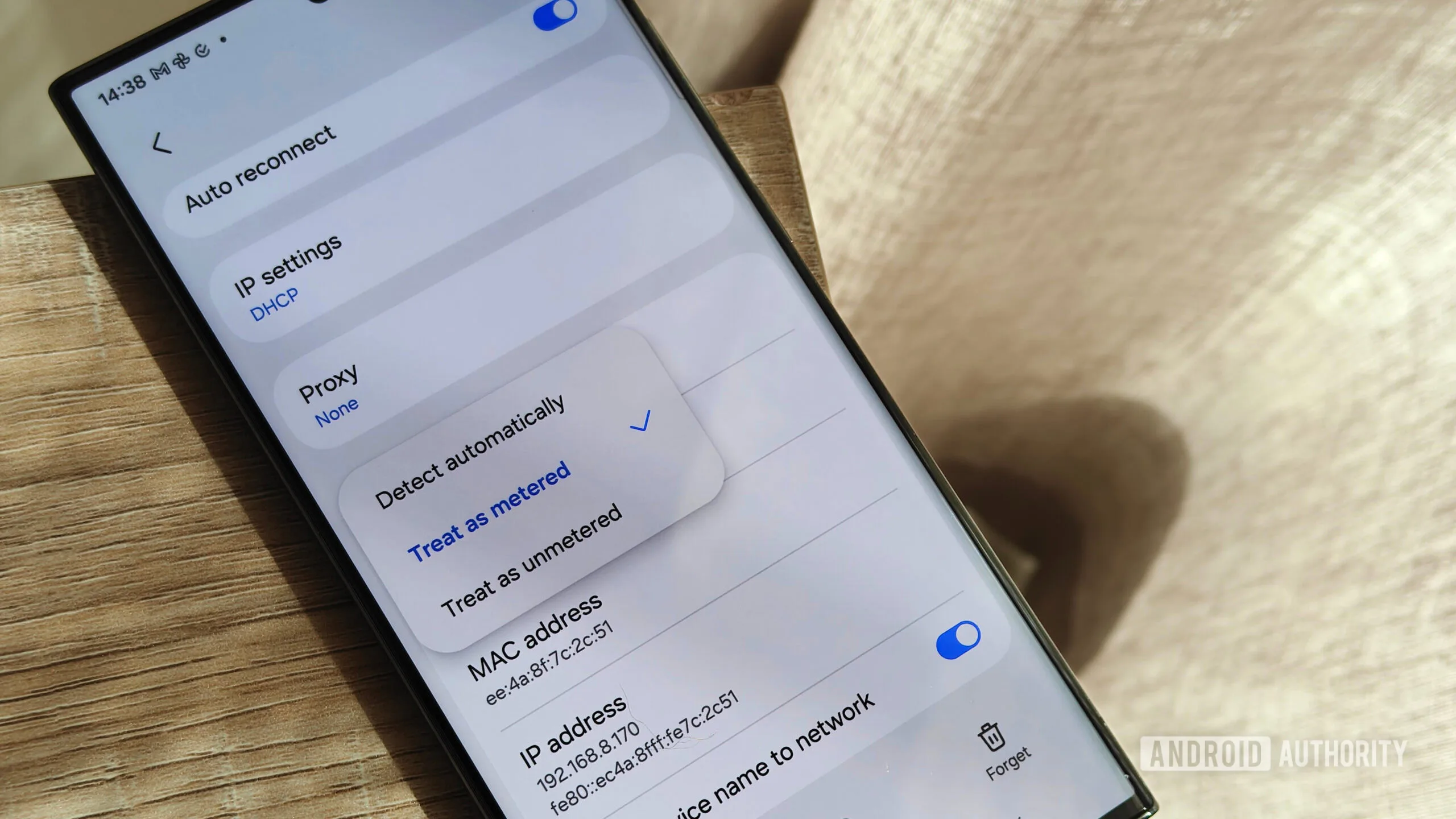
The fix is the metered connection setting, and it’s one of the most practically useful hidden Android features for anyone who travels or juggles multiple devices. Marking a network as metered tells Android to treat it like a mobile connection — throttling background data, deferring large downloads, and generally behaving more conservatively.
On a Samsung Galaxy device, open the settings for the specific Wi-Fi network, tap the ‘View more’ dropdown, then select ‘Metered network’ and set it to ‘Treat as metered.’ It’s worth doing this any time you connect to a hotspot. One notable gap: HONOR devices reportedly don’t include this option, which is a real omission for what’s become an essential power-user tool.
The Quick Settings Long-Press Trick That Replaces Menu Diving
Android’s settings architecture is, to put it charitably, inconsistent. Samsung’s eye comfort controls live in display settings. HONOR puts the equivalent inside a dedicated eye care menu. Pixel devices have their own layout. Switch between handsets regularly and you’ll spend more time hunting for settings than actually changing them.
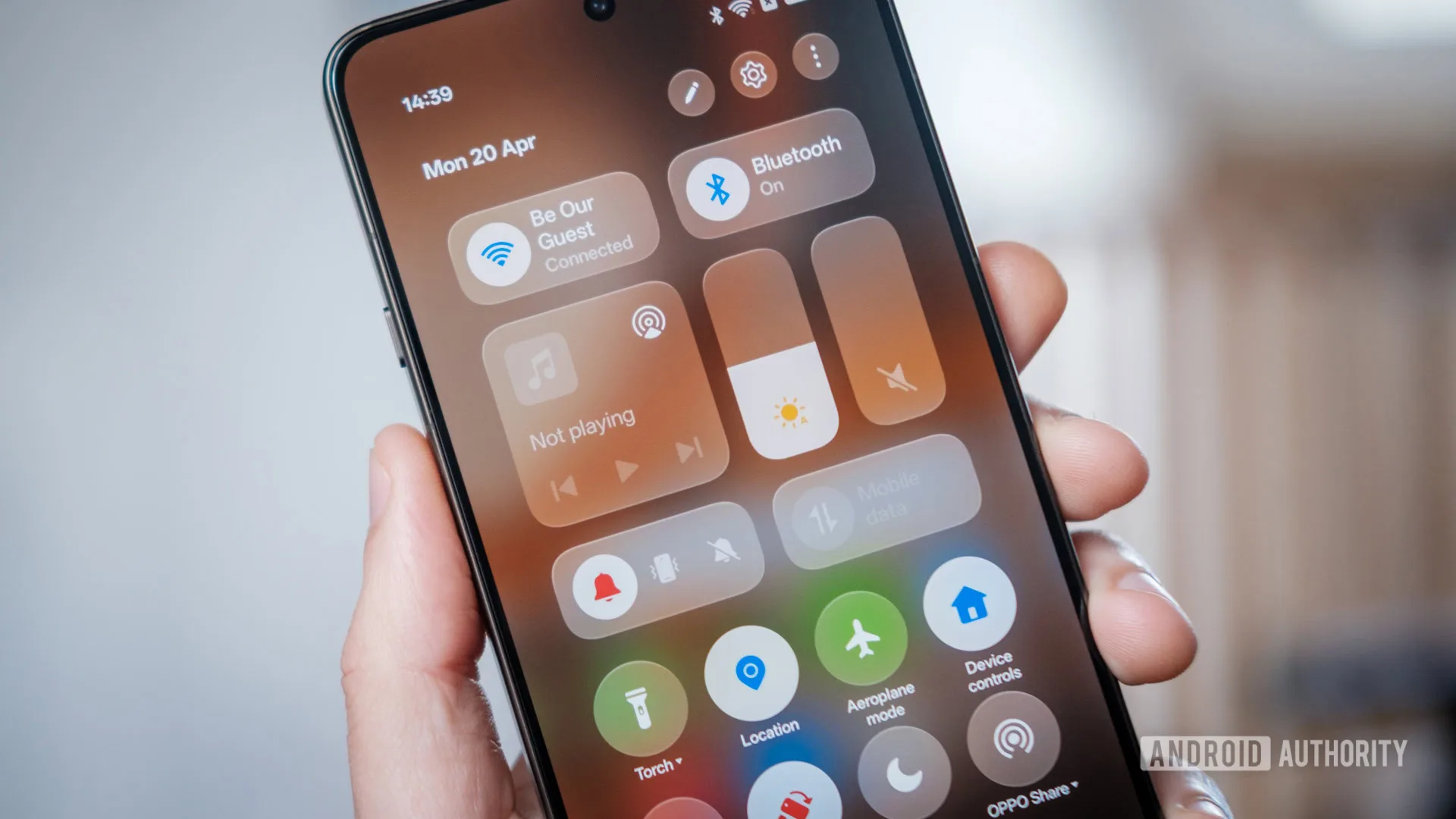
There’s a shortcut that cuts through all of this. Every icon in your Quick Settings panel — the tray you pull down from the top of the screen — can be long-pressed to jump directly to that feature’s full settings page, not just its on/off toggle. Do Not Disturb becomes a gateway to your full schedule configuration. The eye comfort shortcut opens warmth and timing controls. The hotspot icon takes you straight into tethering options.
It sounds minor, but for anyone who uses these hidden Android features daily, it removes a genuinely irritating friction point. Instead of navigating three menus deep to adjust a single setting, you get there in one press. It also works well as a workaround when the settings search function fails to surface what you need — which, given how manufacturer skins fragment the Android experience, happens more than it should. Knowing which hidden Android features respond to a long-press can genuinely transform how efficiently you navigate your device.
Taking Back Your Power Button From Gemini
Google made a decision with recent versions of Android that’s still generating complaints: the long-press action on the power button now launches Gemini, the company’s AI assistant, by default. For Pixel users especially, that’s a significant departure from the muscle memory of holding the power button to access the shutdown menu or emergency options.
The reasoning from Google’s side is understandable — Gemini needs accessible entry points to compete with Siri and Samsung’s Bixby integrations. But reassigning a button that’s literally called the ‘power button’ to an AI shortcut, without making the alternative obvious, is the kind of decision that erodes trust in the software experience.
The good news is you can change it. The option is typically found within your device’s System or Gestures settings depending on your Android skin, and it lets you restore the traditional power menu or assign a different action entirely. It’s one of those hidden Android features that shouldn’t need to be ‘hidden’ at all — it should be surfaced during first-time Gemini setup. That it isn’t feels like a deliberate choice to nudge adoption rather than respect user preference.
Why These Features Stay Buried — And What That Says About Android
Taken together, these seven settings reveal something worth thinking about. Android’s power comes precisely from its depth and flexibility — but that depth is only valuable if people can actually find it. Google has historically prioritised adding features over surfacing them clearly, and the fragmentation introduced by Samsung One UI, HONOR MagicOS, and other skins makes things worse. The same hidden Android features might be two taps away on one device and completely absent on another.
There’s also a growing tension between what Google wants Android to do — push Gemini, integrate more AI touchpoints, expand its services footprint — and what users actually want from their phones on a day-to-day basis. The power button saga is a small but telling example. As Android continues to evolve, the brands and software teams that make these hidden Android features genuinely discoverable — not just technically present — will earn the loyalty that pure specs alone no longer guarantee.
Frequently Asked Questions
Where can I find hidden Android features like the privacy dashboard?
On stock Android, go to Settings > Security & privacy > Privacy dashboard. Samsung One UI users can find a similar view under Settings > Security and privacy > Permissions used in last 24 hours, though Samsung’s version lacks the visual chart.
How do I share my Wi-Fi password using a QR code on Android?
Go to your Wi-Fi settings, tap the cog icon next to your current network, and look for a QR code option at the bottom. On Samsung Galaxy devices, this is found under Settings > Connections > Wi-Fi. The exact steps vary slightly by manufacturer.
What does setting a metered connection do on Android?
Setting a connection as metered tells Android to treat that Wi-Fi network like a mobile data connection, limiting its data usage similarly to how it handles a mobile network connection. This helps prevent connected devices from quietly draining a limited data plan.
Can I change what the power button does on Android?
Yes. Google reassigned the power button to launch Gemini AI, but you can change this in your device settings if you prefer not to use a physical button shortcut for that feature.