

Five years of using a Galaxy phone and you’d think you’d know every corner of One UI. Most people do — or at least think they do. But Samsung hidden features have a way of sitting completely in the open while somehow escaping notice, and that turns out to be true even for seasoned Galaxy users. No deep menu archaeology required. No obscure Good Lock modules to install. These tools are just… there. Waiting.
- Several Samsung hidden features live in plain sight inside One UI, not buried in obscure menus or locked behind Good Lock modules.
- Samsung hidden features like the Wi-Fi inspection tool and built-in compass offer genuine utility that most third-party apps can’t match.
- The Edge Panel includes a working compass and a calibratable ruler — two tools most Galaxy owners have never opened.
- Samsung’s Quick Measure app uses AR to calculate distance, area, and height, turning your phone into a surprisingly capable measuring tool.
Table of Contents
The Edge Panel Is Hiding a Compass and a Ruler
The Edge Panel is one of those Samsung UI ideas that divides opinion sharply. Some users swear by it. Others — and this is surprisingly common — disable it because they keep triggering it by accident while swiping from the right side of the screen. If you’re in that second camp, you’ve almost certainly missed two quietly useful tools parked inside it. These count among the Samsung hidden features that reward users who give the Edge Panel a second chance.
Enable the Tools panel by going to Settings, then Display, then Edge panels, and selecting Panels. Once it’s active, you can pull up a built-in compass from almost any screen. It’s accurate enough for practical use and even displays your current GPS coordinates — which is a detail that feels out of place until you actually need it and are grateful it’s there. You don’t need to be hiking a trail for a compass to be useful; sometimes you just want to know which direction you’re facing when you’re trying to orient yourself in an unfamiliar area.
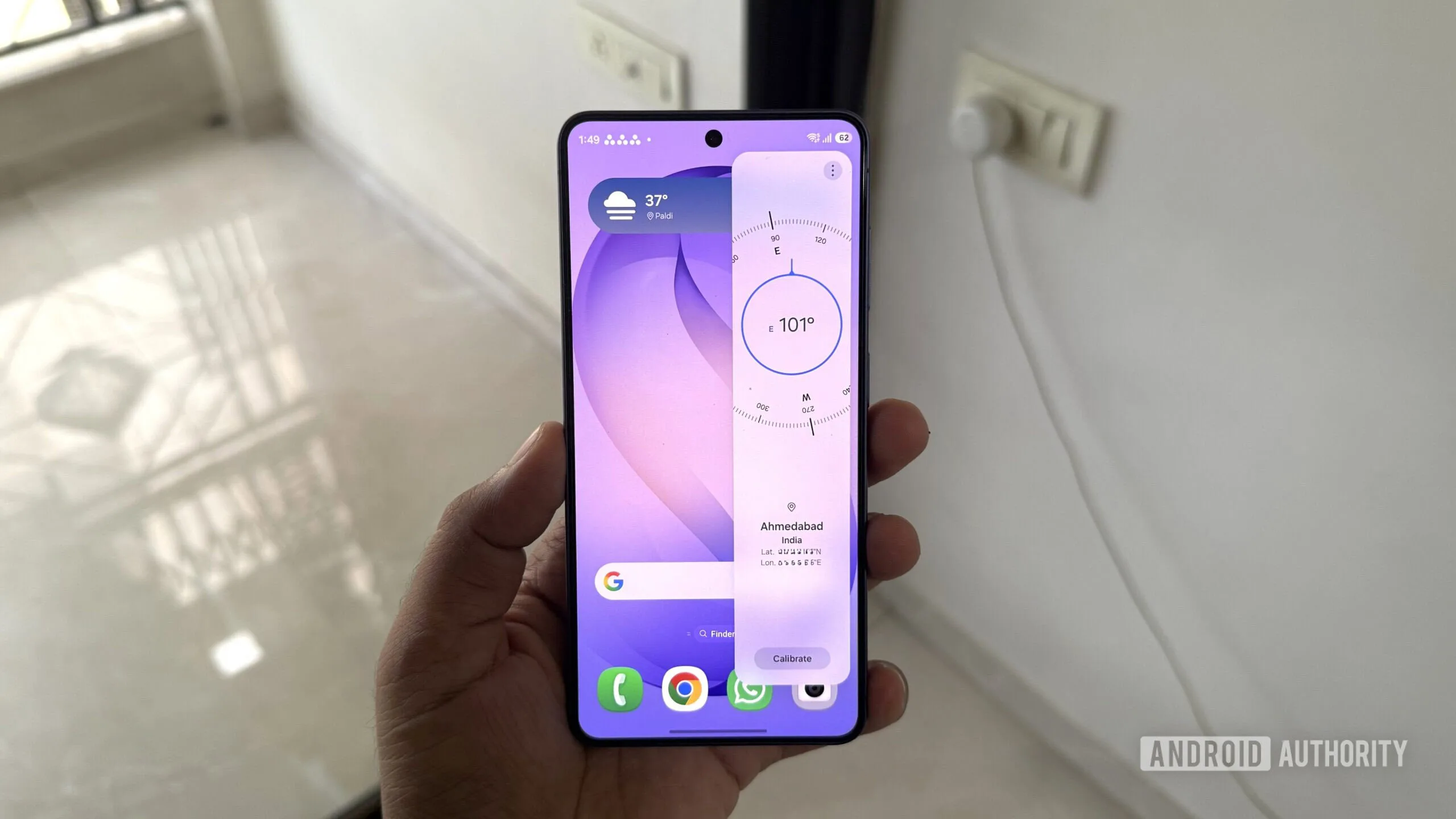
Tap the three-dot menu inside the same panel and choose Ruler, and the right edge of your phone physically becomes a measuring ruler. It supports both centimetres and inches, and there’s a calibration option if you want to push the accuracy further. It sounds like a gimmick until you’re trying to measure something while your tape measure is in the garage and your phone is in your hand. Both the compass and ruler are Samsung hidden features worth keeping the Edge Panel active for.
Your Camera App Has a Document Scanner Built Right In
Third-party document scanning apps have a peculiar business model: scan a single page, get interrupted by a rating prompt, repeat. It’s one of those minor software annoyances that people tolerate because they assume there’s no alternative. There is, and it’s been sitting inside the Galaxy Camera app the entire time — making it one of the most practically useful Samsung hidden features most people overlook.
Point the rear camera at any document and One UI detects it automatically. Hit Scan, and it saves the page. The built-in editor handles corner adjustments, filter application, and even cleans up common problems — a stray finger in the frame, a folded corner, the moire pattern you get when photographing printed material under certain lighting. Finished scans can be saved as an image or exported as a PDF.
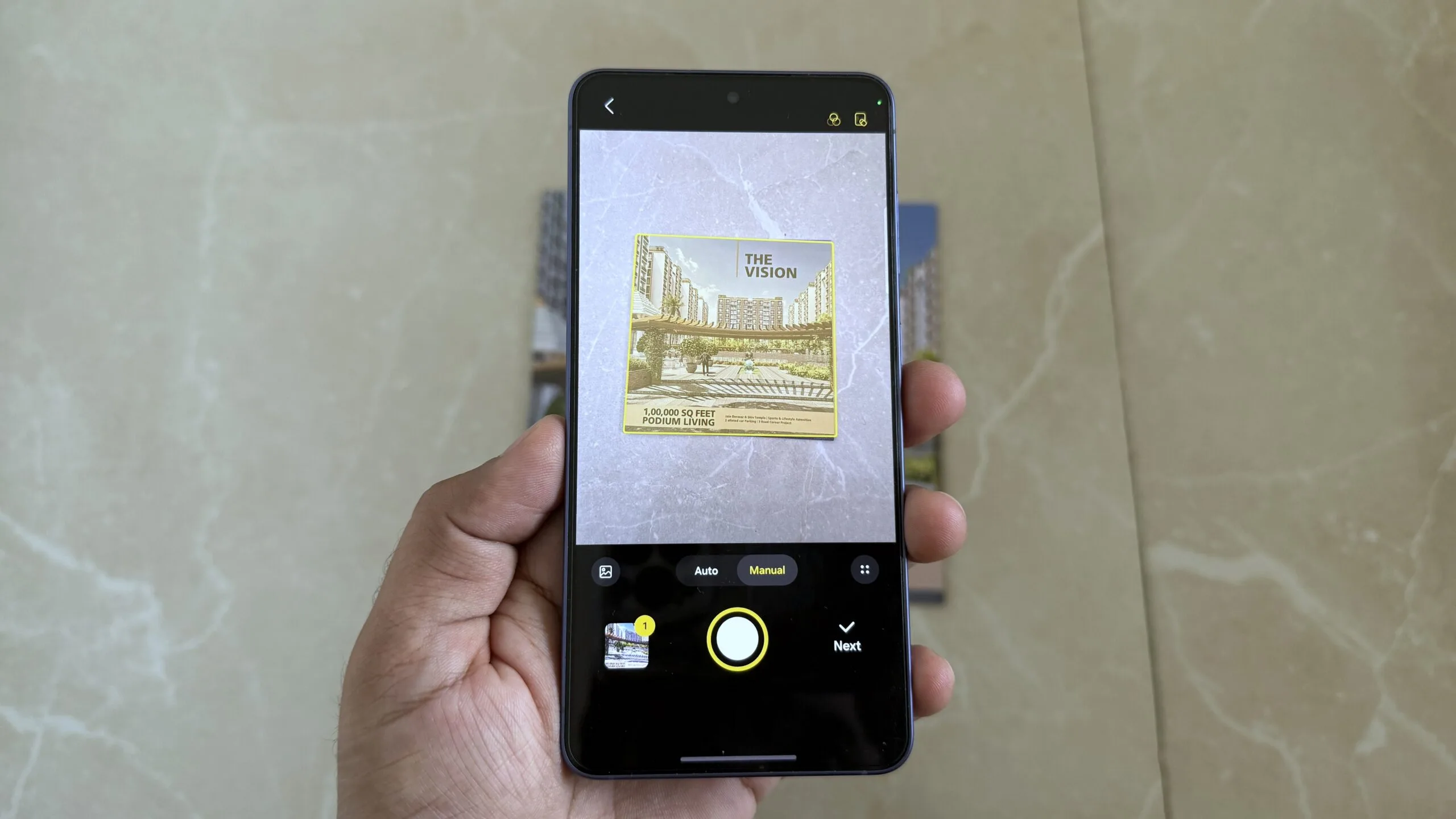
There’s a meaningful asterisk here, though. The ability to scan multiple pages and edit them together is currently exclusive to the Galaxy S26. Owners of earlier models can scan single pages but will need to wait for a software update if Samsung decides to extend the feature more broadly. It’s a slightly odd choice to gate a software capability behind a specific handset — but it does give Samsung something tangible to advertise as an S26 differentiator beyond the usual camera and performance upgrades.
Samsung Hidden Features Include a Full Wi-Fi Signal Inspector
Router placement is one of those home networking problems that feels simpler than it is. You move the router into the living room. Coverage improves in the living room and gets worse in the kitchen. Move it again. Repeat. Most people end up guessing based on signal bars — which aren’t particularly informative — rather than hard data. Connectivity Labs is one of those Samsung hidden features that turns guesswork into something measurable.
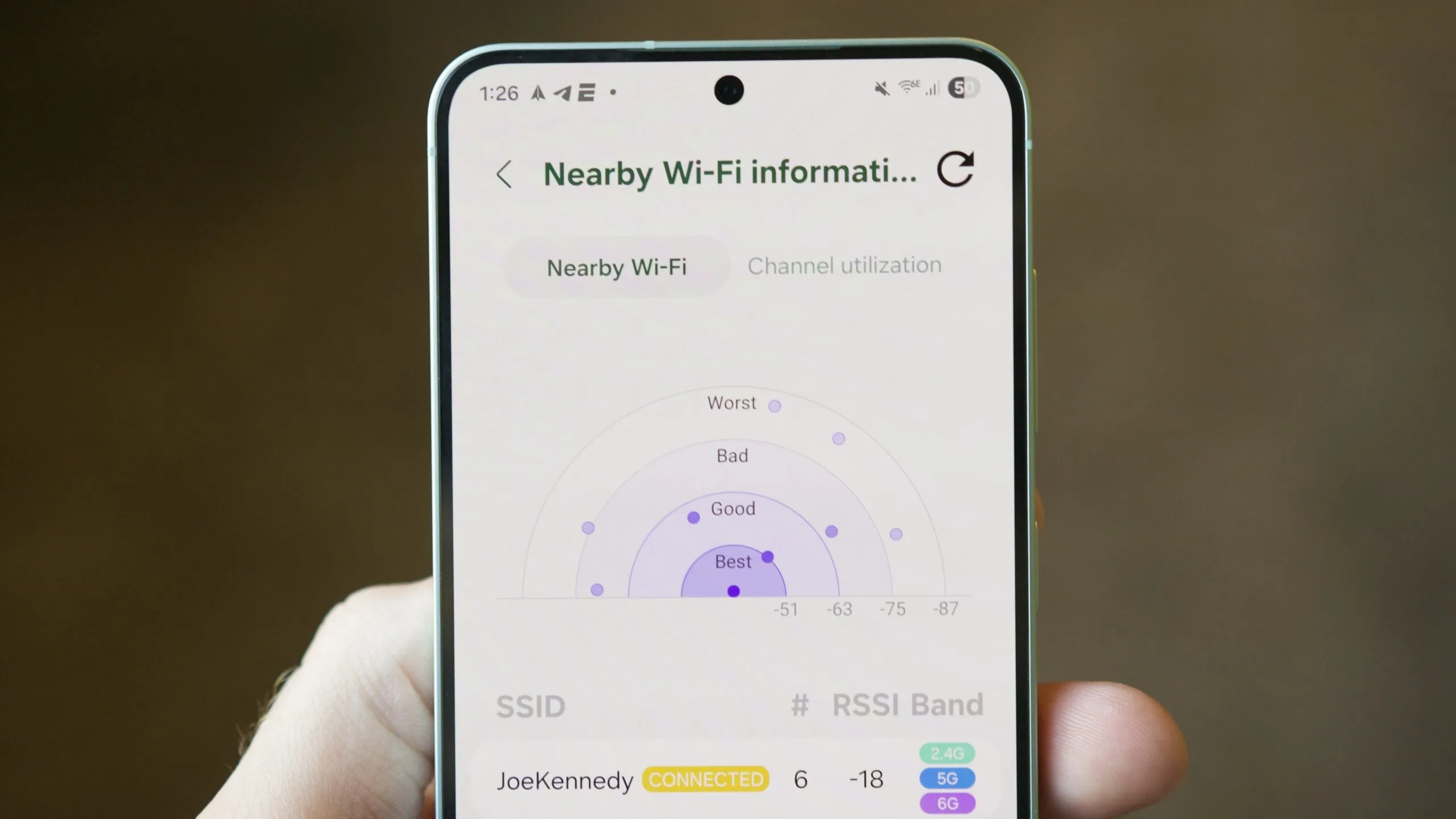
Samsung’s Connectivity Labs changes that, and it’s accessed through what can only be described as a cheat code. Go to Settings, then Wi-Fi, tap the three-dot menu, choose Intelligent Wi-Fi, scroll to the bottom, and tap ‘Intelligent Wi-Fi’ repeatedly until a hidden menu called Connectivity Labs appears. Yes, repeatedly. Samsung has essentially hidden a professional-grade diagnostic tool behind a tap count.
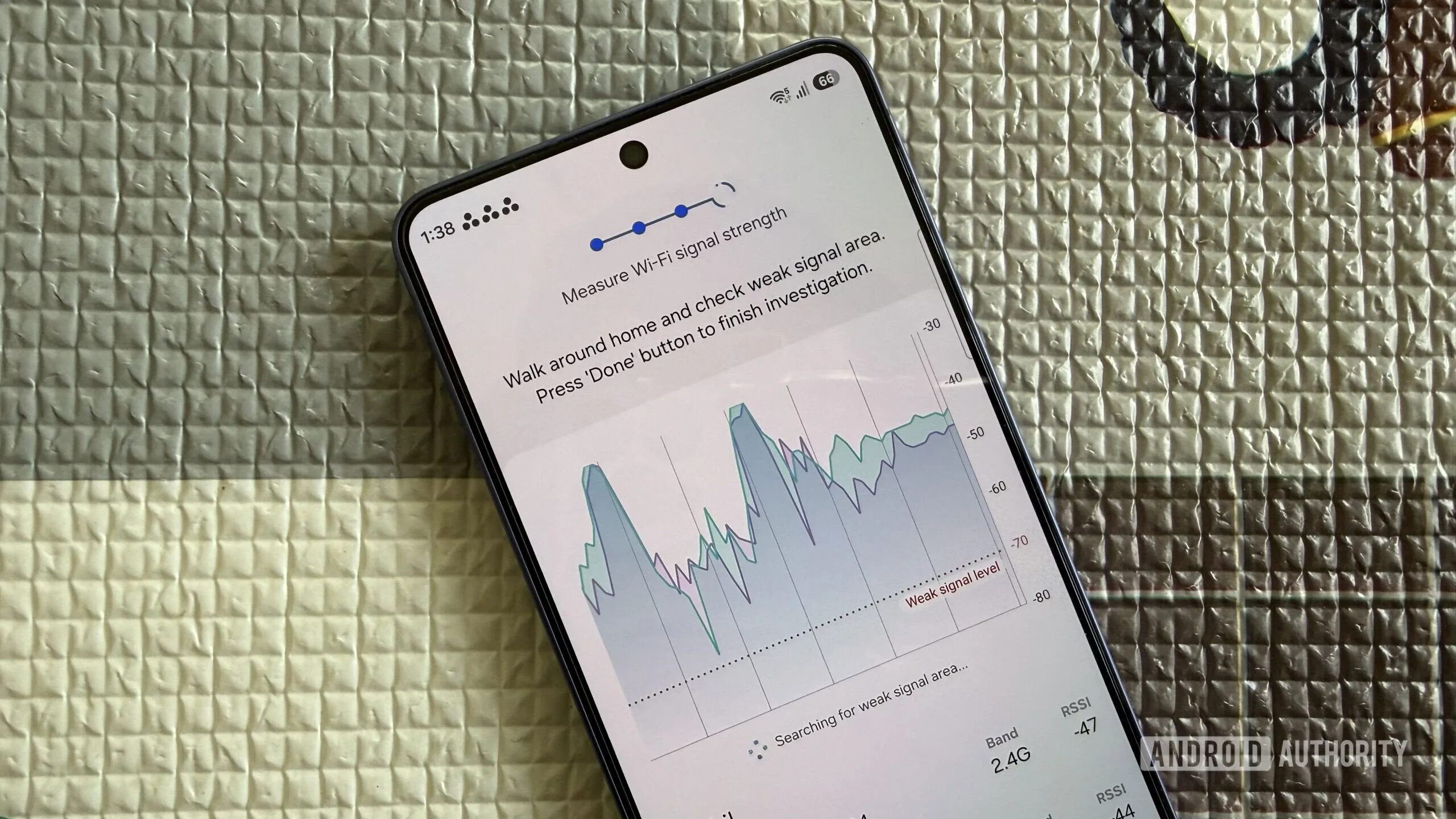
Inside, the Home Wi-Fi inspection tool lets you walk around your home while your phone records signal strength in real time, then generates a graph you can review afterwards. It supports testing multiple networks simultaneously — so you can directly compare how your router’s 2.4GHz band holds up in the back bedroom versus the 5GHz band, rather than switching between them manually and trying to remember the numbers. For anyone who’s ever placed a mesh node based purely on instinct, this is a genuinely useful data-driven alternative.
Bixby Vision Is More Useful Than Its Reputation Suggests
Bixby has carried the weight of being Samsung’s perpetually unloved assistant for years. Compared to Google Assistant or, more recently, the Gemini integration baked into Android, it doesn’t compete on conversational AI. But nestled inside Bixby Vision — accessible through the More tab in the Camera app, or directly from the app drawer — are a few Samsung hidden features that do things the competition doesn’t.
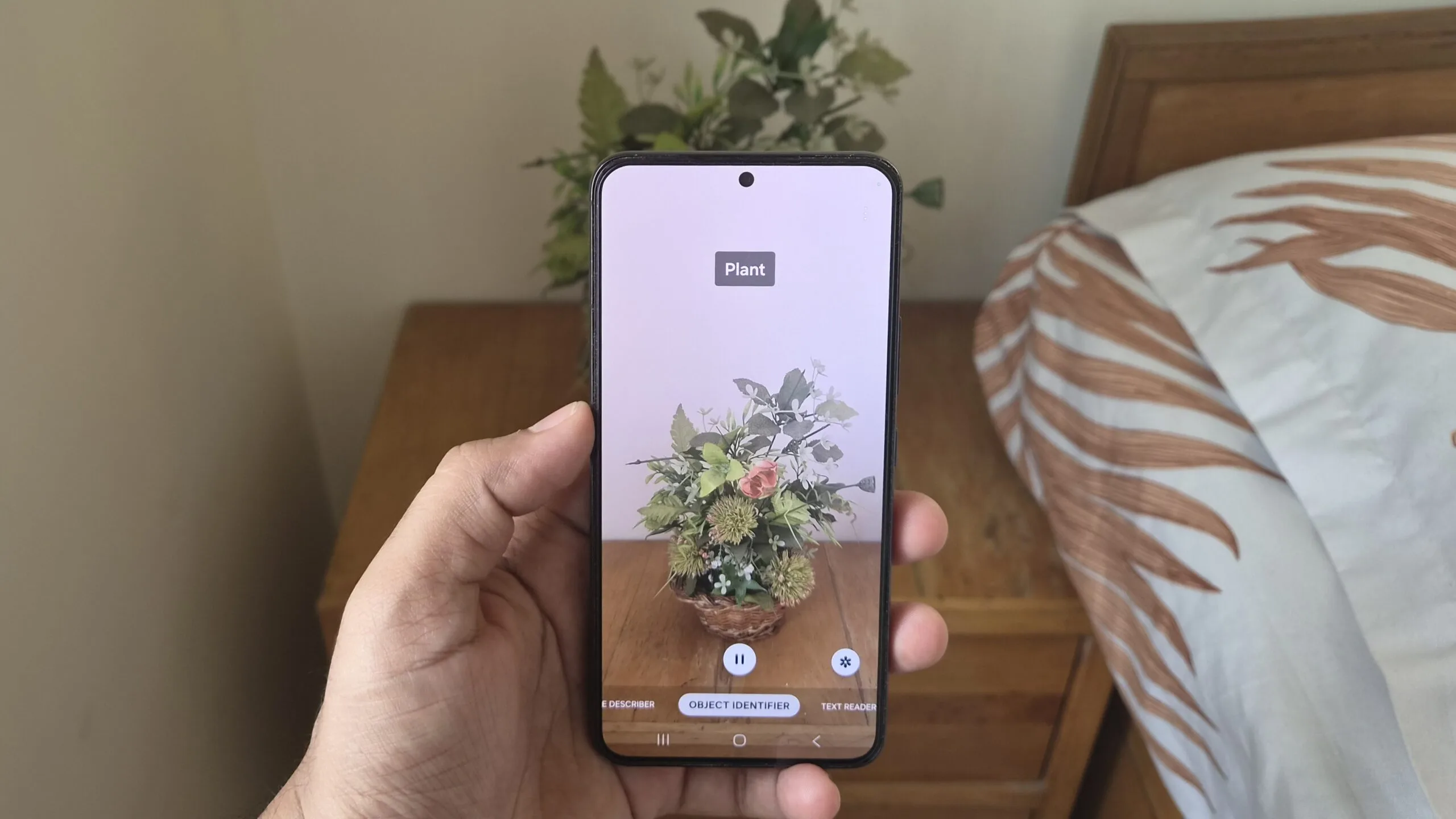
The Object Identifier uses your camera to recognise items in real time. It’s not Google’s Circle to Search, which pulls up actual product listings and contextual web results. Point it at a keyboard and it tells you it’s a keyboard, not the specific model or where to buy one. More useful in practice is the Colour Detector, which identifies exact colour names from whatever the camera points at — handy for design work, or for matching paint without a swatch. The standout, though, is the Text Reader. It functions like a magnifying glass for fine print, reading aloud or displaying enlarged text from product labels, receipts, or anything with type too small to comfortably read. For anyone who’s near-sighted, or simply standing in a badly-lit supermarket aisle, it’s one of those Samsung hidden features that earns its keep quietly.
Quick Measure Turns Your Phone Into a Surprisingly Capable Tape Measure
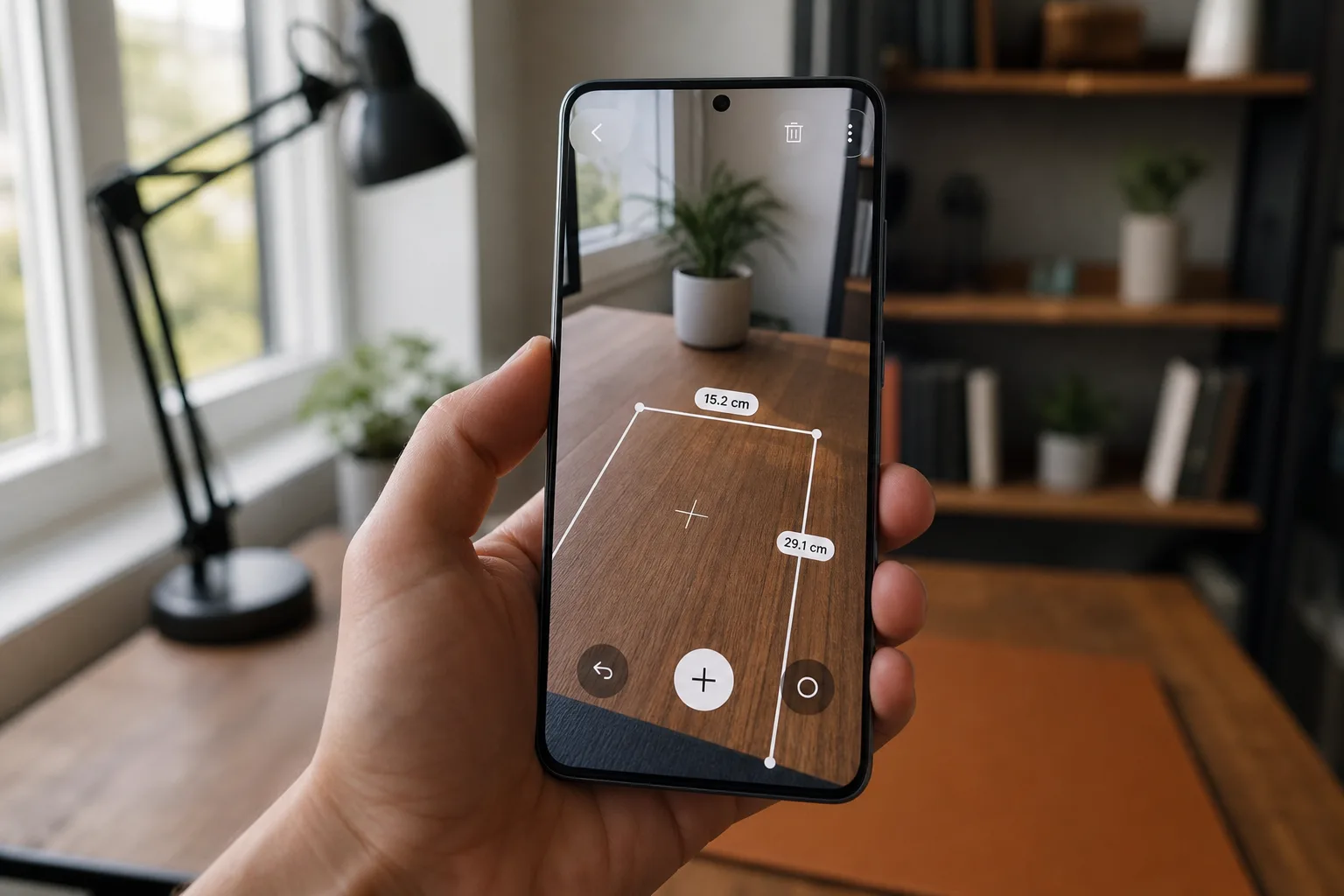
This is probably the one that raises the most eyebrows, because the claim sounds overblown until you actually try it. Samsung’s Quick Measure app — available as a free download from the Galaxy Store — uses AR technology and the depth-sensing hardware present in most modern Galaxy phones to calculate distance, area, volume, and height. It’s a strong example of Samsung hidden features that feel like third-party apps but ship with the device.
Open the app, point the camera at an object, and it immediately shows you how far that object is from the lens. Point at a rectangle and it auto-detects the shape, then calculates length, width, and area without you having to select anything manually. It’s accurate enough for practical tasks — checking monitor distance, estimating furniture clearance, getting a rough ceiling height before ordering a lampshade. It won’t replace a laser measure on a building site, but for the everyday moments when precision matters and a tape measure isn’t handy, it does the job.
What’s notable about all five of these tools is how they reflect Samsung’s broader approach to One UI: pack in more capability than any competitor’s Android skin, then document it poorly enough that users spend years missing half of it. That’s a strategy that creates pleasant surprises — but it also means Samsung is leaving genuine value on the table. As AI-powered feature discovery becomes more common across Android (Google’s own on-device AI is already surfacing contextual suggestions), there’s a real opportunity for Samsung to use its considerable AI investment not just to add more Samsung hidden features, but to actually surface the ones people already own. A personalised ‘you haven’t tried this yet’ nudge inside One UI could be more valuable than the next hardware spec bump.
Frequently Asked Questions
Where can I find Samsung hidden features like the Wi-Fi inspection tool?
Head to Settings, then Wi-Fi, tap the three-dot menu, and choose Intelligent Wi-Fi. Scroll to the bottom and tap ‘Intelligent Wi-Fi’ repeatedly until the Connectivity Labs option appears. From there, select Home Wi-Fi inspection to start mapping signal strength around your home.
Is the document scanner on Samsung Galaxy phones any good?
It’s genuinely capable. Samsung’s built-in document scanner inside the Camera app auto-detects documents, lets you apply filters, correct corners, and remove artefacts like moire patterns. You can save scans as images or PDFs, though multi-page scanning is currently limited to the Galaxy S26.
Does Samsung’s Quick Measure app work on all Galaxy phones?
Quick Measure works on almost all Galaxy phones that carry the necessary AR hardware. You’ll need to download it from the Galaxy Store. Once installed, it can measure distance, area, volume, and even a person’s height using your phone’s rear camera.
What can Bixby Vision actually do on a Samsung phone?
Beyond basic object recognition, Bixby Vision includes a colour detector that identifies colours, and a Text Reader that can help you read fine print in real time — genuinely useful if you’re trying to read the small type on a product label or receipt without hunting for glasses.